Lighthouse
A mobile app for the nurses, technicians and managers who keep a hospital's medical devices working, designed for Borda
- Year
- 2021
- Track
- design
- Category
- case-study
Lighthouse is the app a hospital's nurses, biomedical technicians and biomedical managers use to keep its medical devices working. I designed it for Borda in 2021, as the only designer, with two developers, a product manager and a head of product. It shipped to real users on iOS and Android. Borda still develops it. It is one of their flagship products, deployed in large hospitals.
Where it started
When a device broke, reaching the right person meant endless phone calls and WhatsApp messages. Tasks were assigned to the wrong people, and health workers lost a lot of time. We learned this from interviews, a lot of field research in hospitals and customer tickets, and a beta program with one of the largest hospitals kept giving us feedback the whole way through.
The aim was that everybody knows what to do. Less for health workers to carry in their heads, so they can focus on people.
Three people, one set of data
The app has three roles, and they share one set of data. What one of them does shows up for the others as a change in a list and an alert.
- The nurse reports a device that isn't working, confirms the fix, and accepts custody of devices on the ward. Not a device expert, and usually reporting in the middle of a shift.
- The biomedical technician works the repair orders, the planned maintenance and the transfers between branches. The day is a queue, and the time spent on each task is logged.
- The biomedical manager confirms and assigns incoming requests, keeps an eye on the team's open work, reviews retirement requests, schedules maintenance plans and handles contract renewals.
One action, three phones
The phone below runs a working prototype of the app. Pick someone and use it as them. Report a breakdown as the nurse, then switch to the manager, and the report is waiting to be assigned. Every hospital, person and request in it is made up, and a reload starts it over.
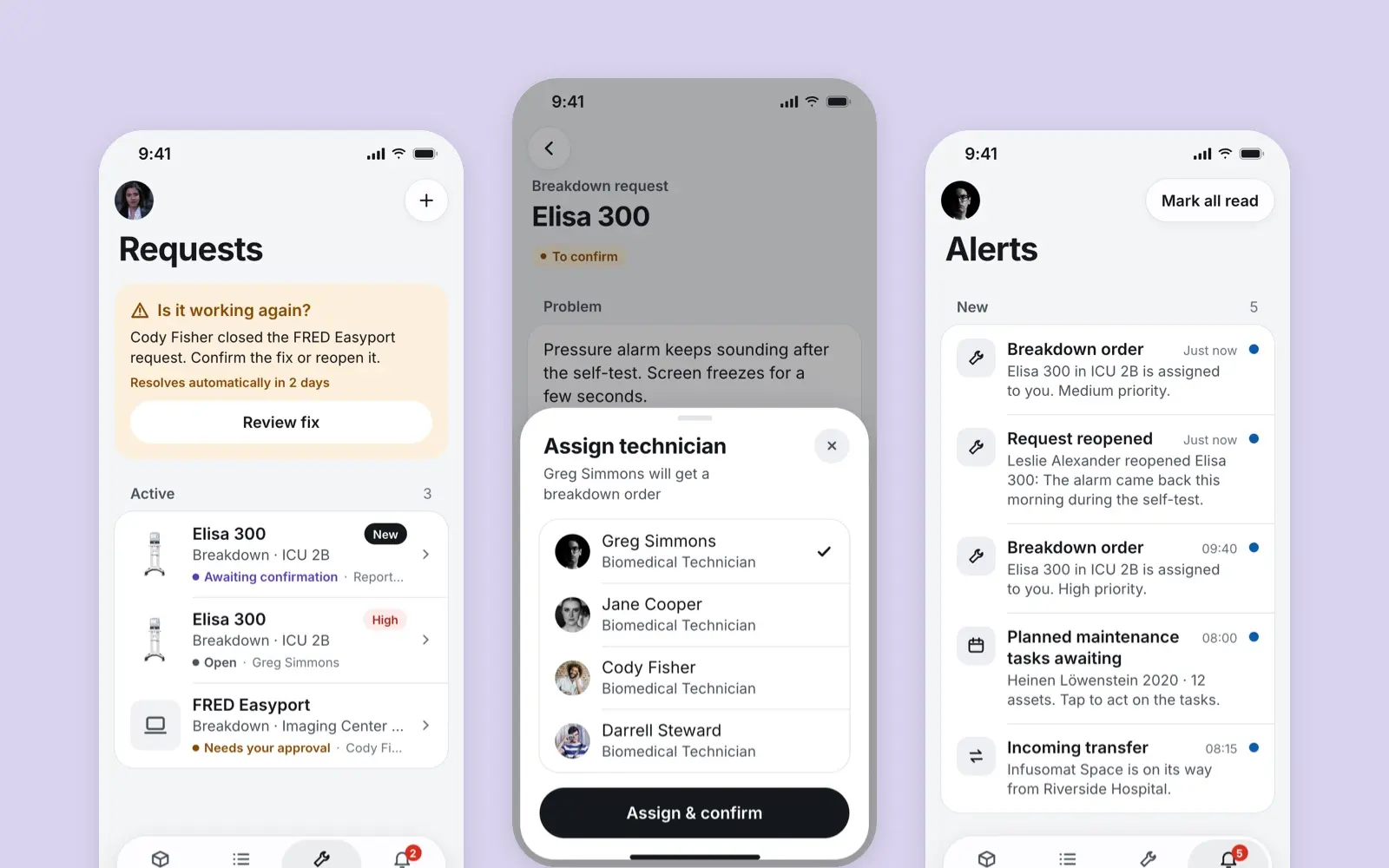
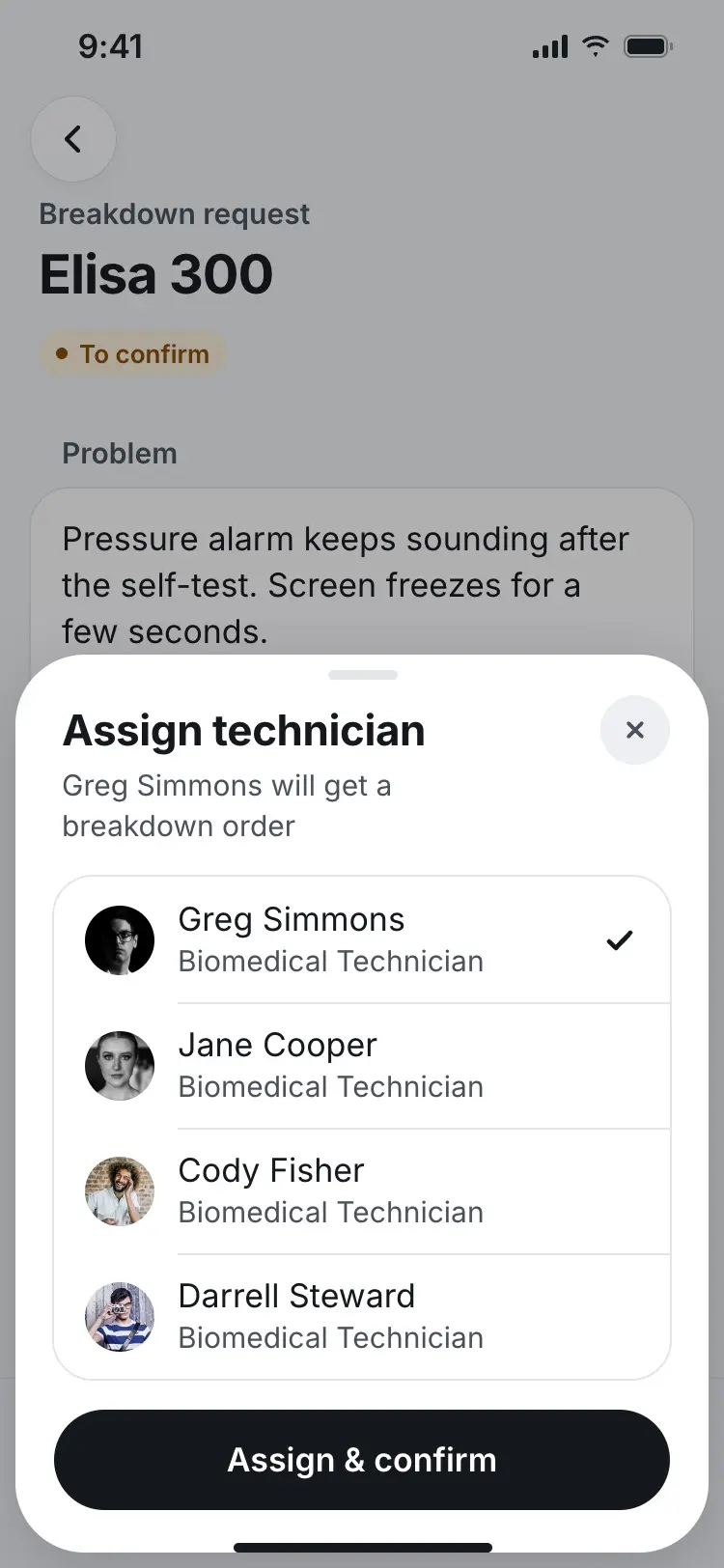
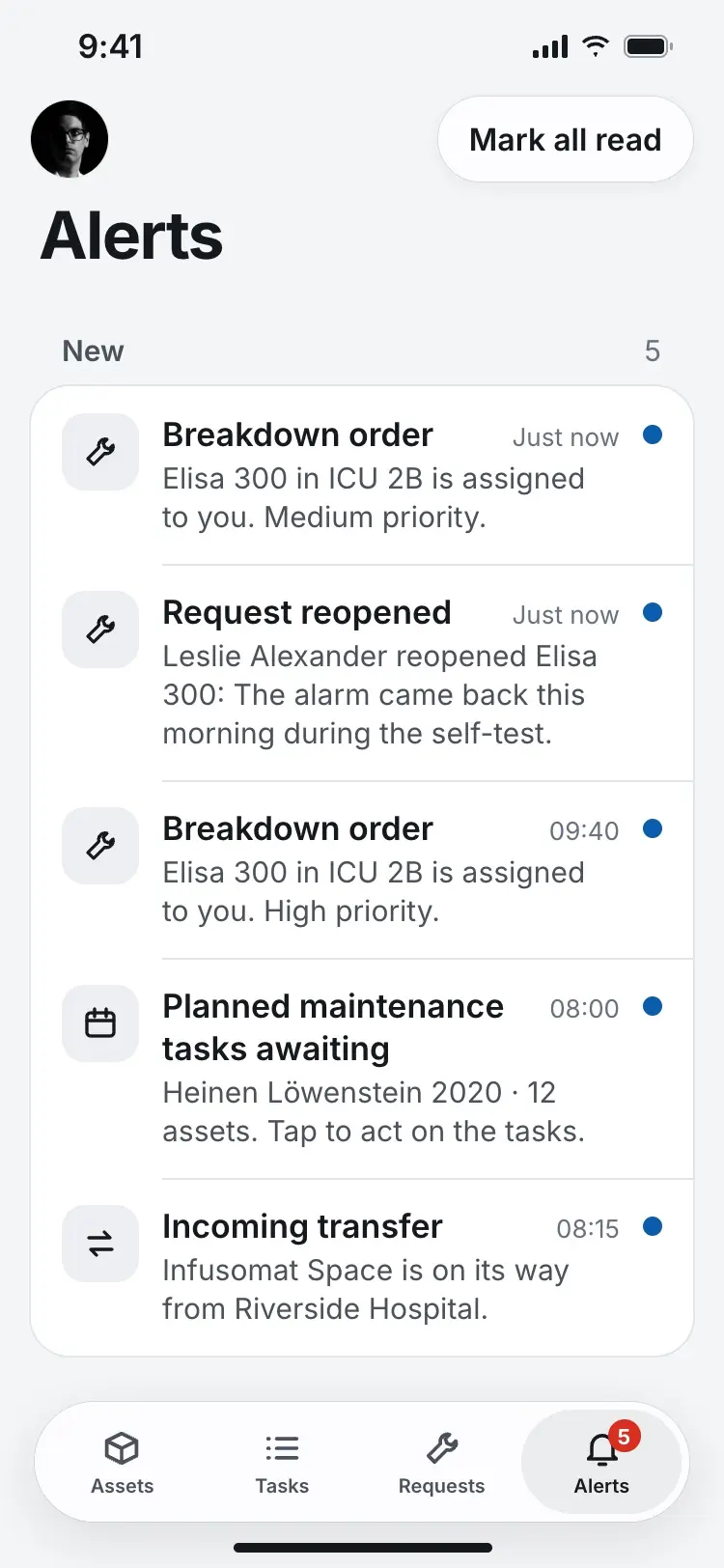
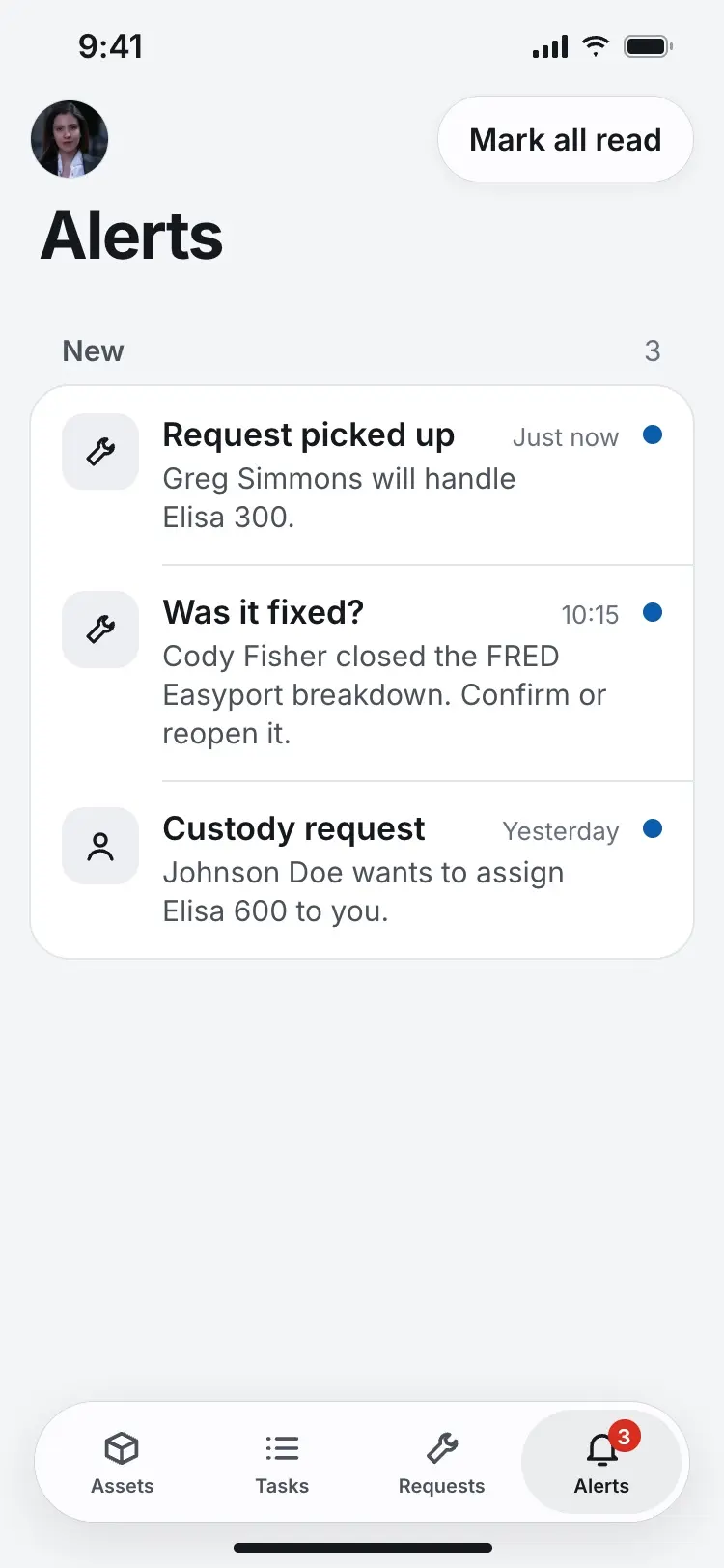
A report goes to a manager first. The manager assigns a technician, the technician gets the order, and the nurse hears who has it.
A report, three phones
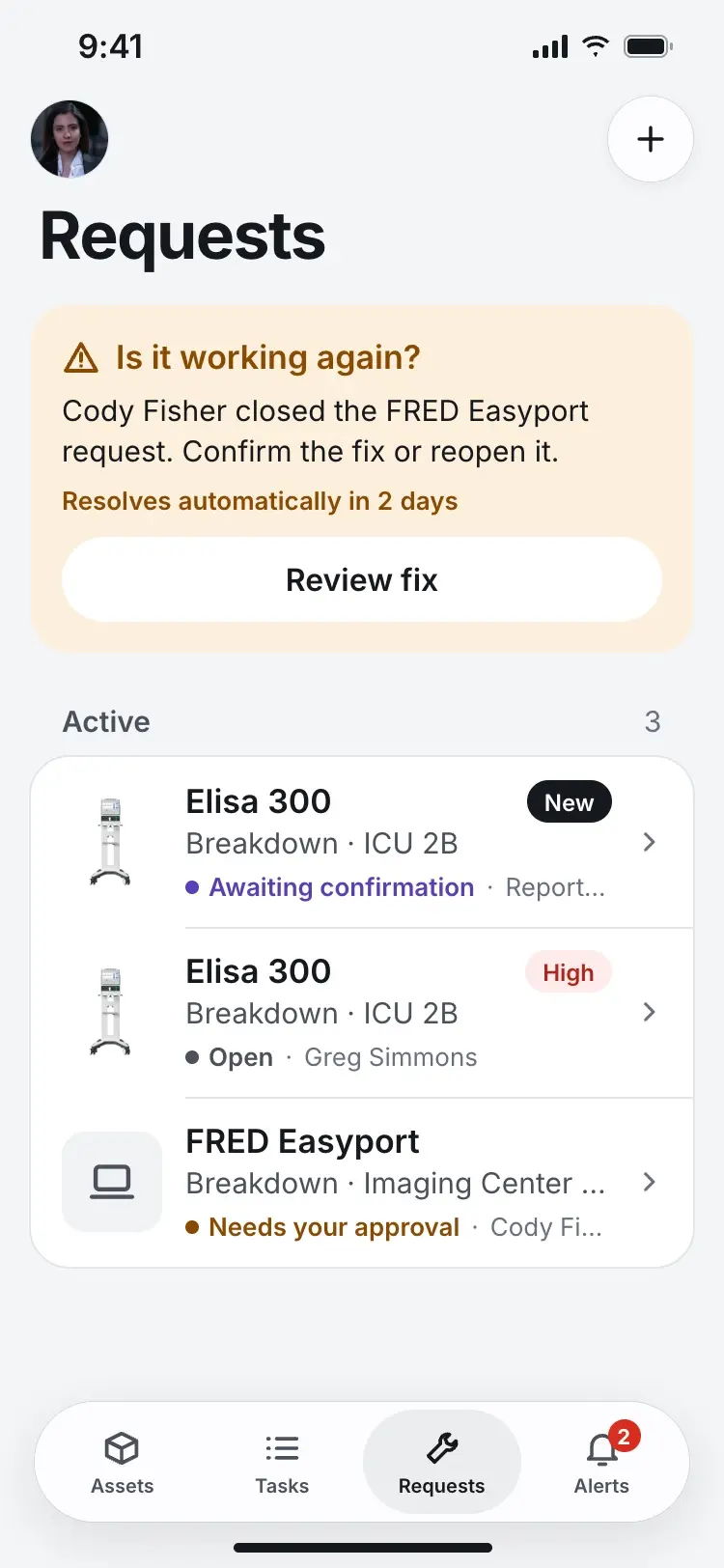
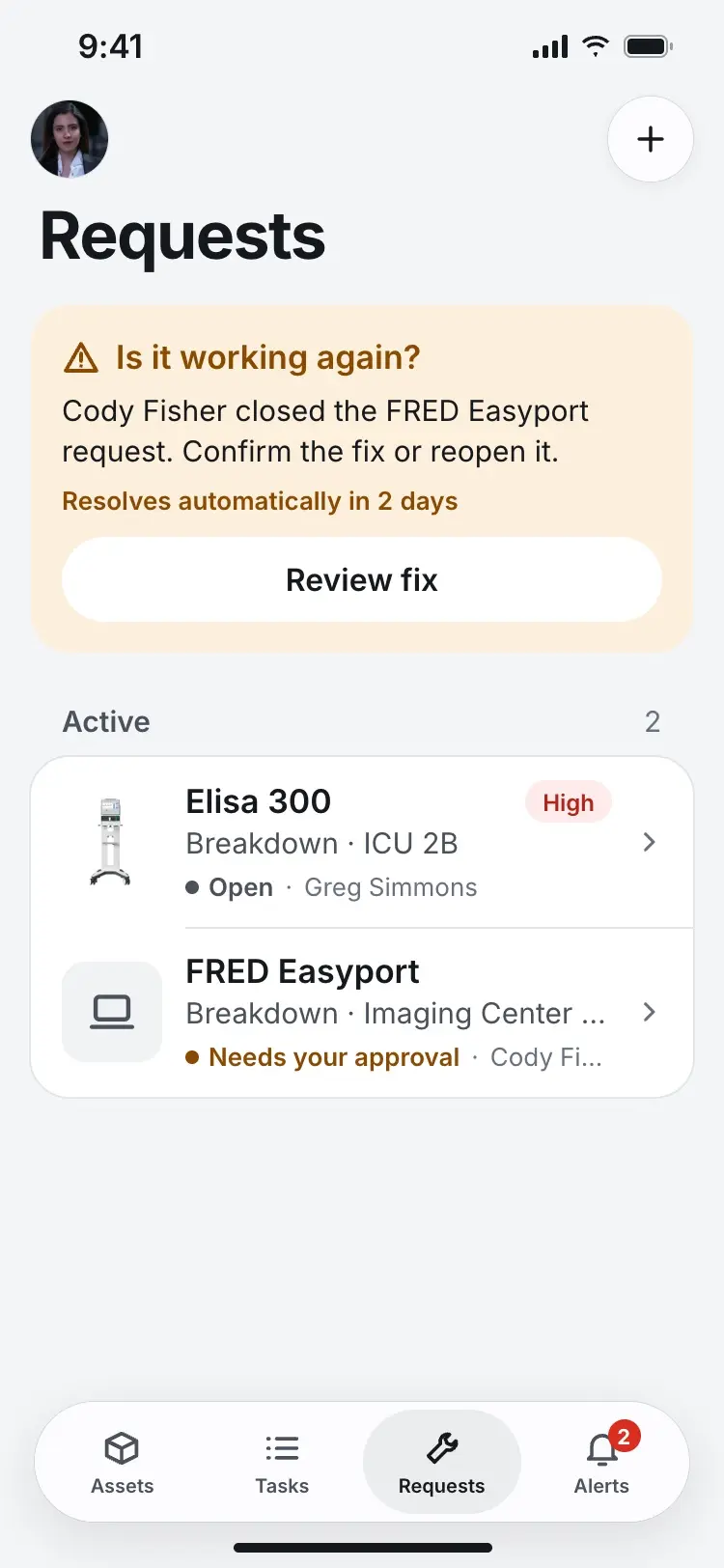
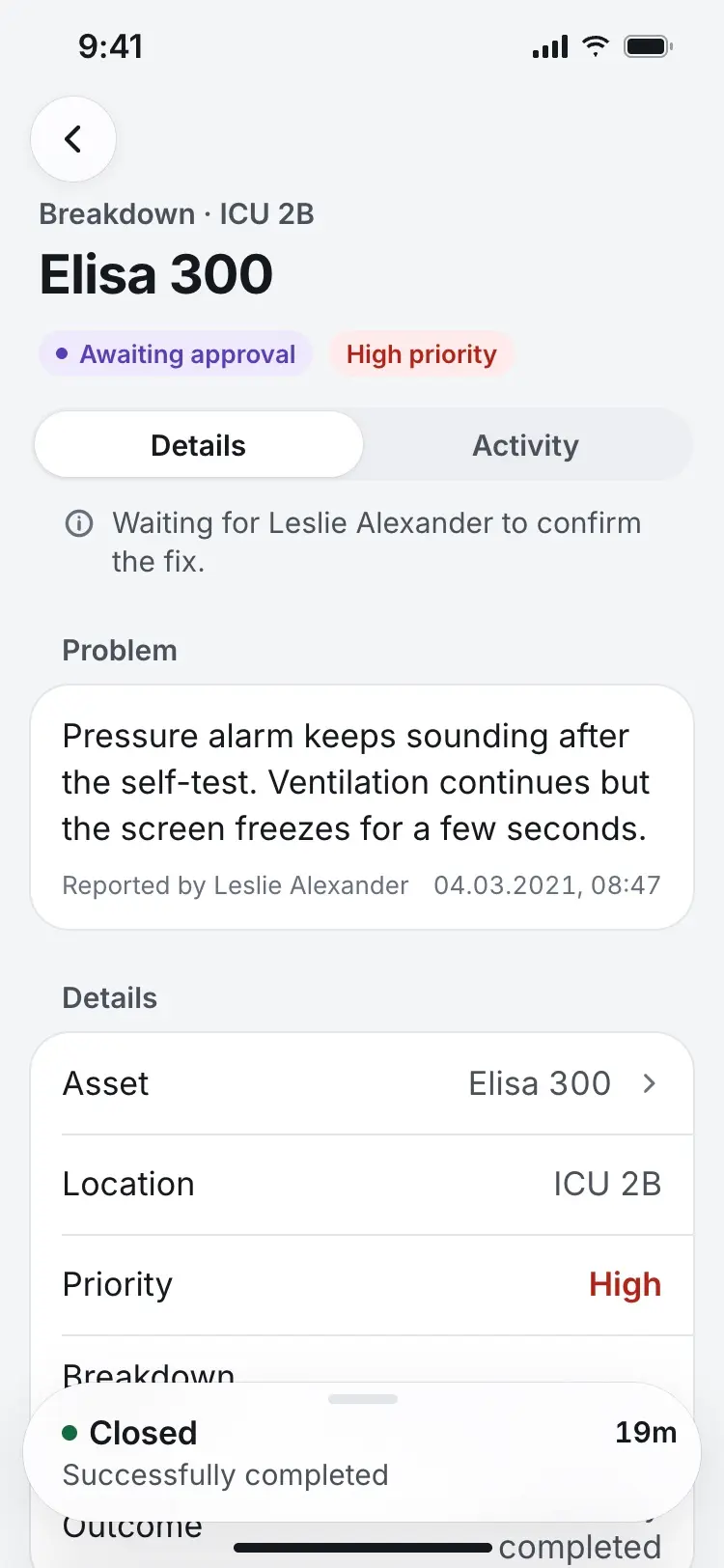
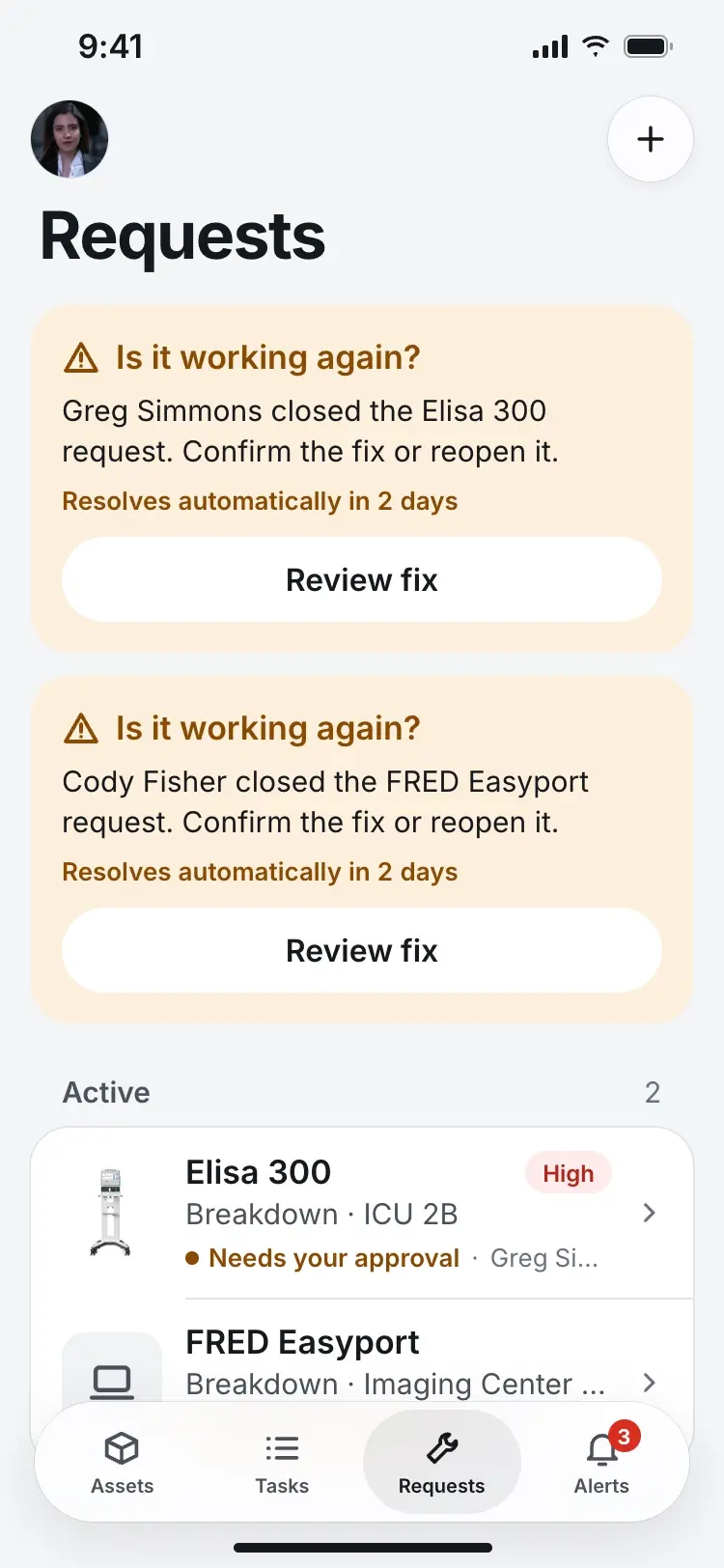
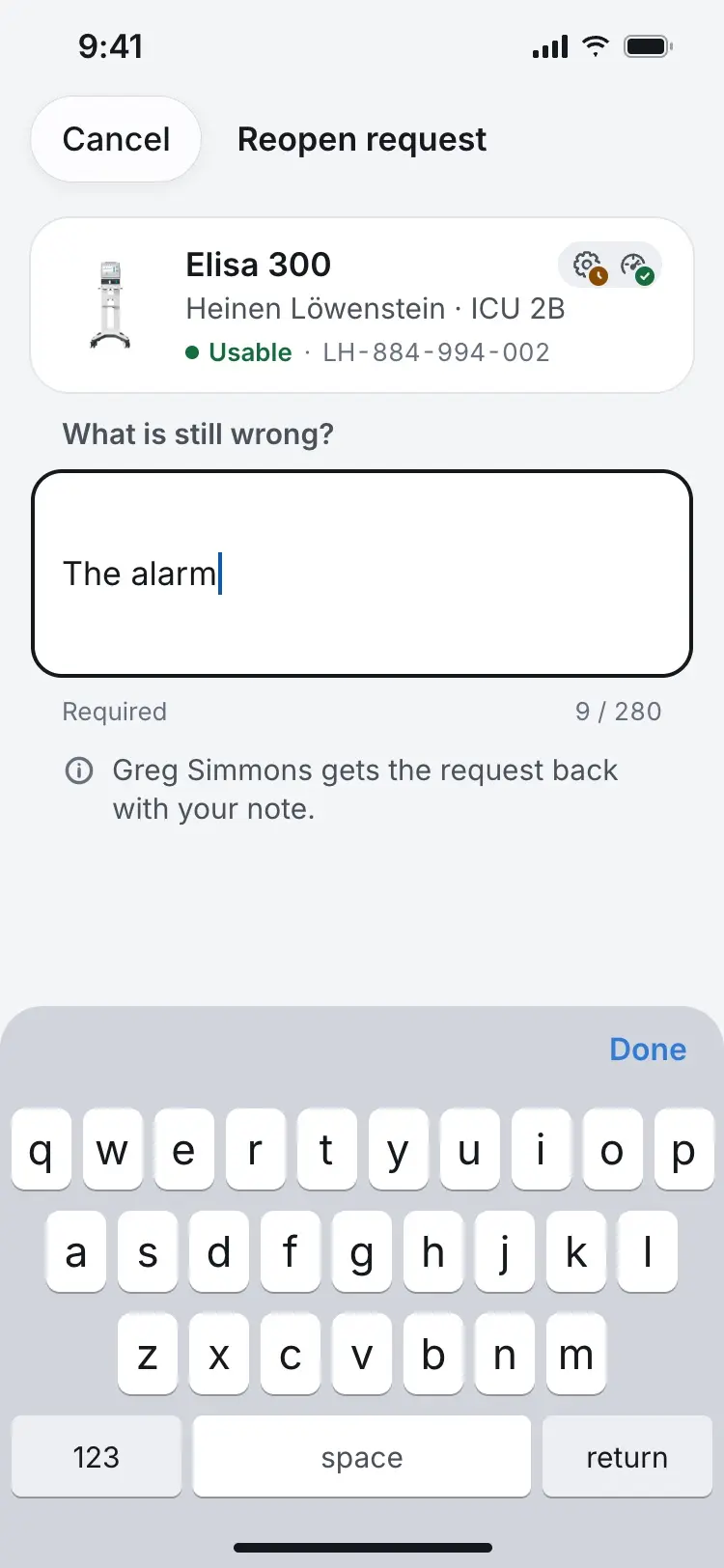
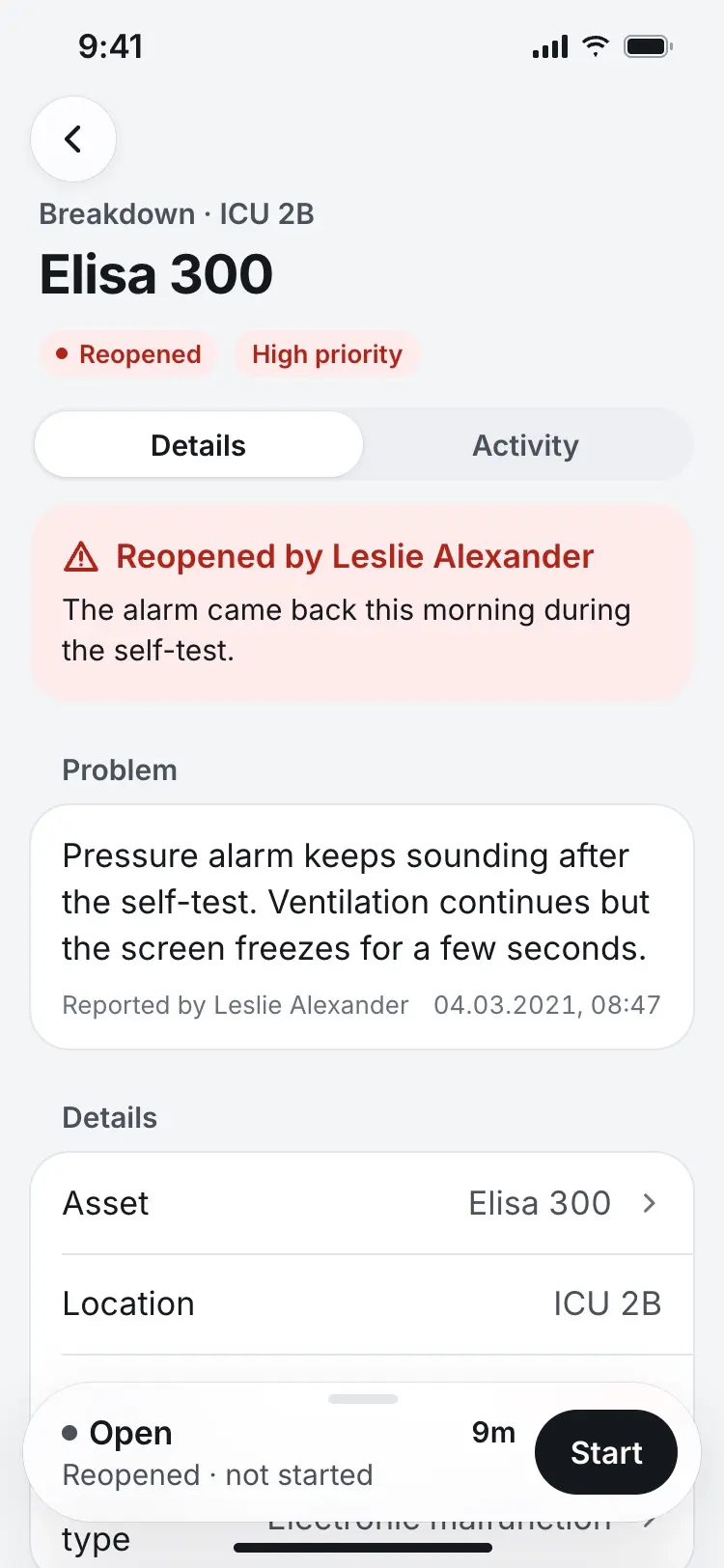
When a technician closes a repair, the person who reported it is asked “Is it working again?” and can confirm the fix or reopen it with a note. Doing nothing resolves it after two days, so a request can't stay open forever. A reopened order goes back to the same technician, with the note in a red banner at the top.
A fix that did not hold
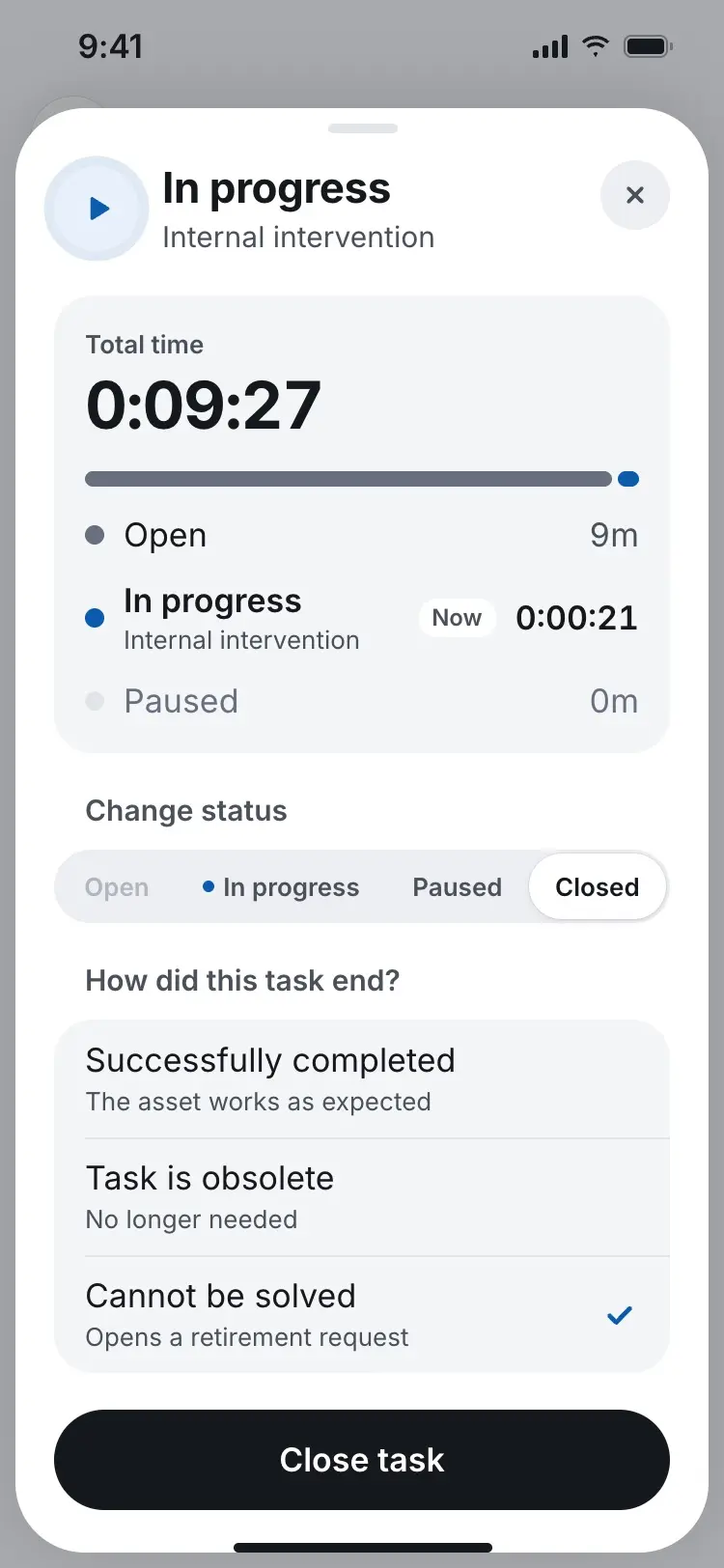
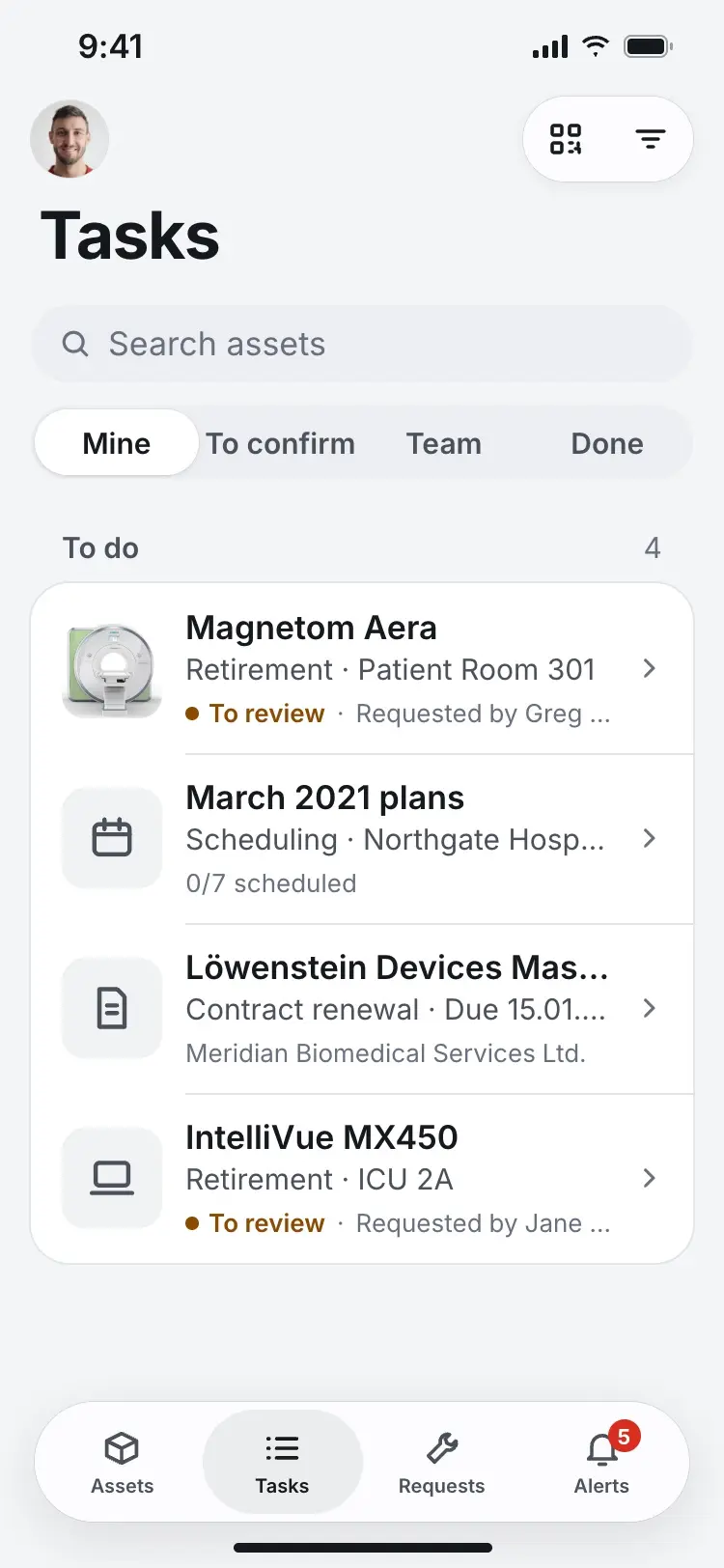
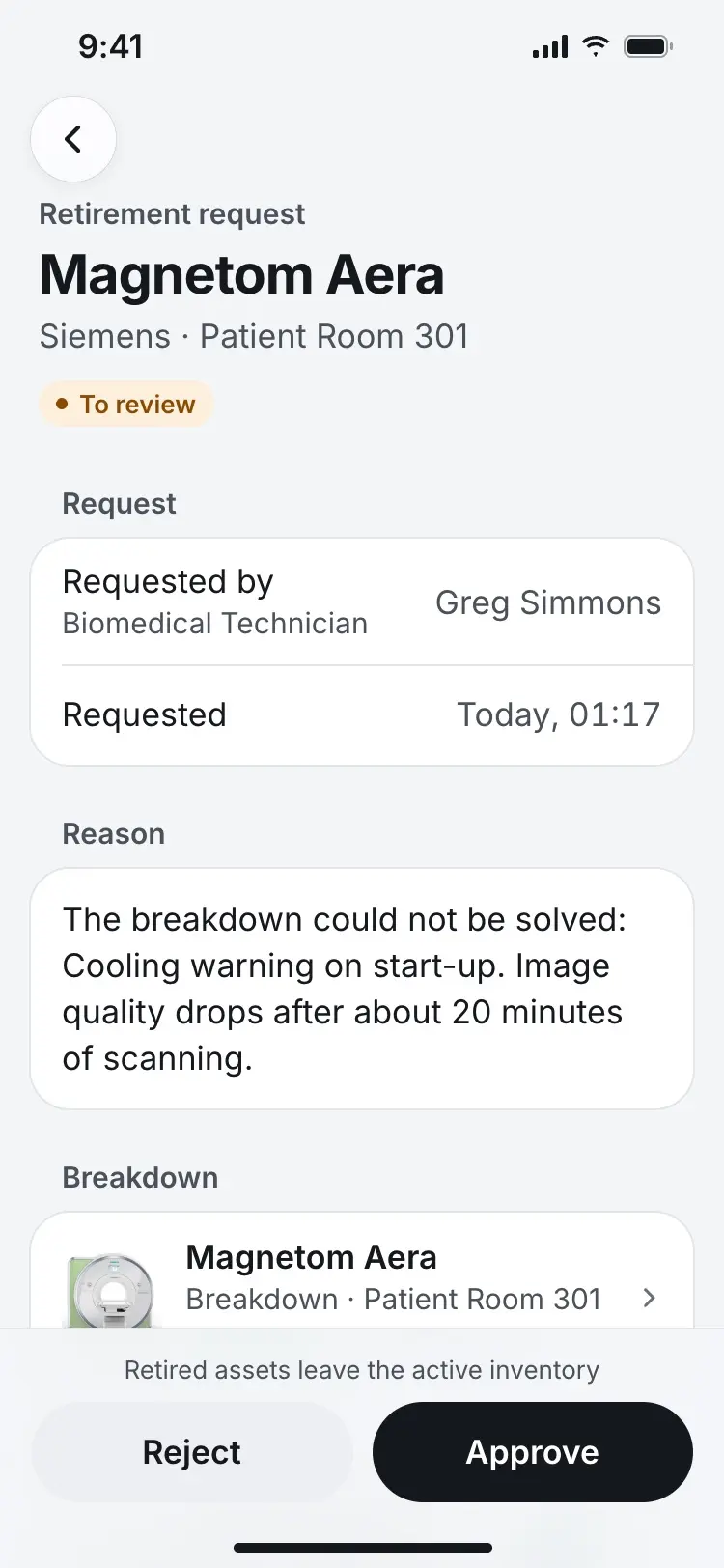
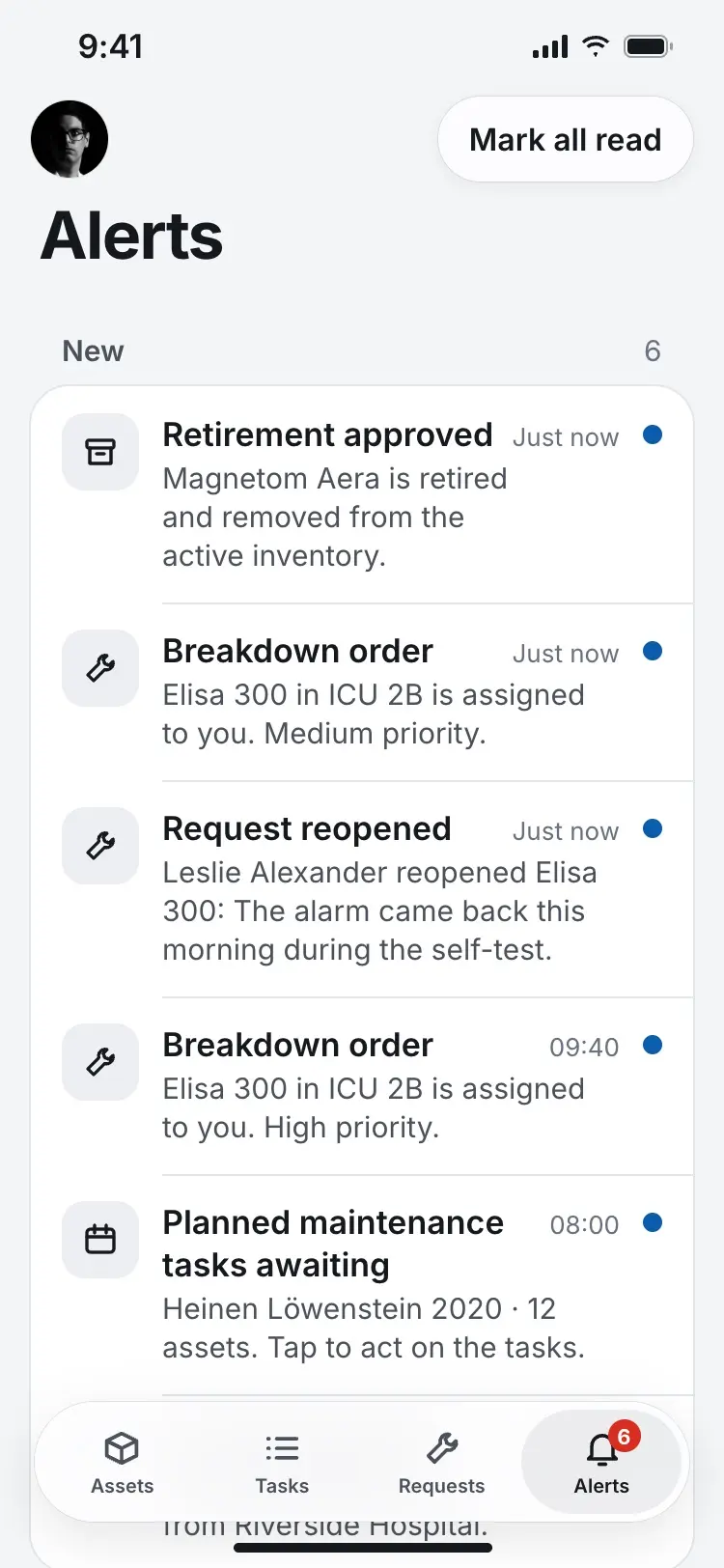
Some devices can't be fixed. Closing an order as Cannot be solved opens a retirement request for the manager, and the technician hears the outcome in Alerts.
A device that cannot be fixed
Whose move is it
Every status colour answers one question: whose move is it? Grey is not started, blue is moving, amber is your move or on hold, purple is waiting on someone else, green is finished and red is a problem. So the same request is amber for the nurse, “Needs your approval”, and purple for the technician who closed it, “Awaiting approval”. Anyone can scan a list and see where they're needed.
In lists, status is a coloured dot and a word. Pills are kept for screen headers, and priority only shows when it's High.
A report in the middle of a shift
The nurse scans the device's code, checks it's the right one, and answers two questions: what's wrong, and can it still be used. Not usable raises the priority to High and marks the device Down everywhere it appears. Documents are optional, scanned with the camera. By default the report goes to a manager to confirm. The nurse can also pick people directly, and then they get the order straight away.
One primary action
Each screen has one primary action. The bottom bar holds actions only and goes away when there's nothing to do, since the header already shows the status. Sheets close with an × at the top, so the bottom only holds the primary action.
The technician's orders put this into one bar. Status, the time in that status and the next move sit together at the bottom of the order. Each state has one primary, Start, Close or Resume, with Pause as a smaller button beside it. Pausing asks what it's waiting for: parts, service or approval. Closing asks how it ended: completed, obsolete, or cannot be solved. Pulled up, the bar shows the total time split by status, which is what the time log needs.
Condition first
On every asset, condition comes first: Usable, Caution, Partial down, Down, Retirement requested or Retired. It follows the device's open breakdowns. Maintenance and calibration sit under it, each with a state and a date, and lists show them as two small icons at the end of the title line.
Left on the desktop
Contract renewals stay on desktop. On the phone the manager can see the contract and its files and set a reminder, and Renew explains that renewals happen on desktop and offers to email a link.
Screens
Nurse — Report a breakdown
A repair someone else closed, and a list coloured by whose move it is. 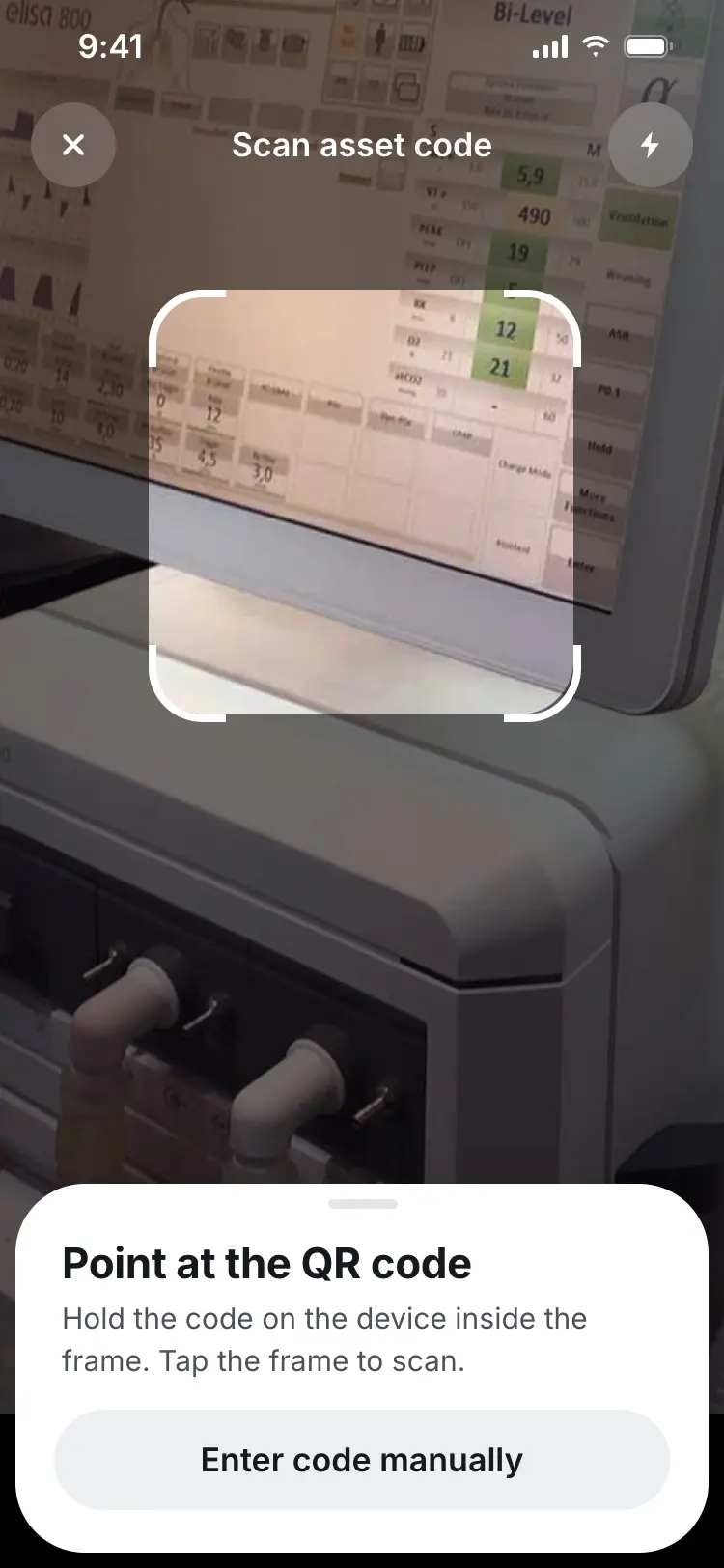
Reporting a breakdown starts with scanning the device, not filling out a form first. 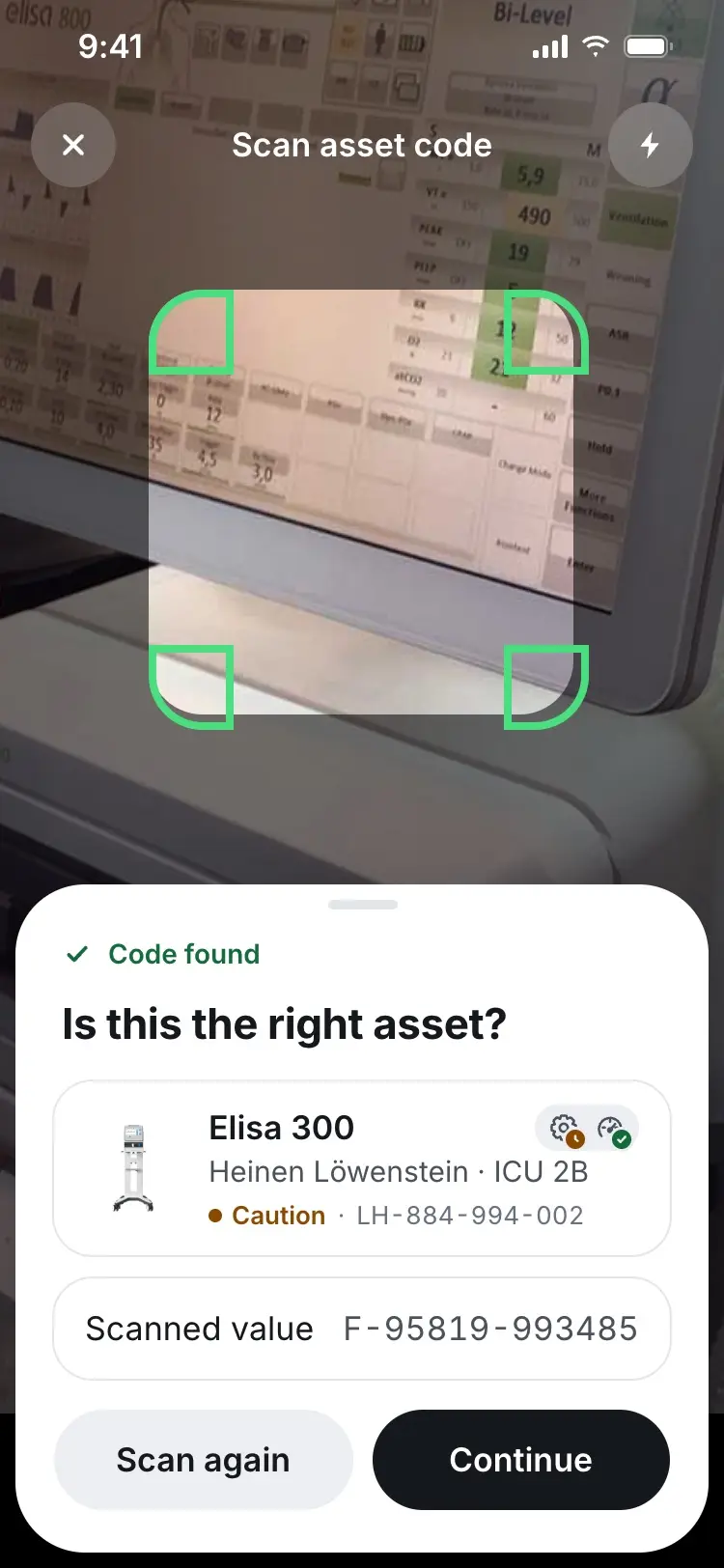
The scan resolves to a specific device before any details are entered. 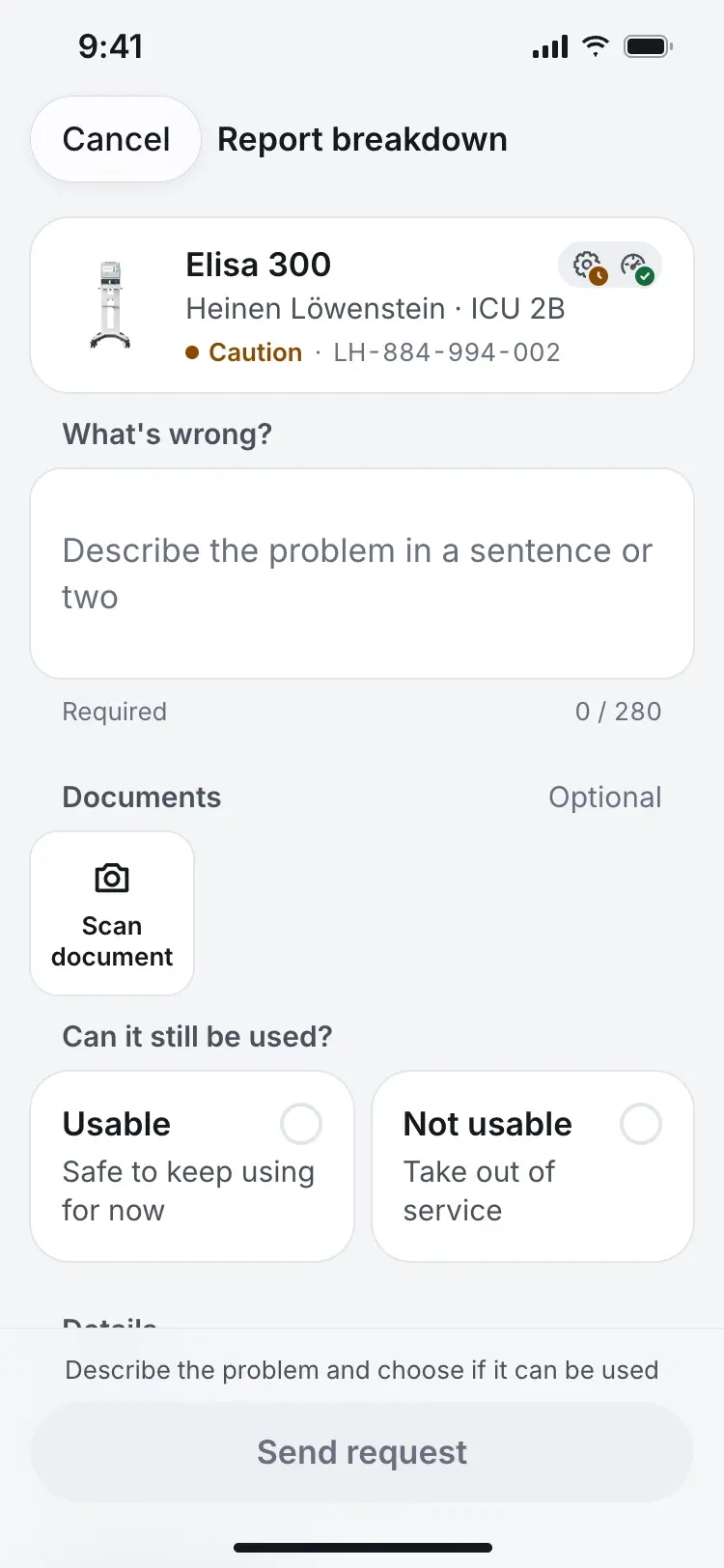
The report asks only what's wrong and whether the device can still be used. 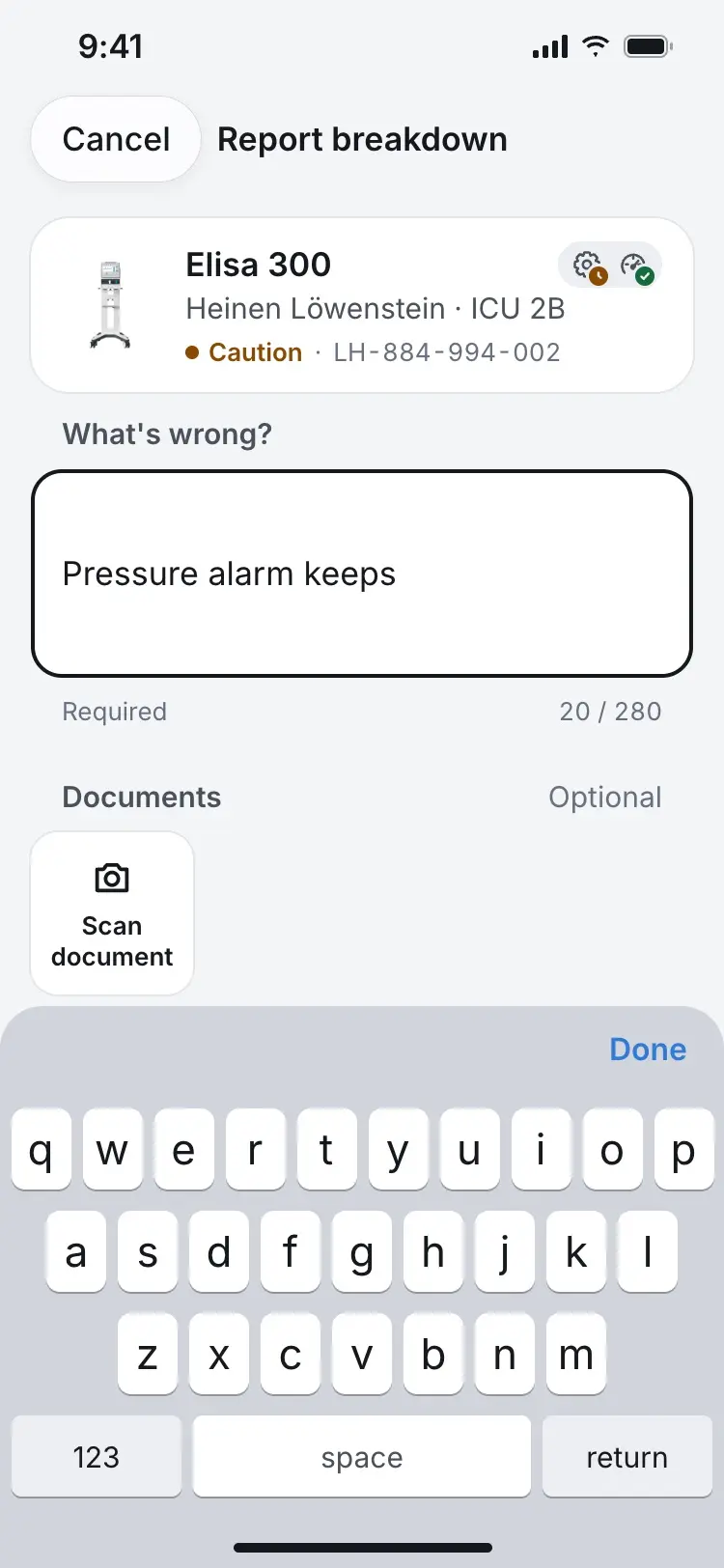
The problem, in the nurse's own words. 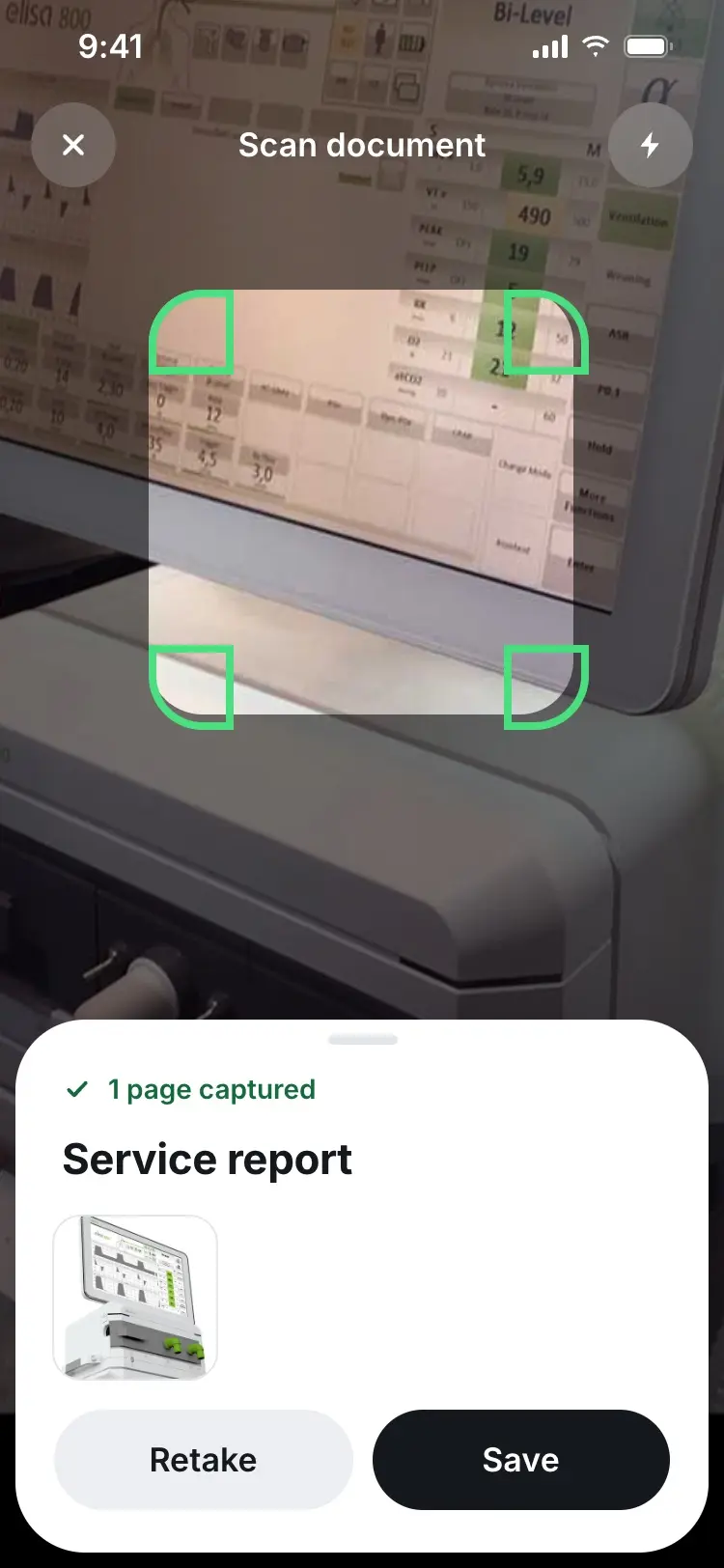
Attaching evidence is optional and handled with the same camera flow as the QR scan. 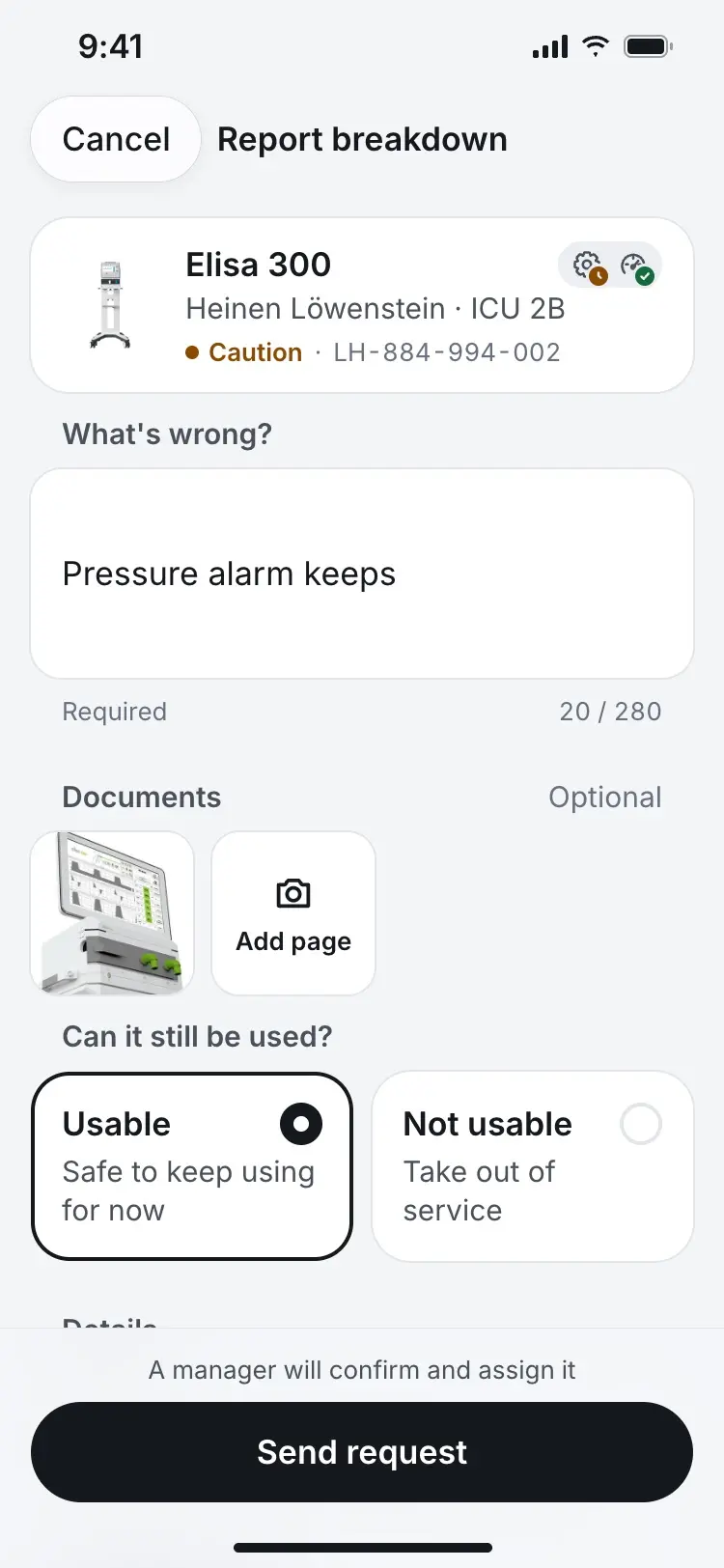
Once usability is set, the request is ready to send to a manager. The sent request appears immediately in the nurse's own list. Nurse — Confirm or reopen a fix
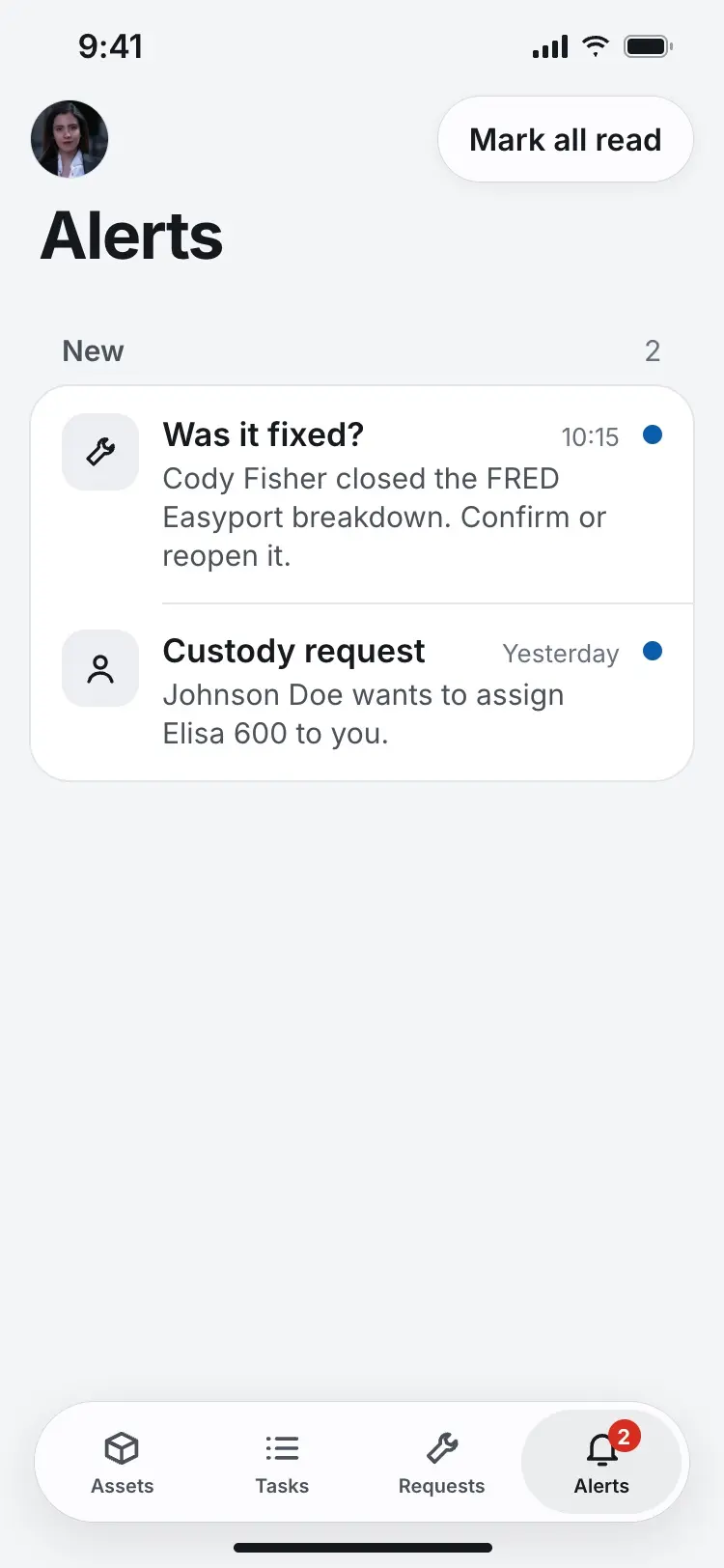
A closed repair comes back to the nurse as a question. 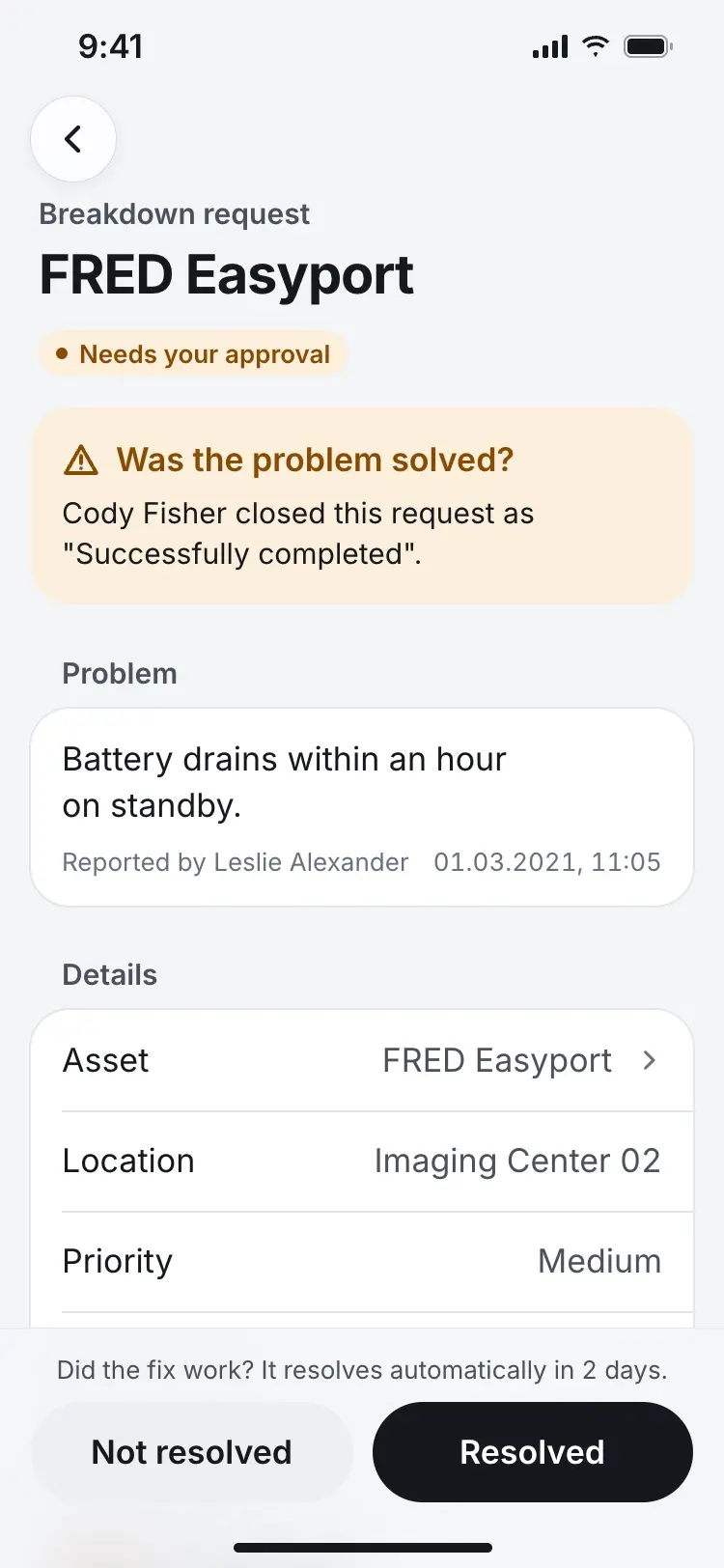
The nurse who reported the problem decides whether the fix actually worked. 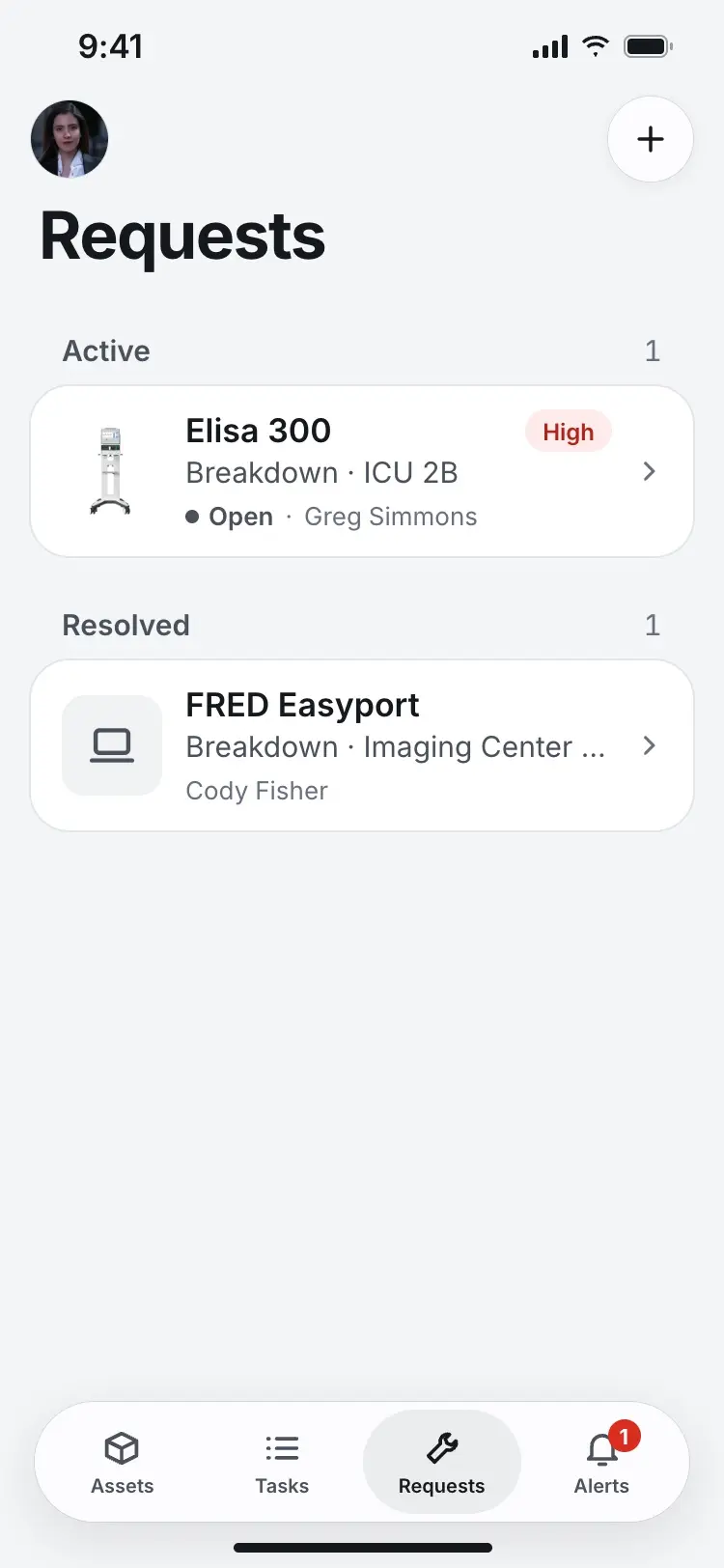
Confirming the fix moves it to Resolved. 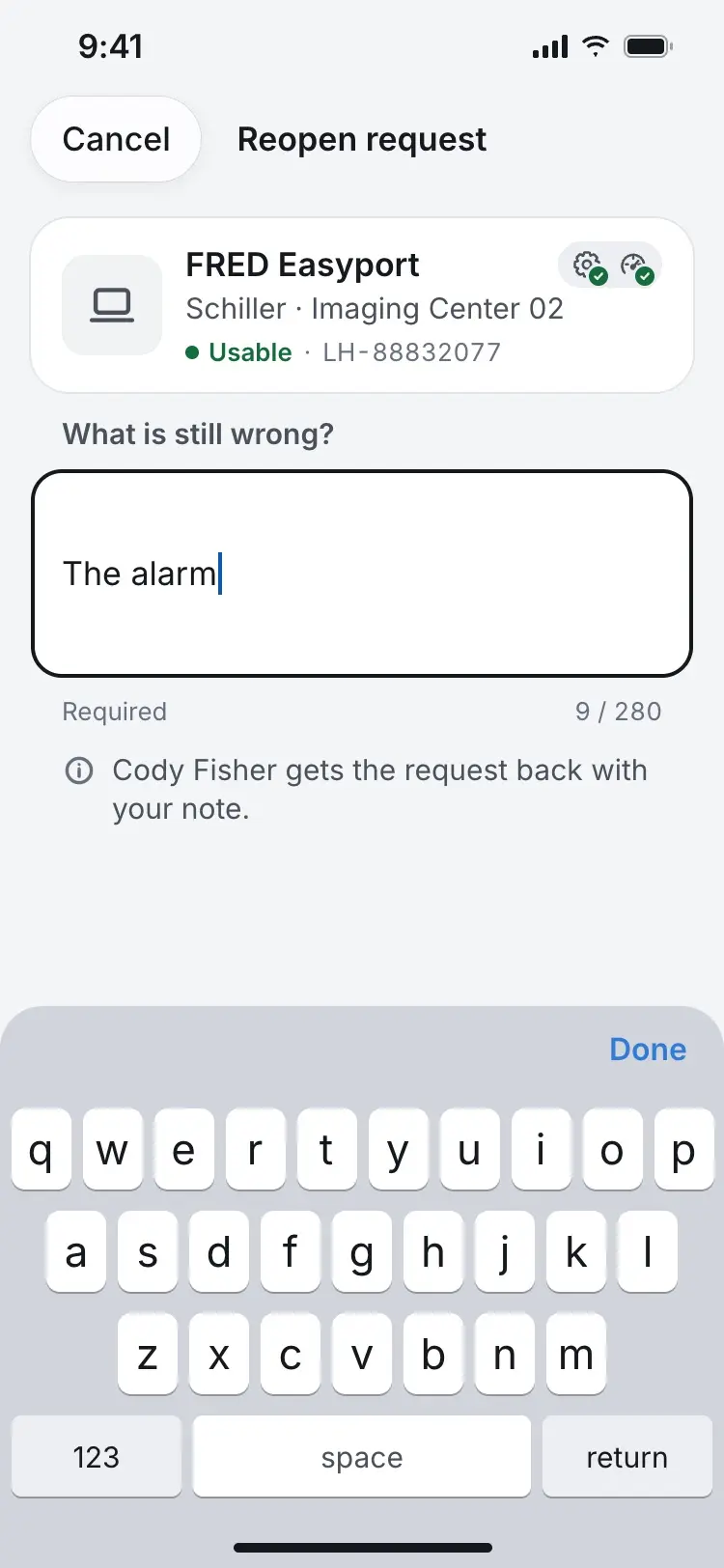
Reopening asks what is still wrong. 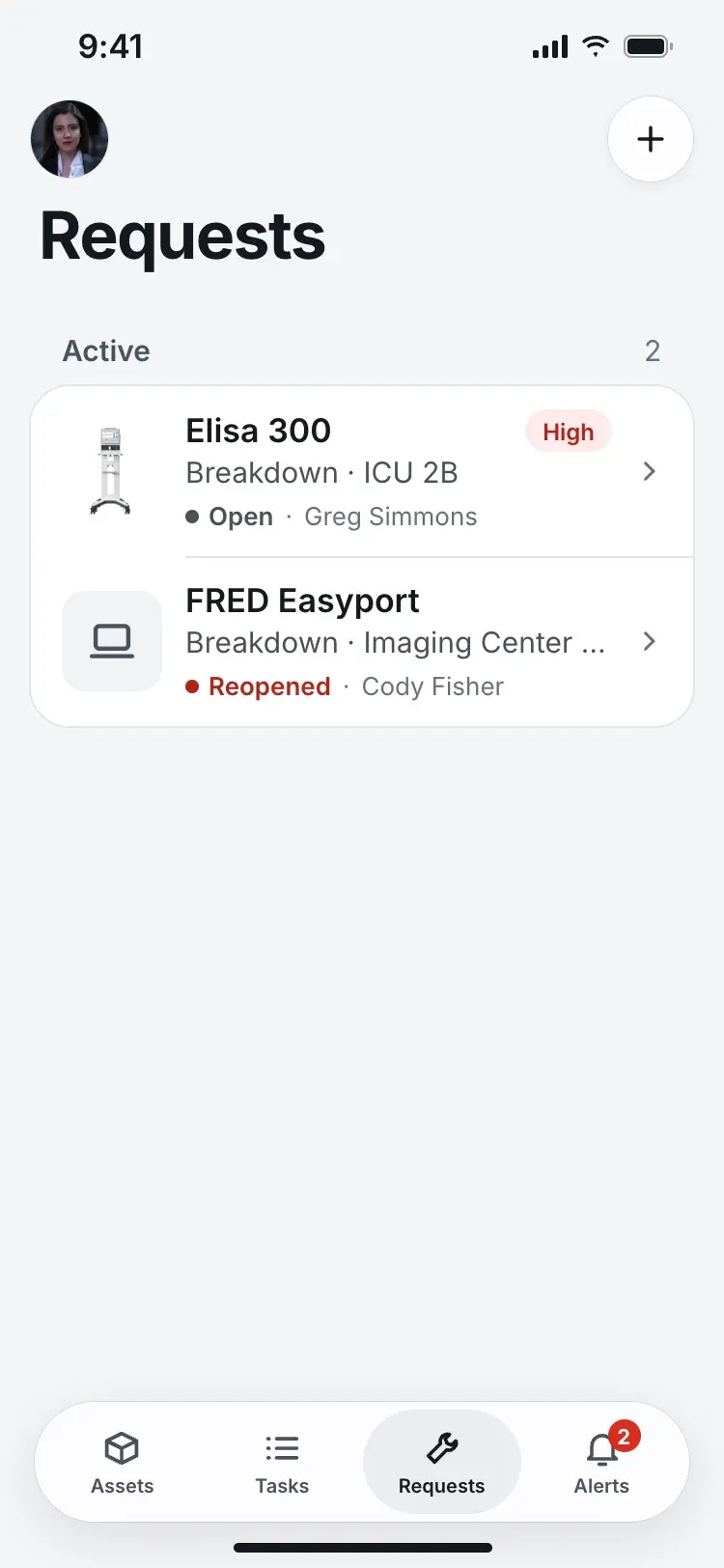
A reopened request goes straight back to the same technician. Nurse — Accept or deny custody
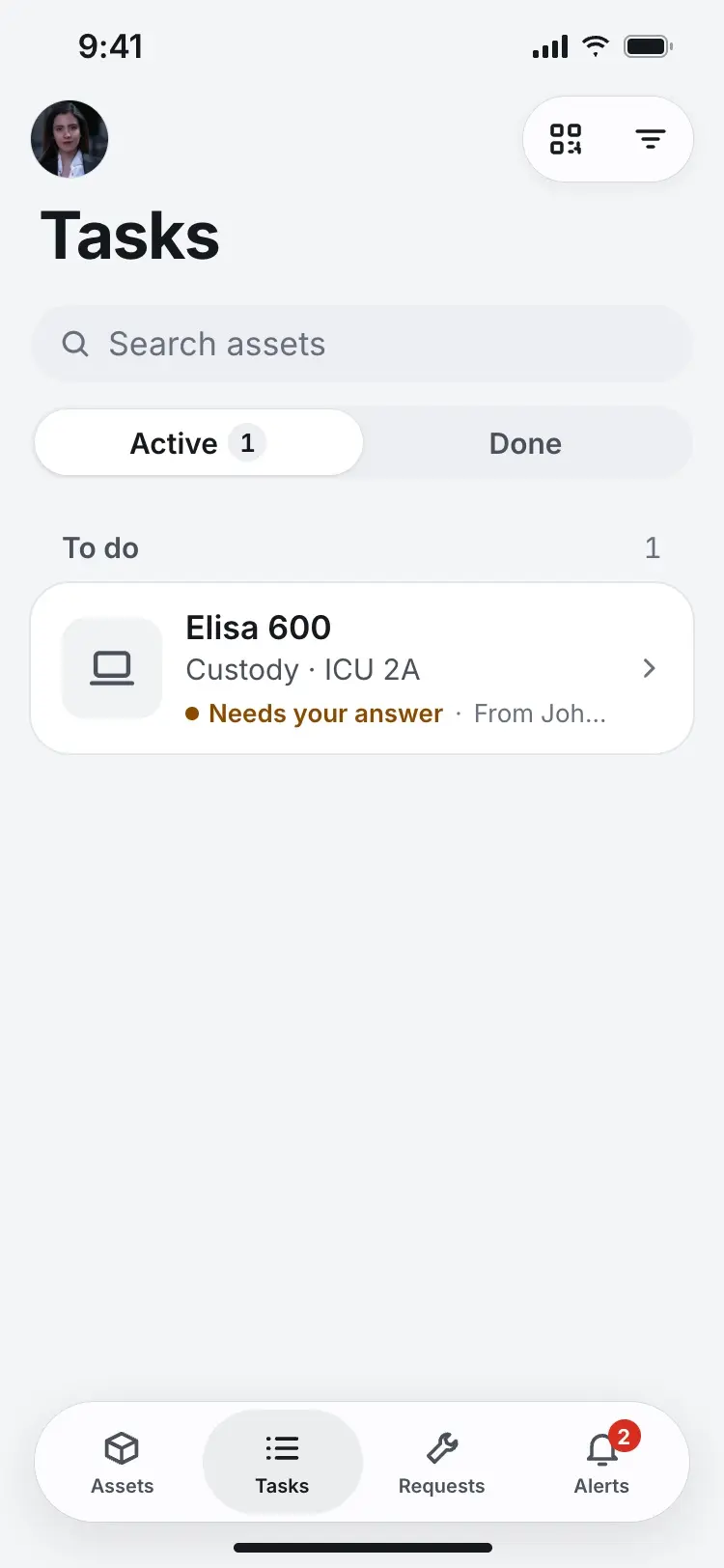
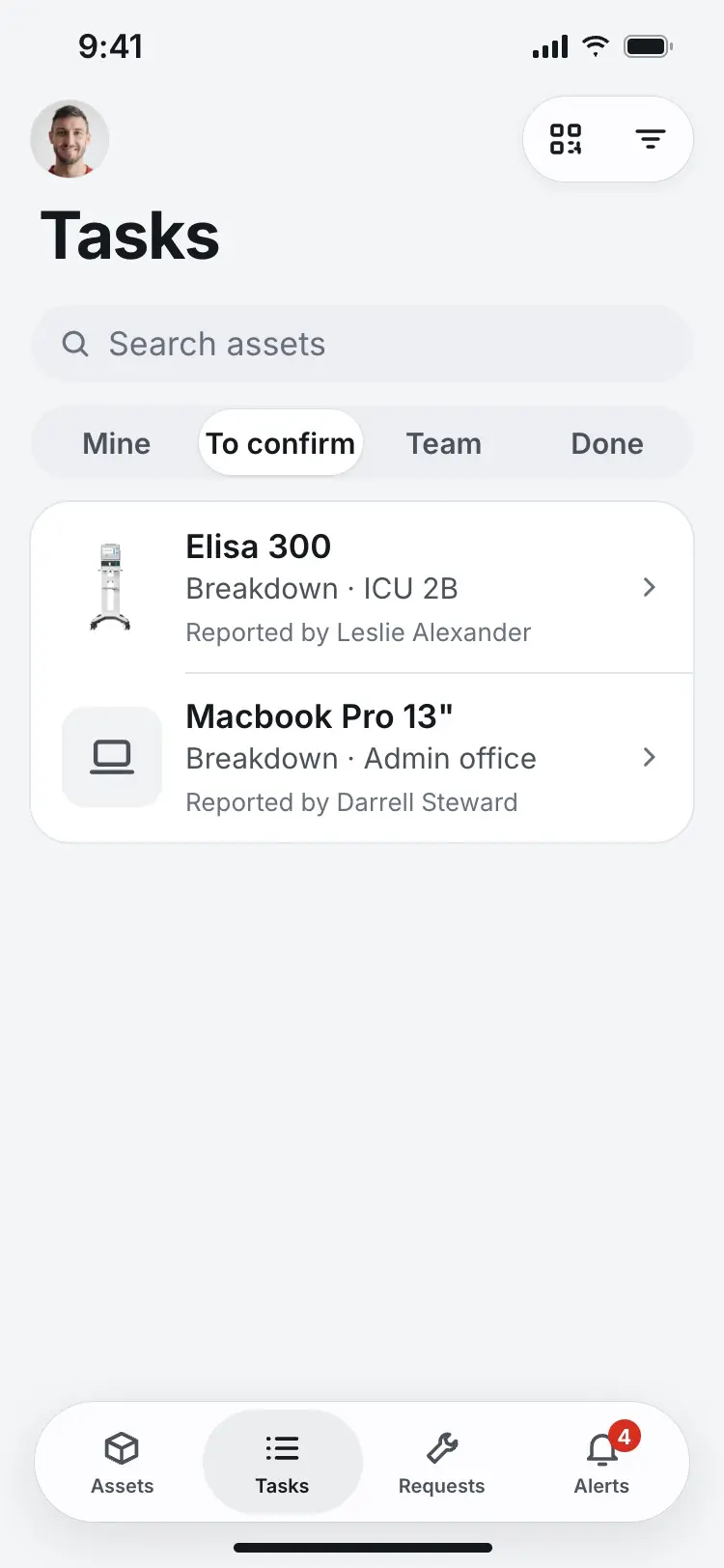
A custody request waits in Tasks for the nurse's answer. 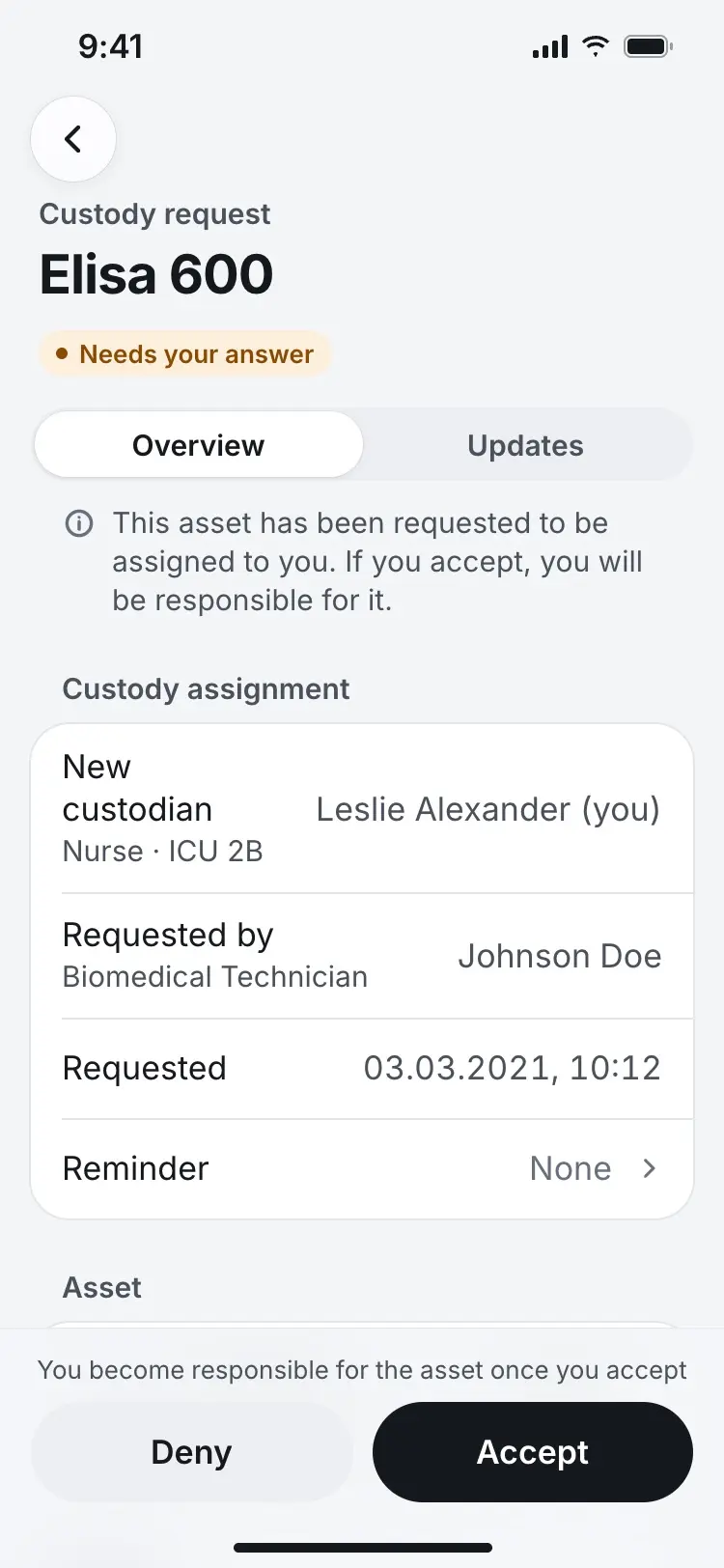
The request spells out what accepting actually means before she can act on it. 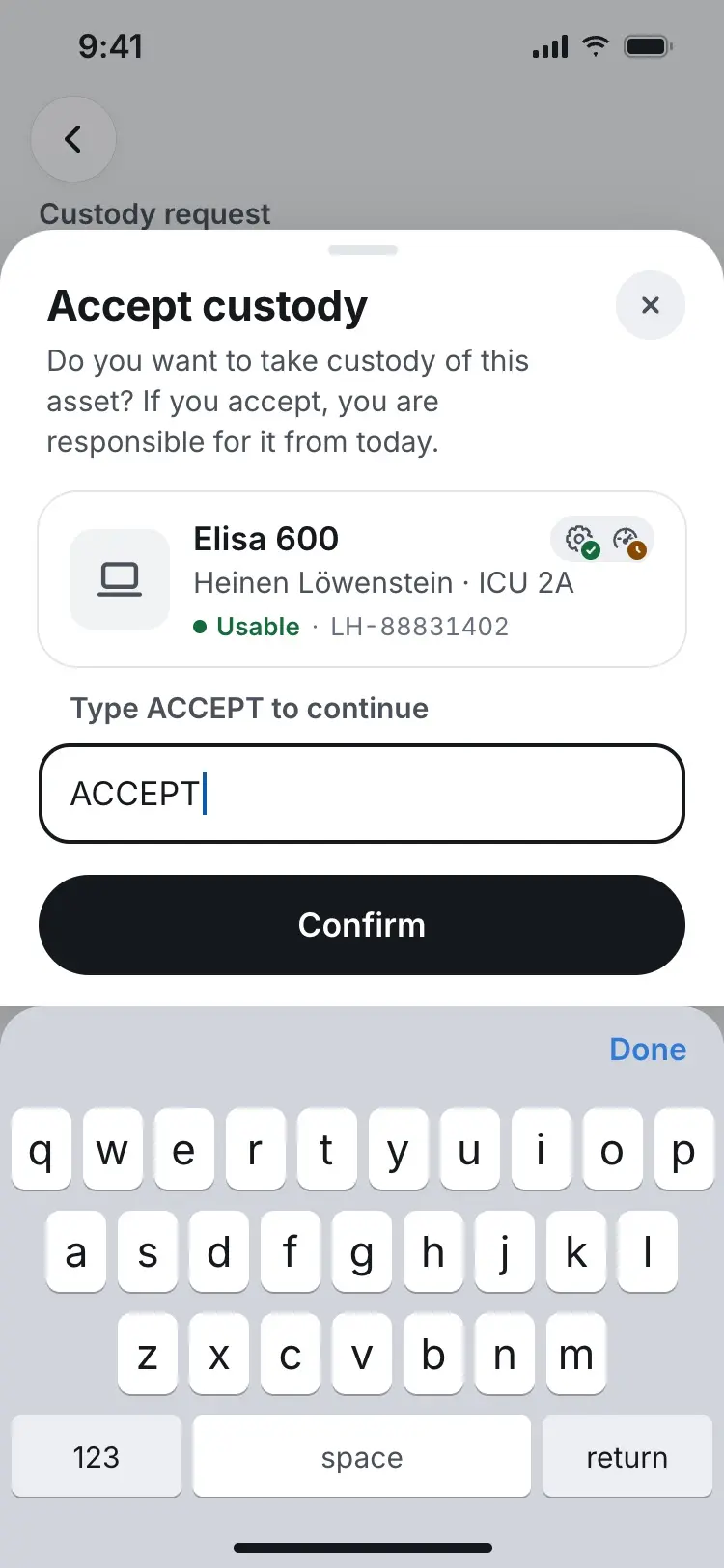
Accepting makes the nurse responsible for the device, so it takes typing ACCEPT. 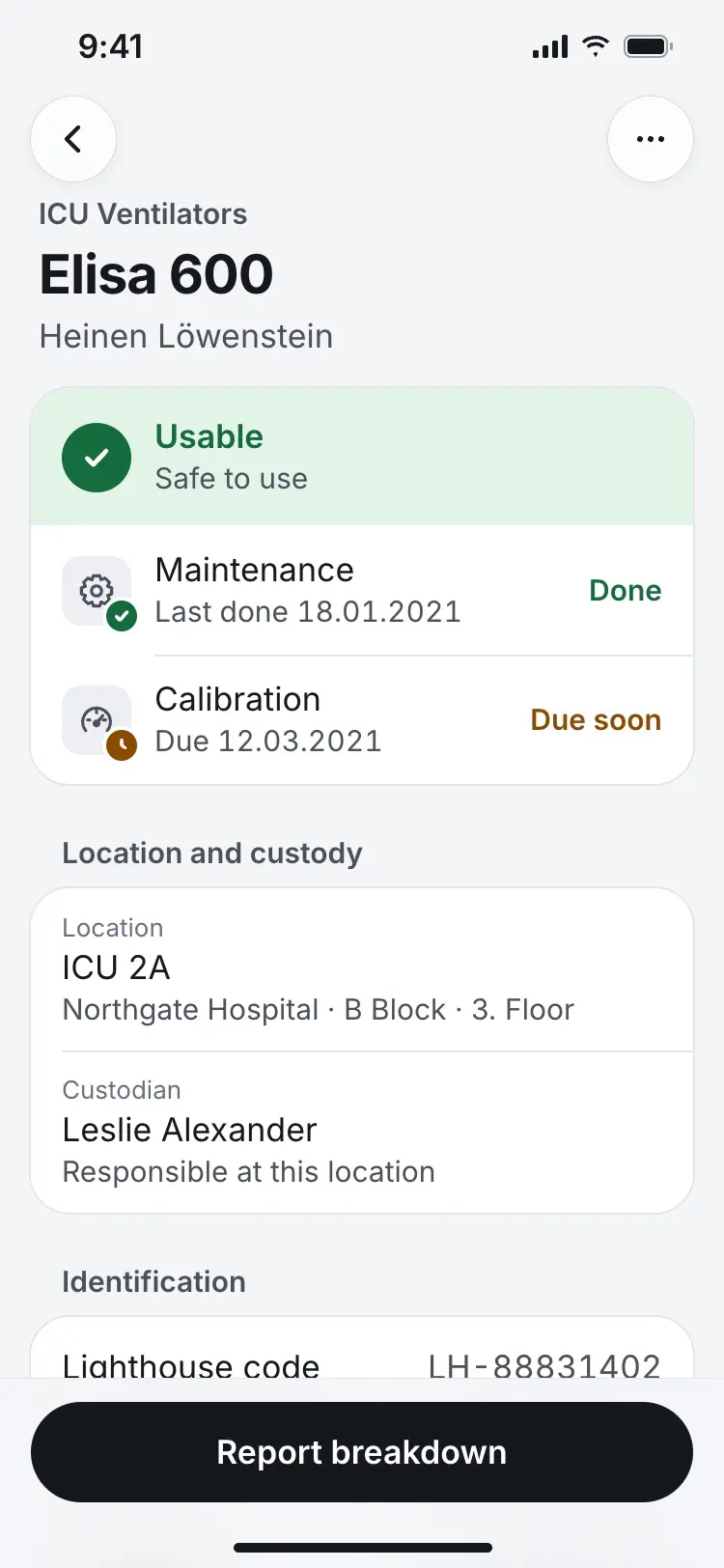
Once accepted, the nurse is the recorded custodian. 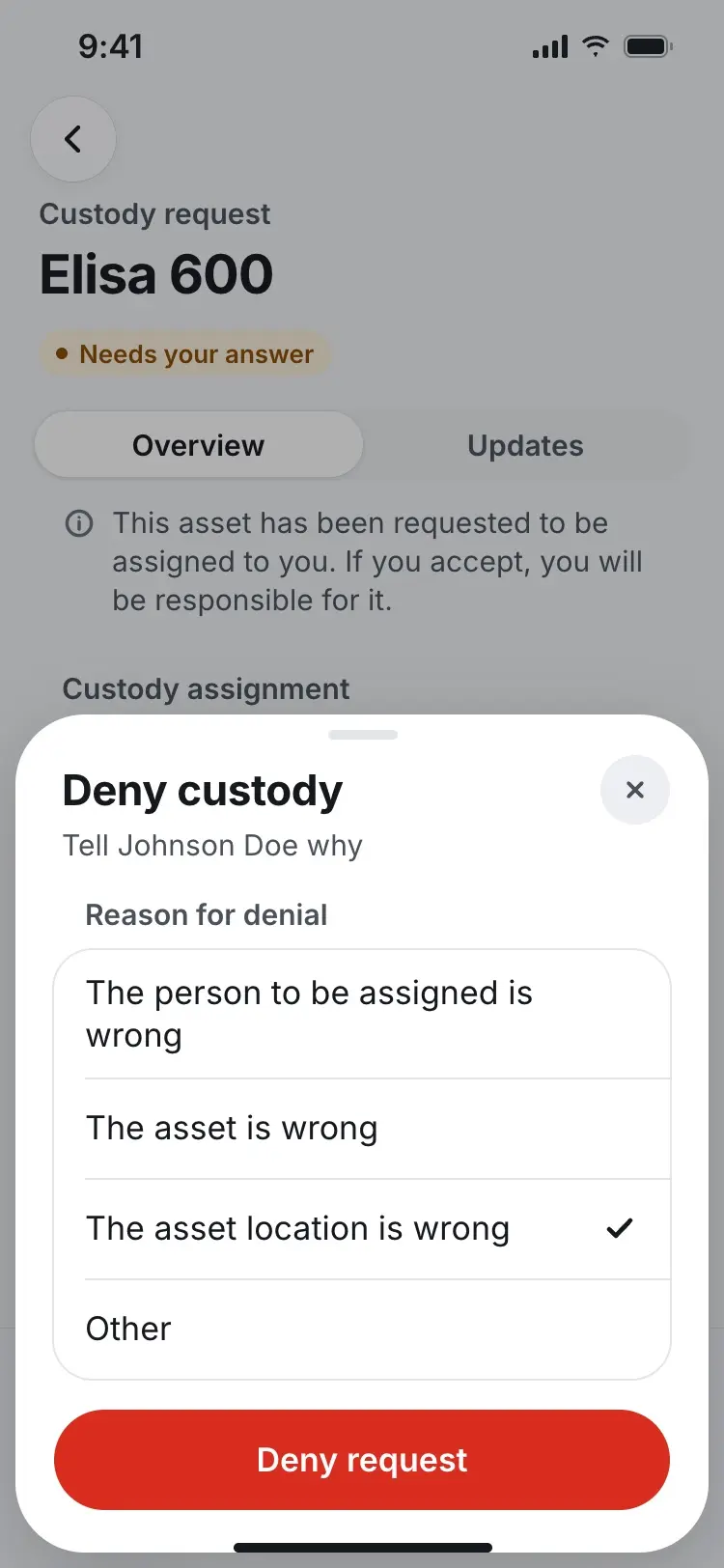
Denying needs a reason. 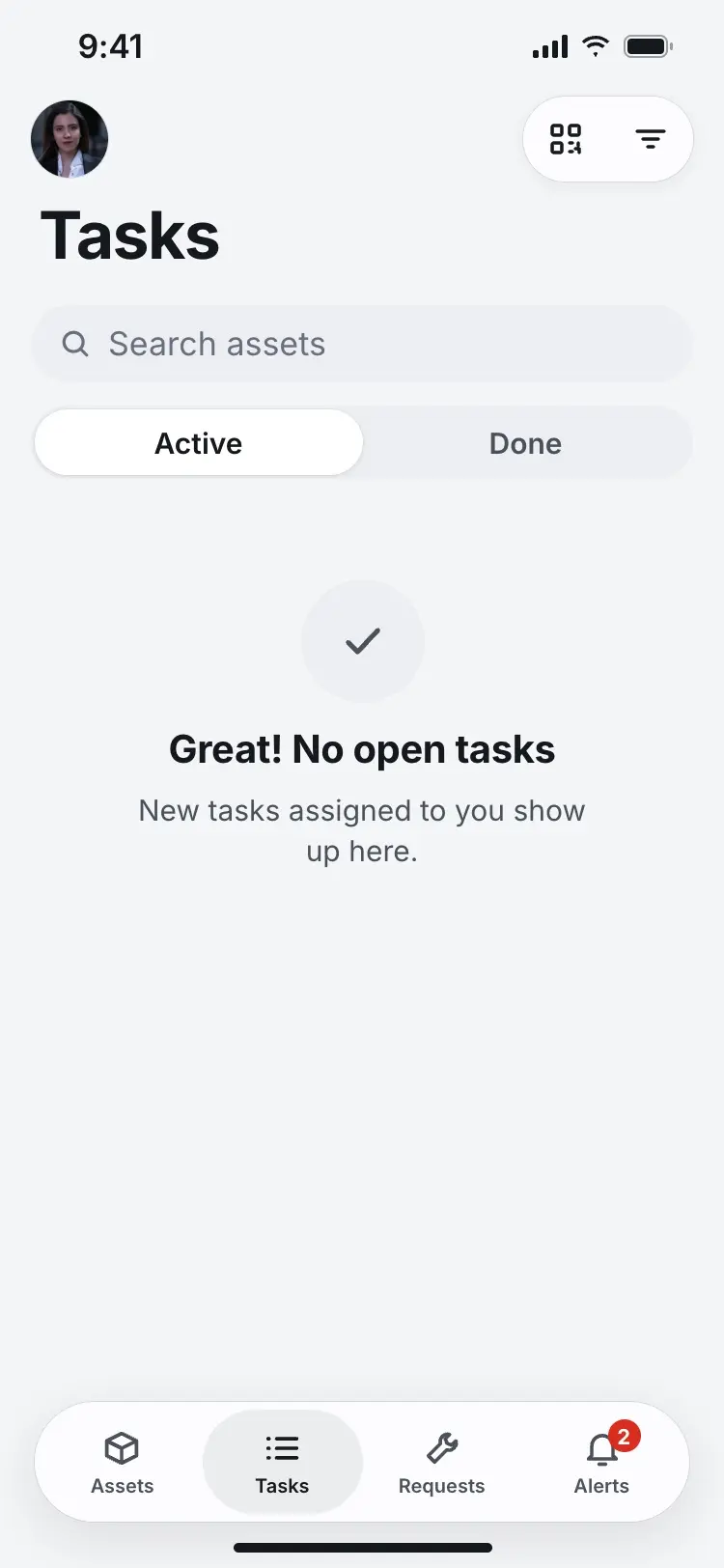
After denying, the task clears from her list. 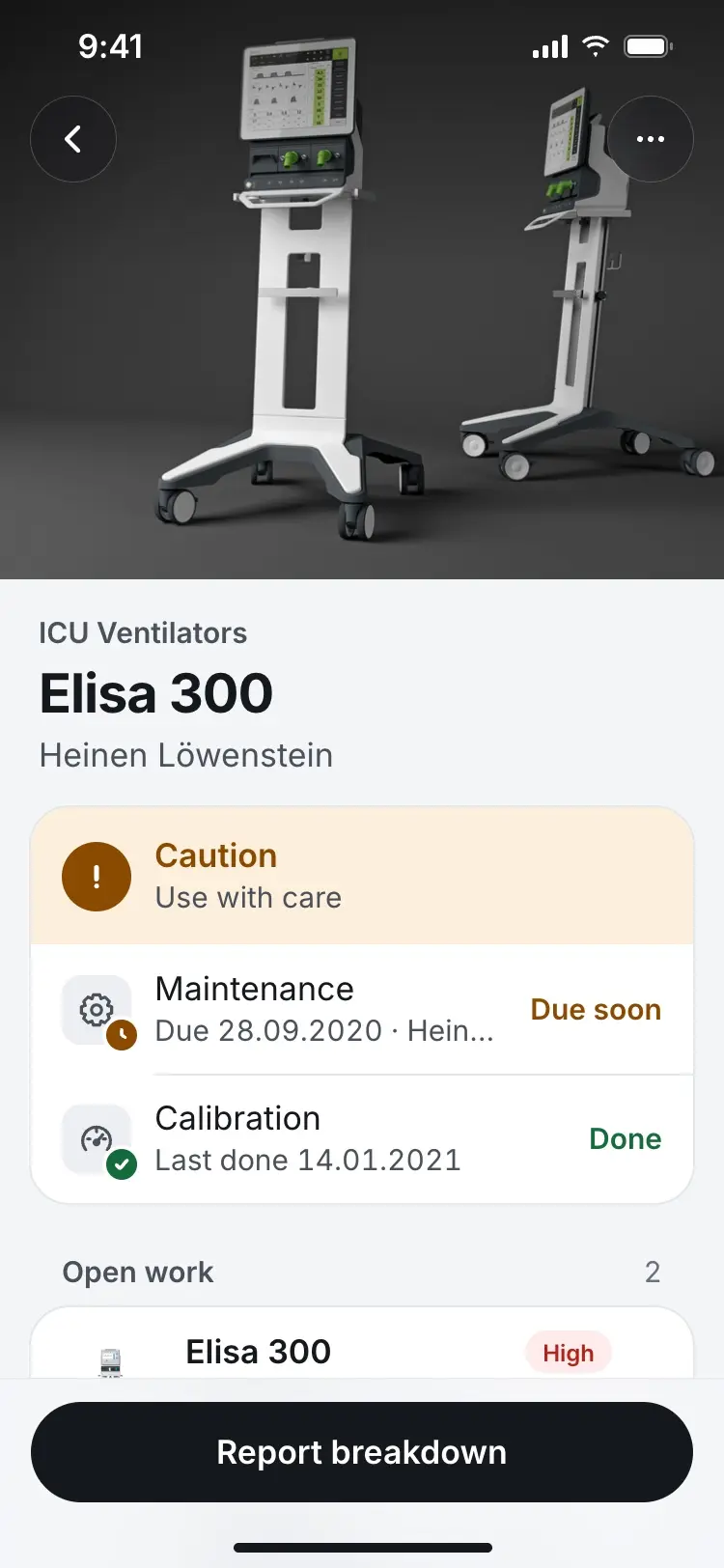
Condition, maintenance and calibration are shown together on every asset. 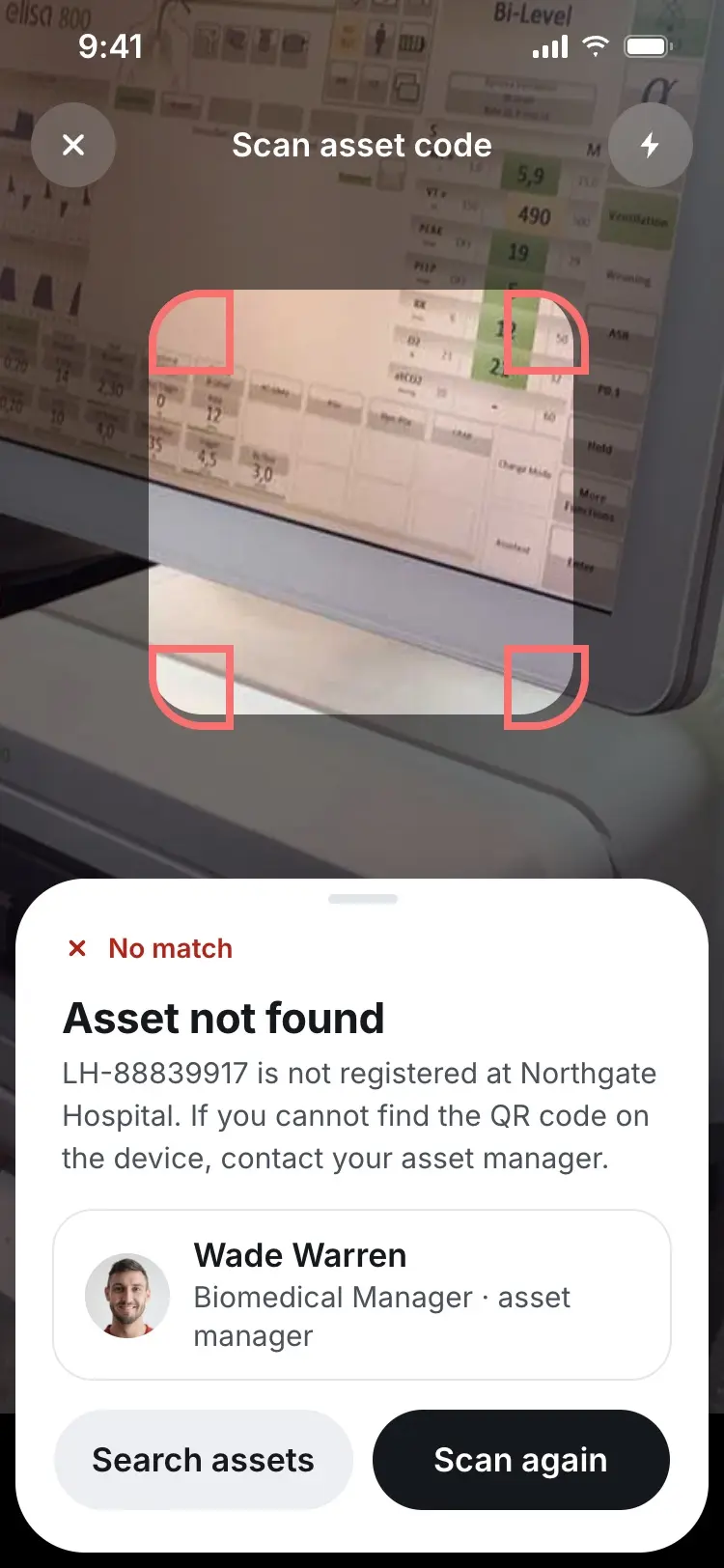
An unrecognised code still gives the nurse someone to contact. Technician — Work a breakdown order
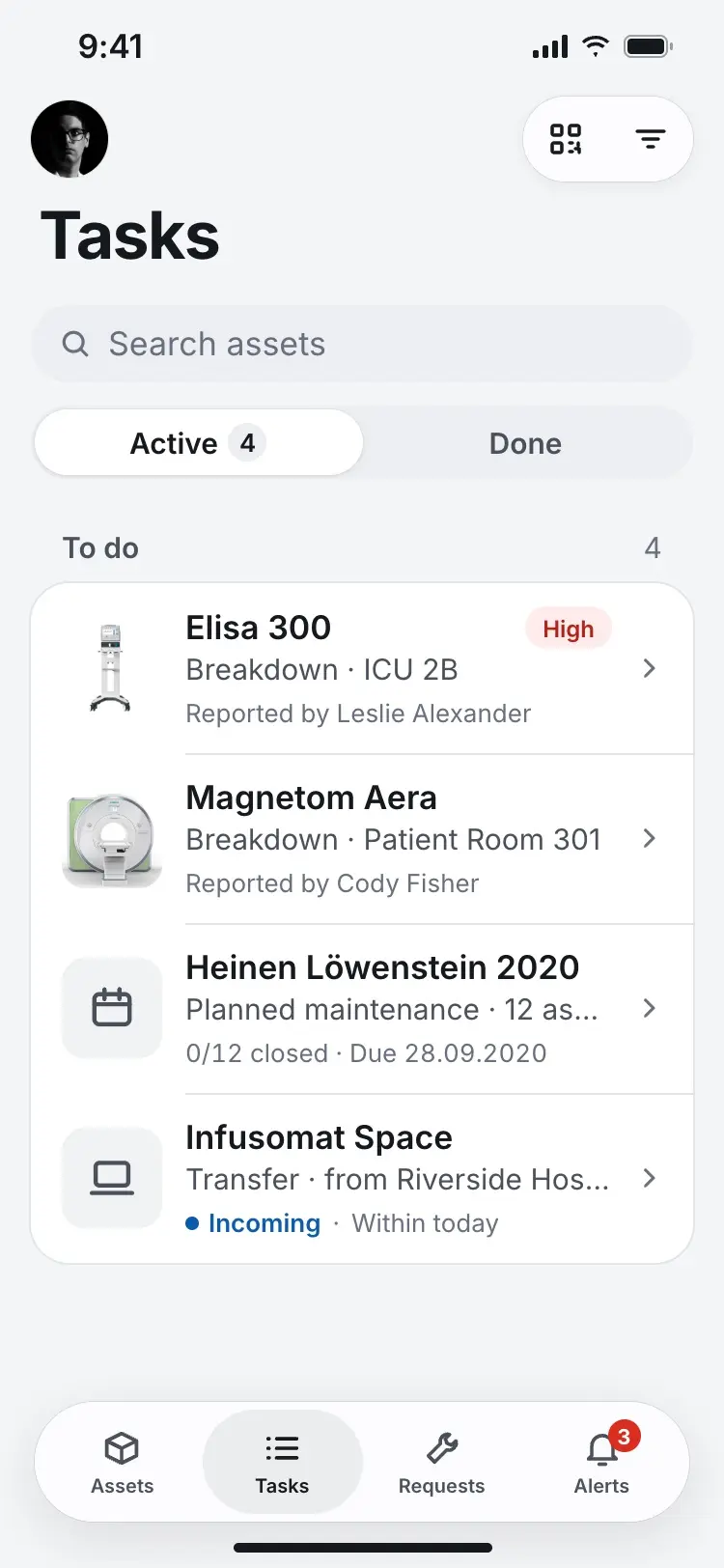
The technician's day starts as a queue, split into In progress and To do. 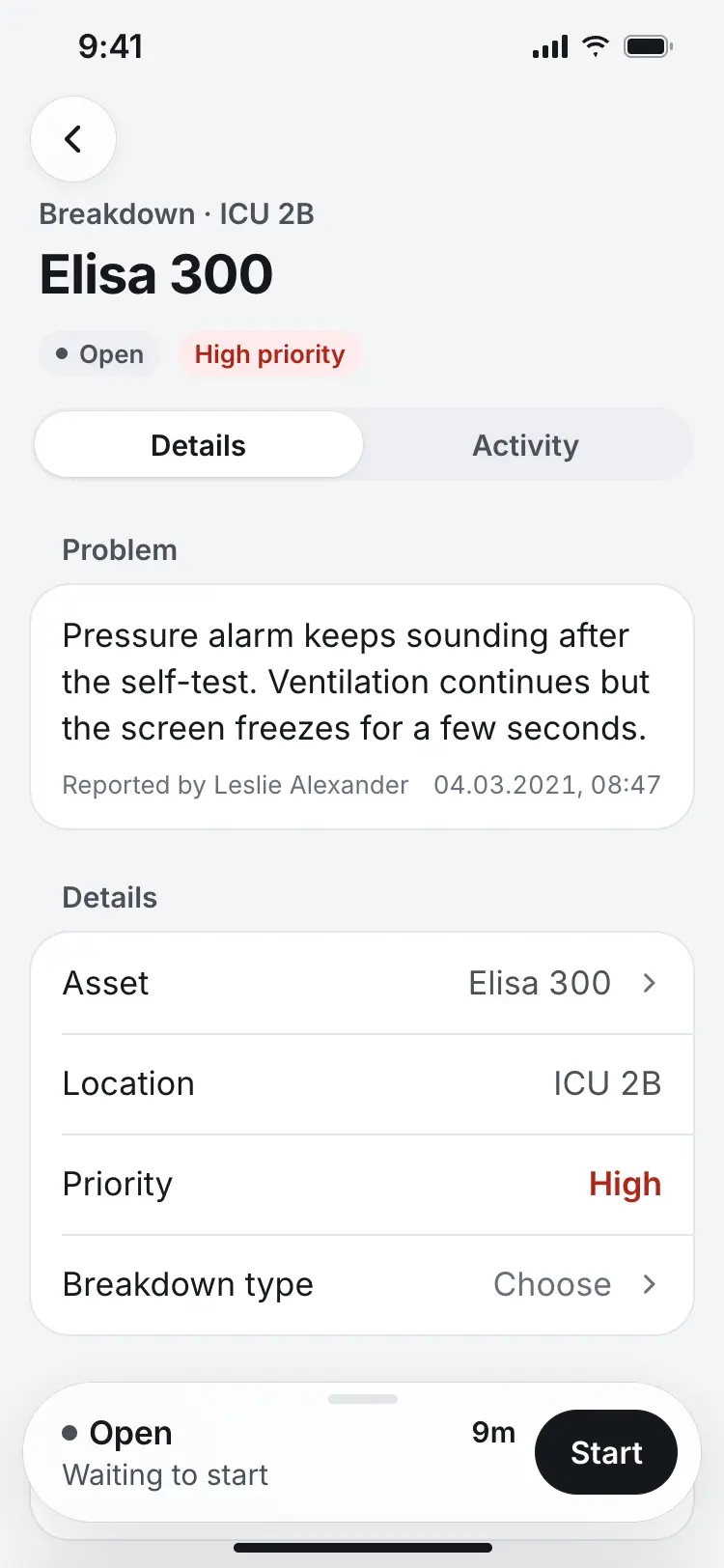
The task status bar sits at the bottom of every order with one primary action. 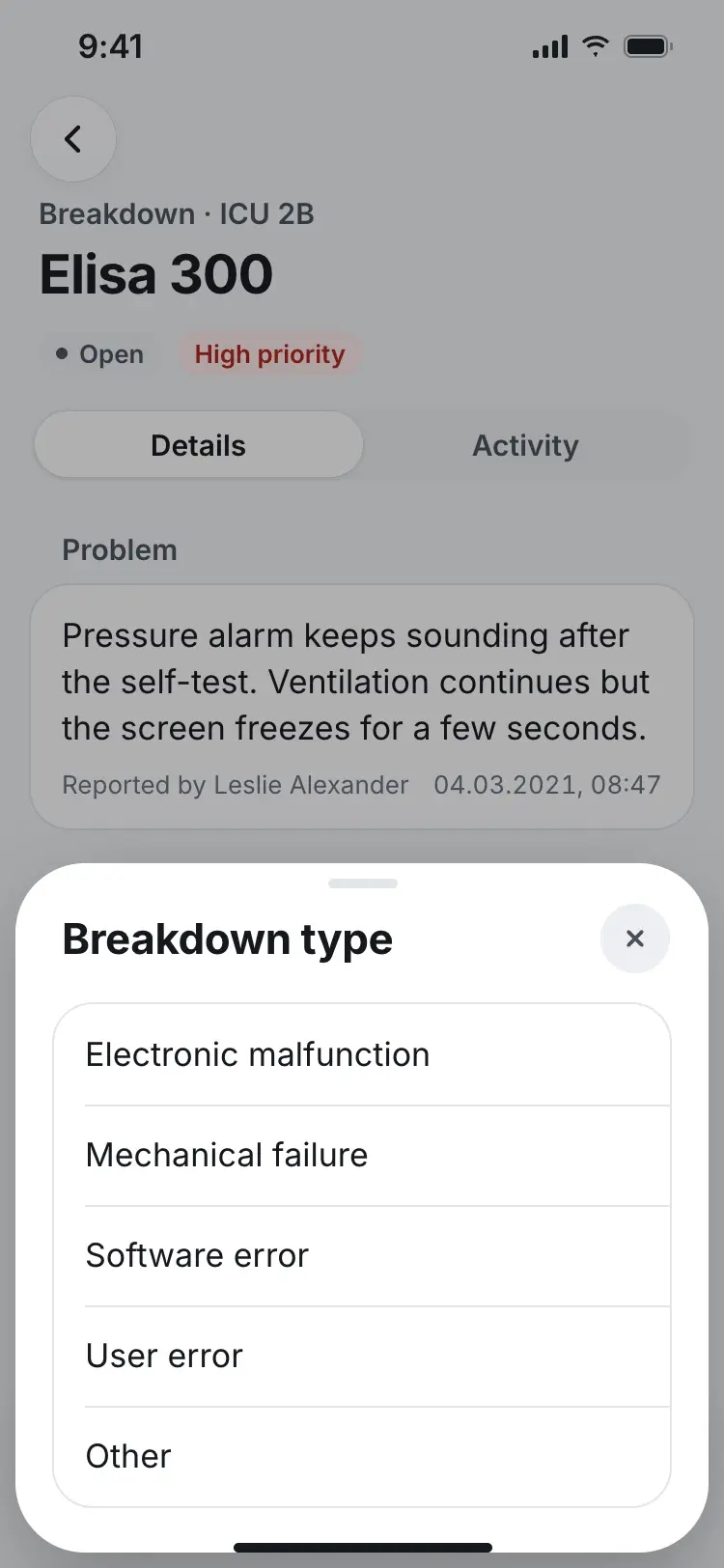
Before starting work, the technician records what kind of fault it is. 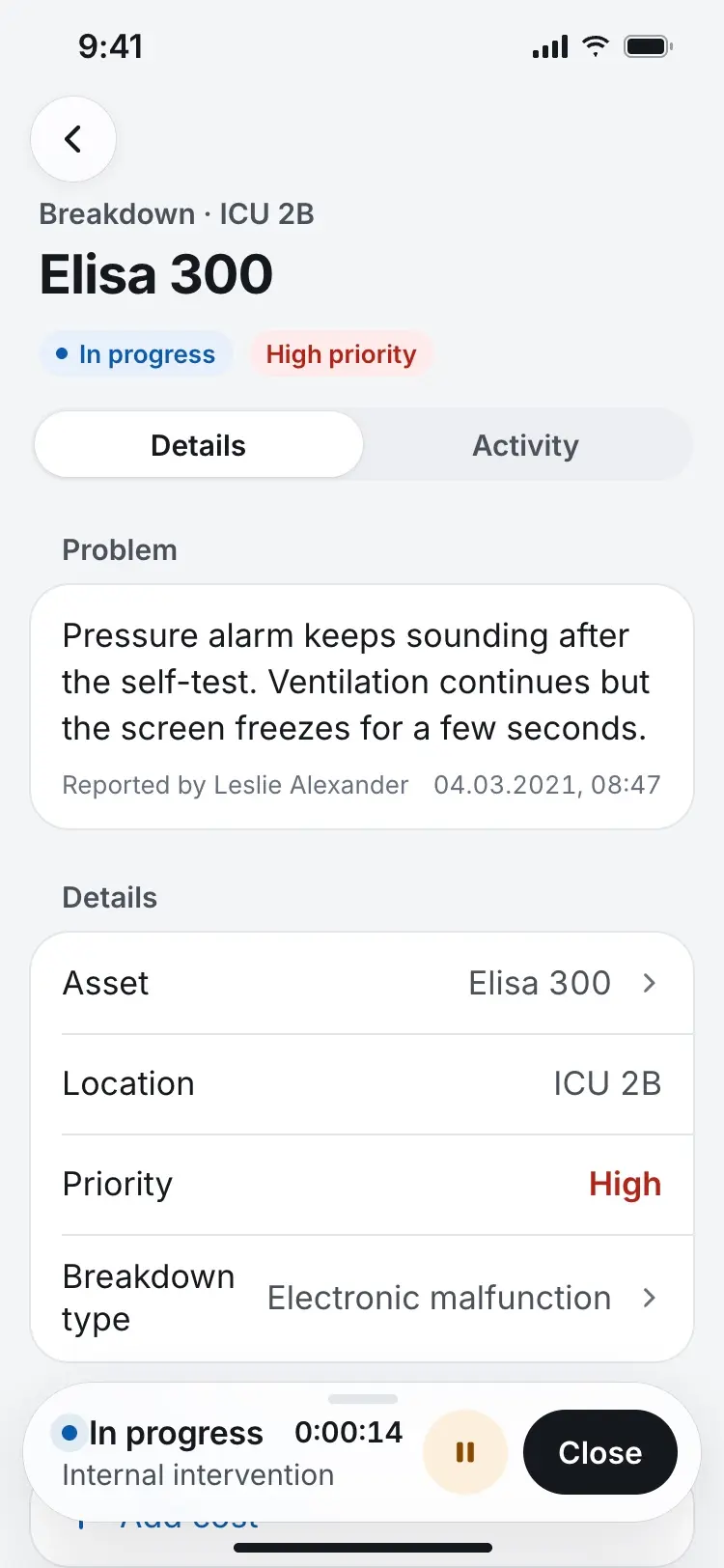
Starting the task begins a timer that runs until it's closed or paused. 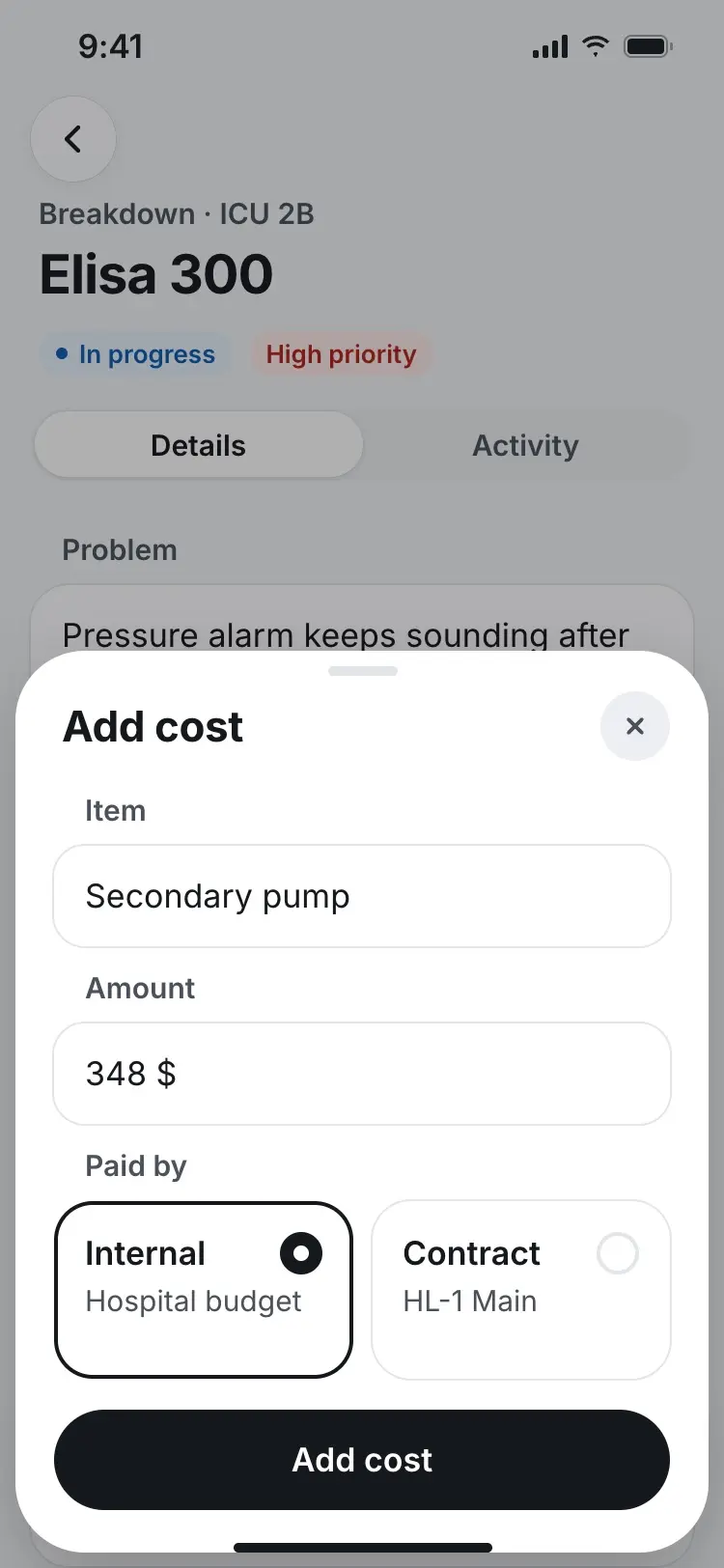
Parts and costs are logged against the order as work happens. 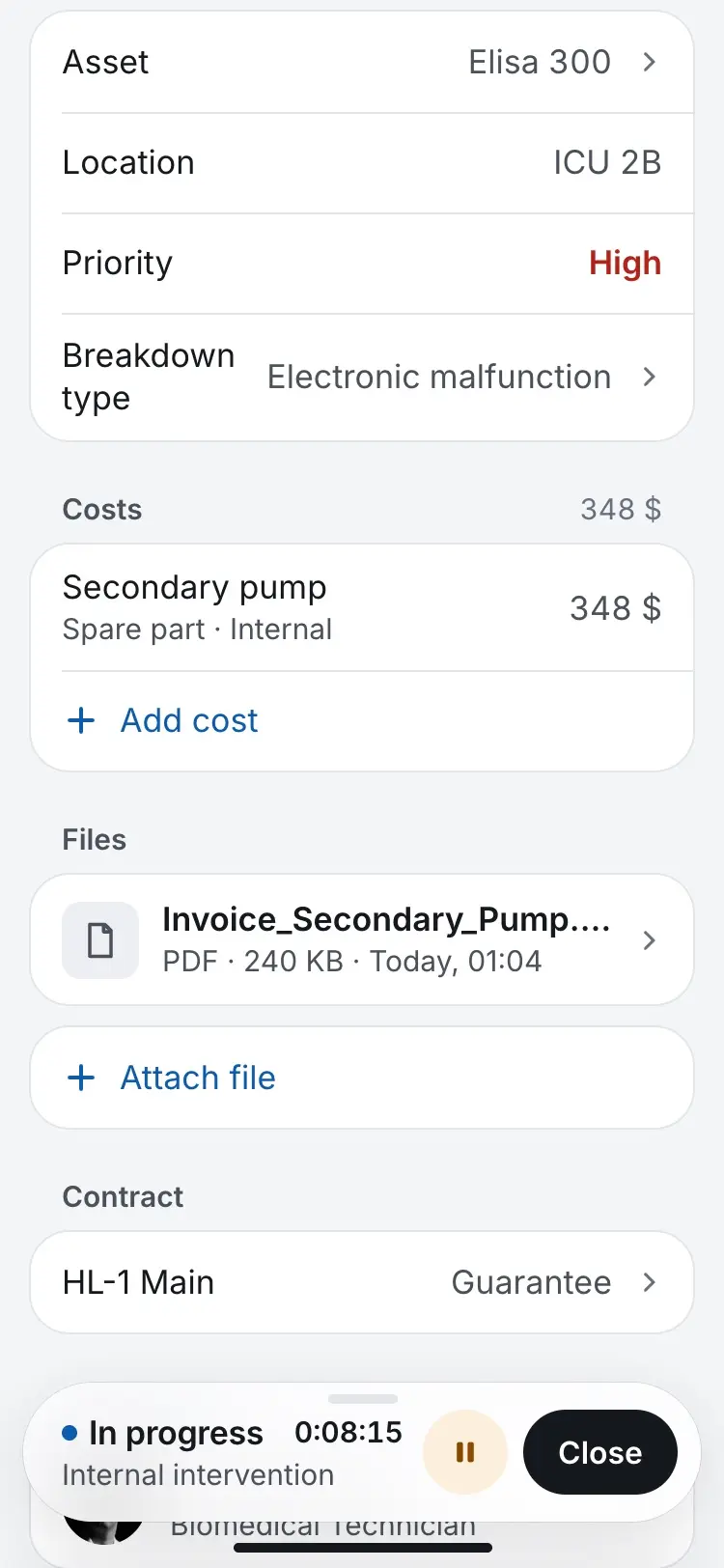
Costs and documents live on the order. 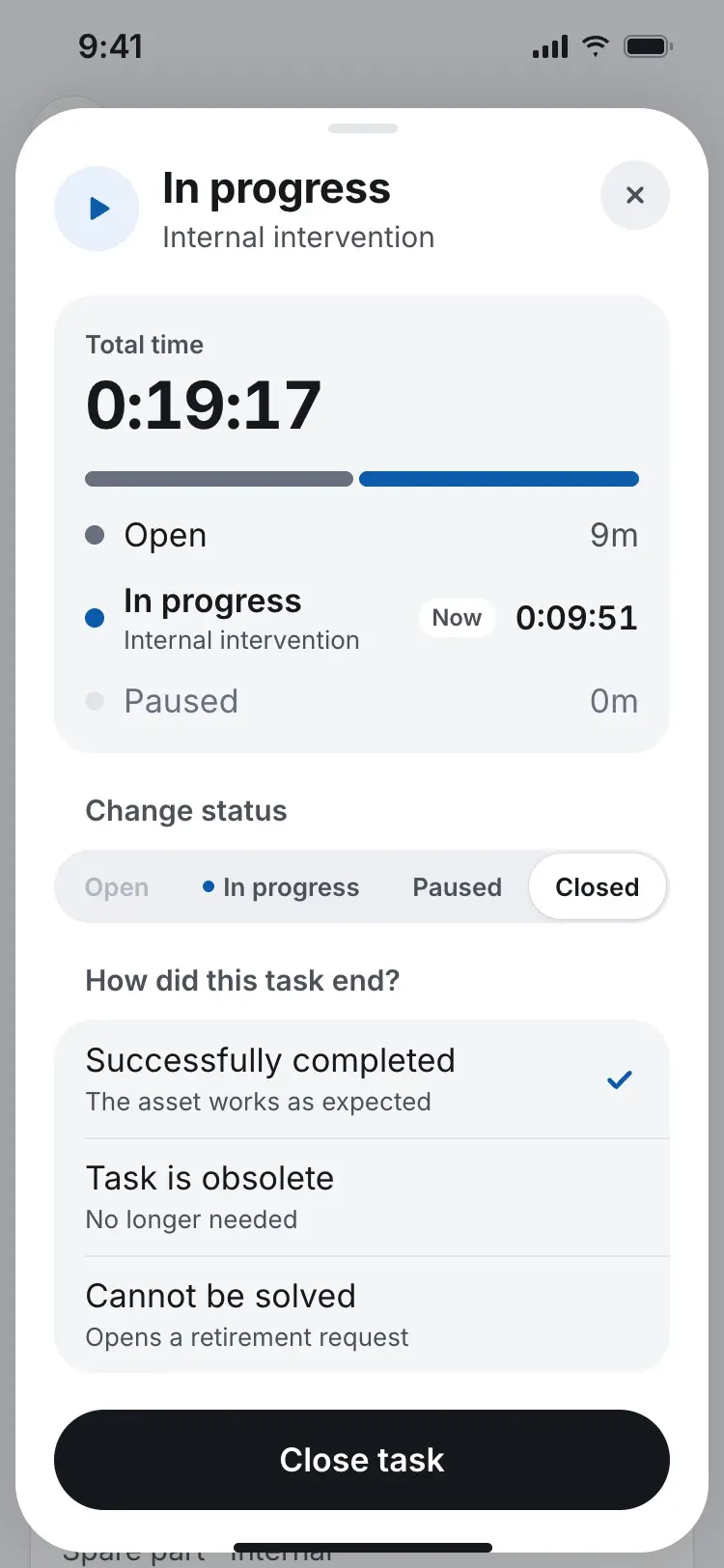
Closing a task means picking how it ended, not just marking it done. Closing hands the decision back to the nurse who reported it. Technician — Close maintenance in bulk
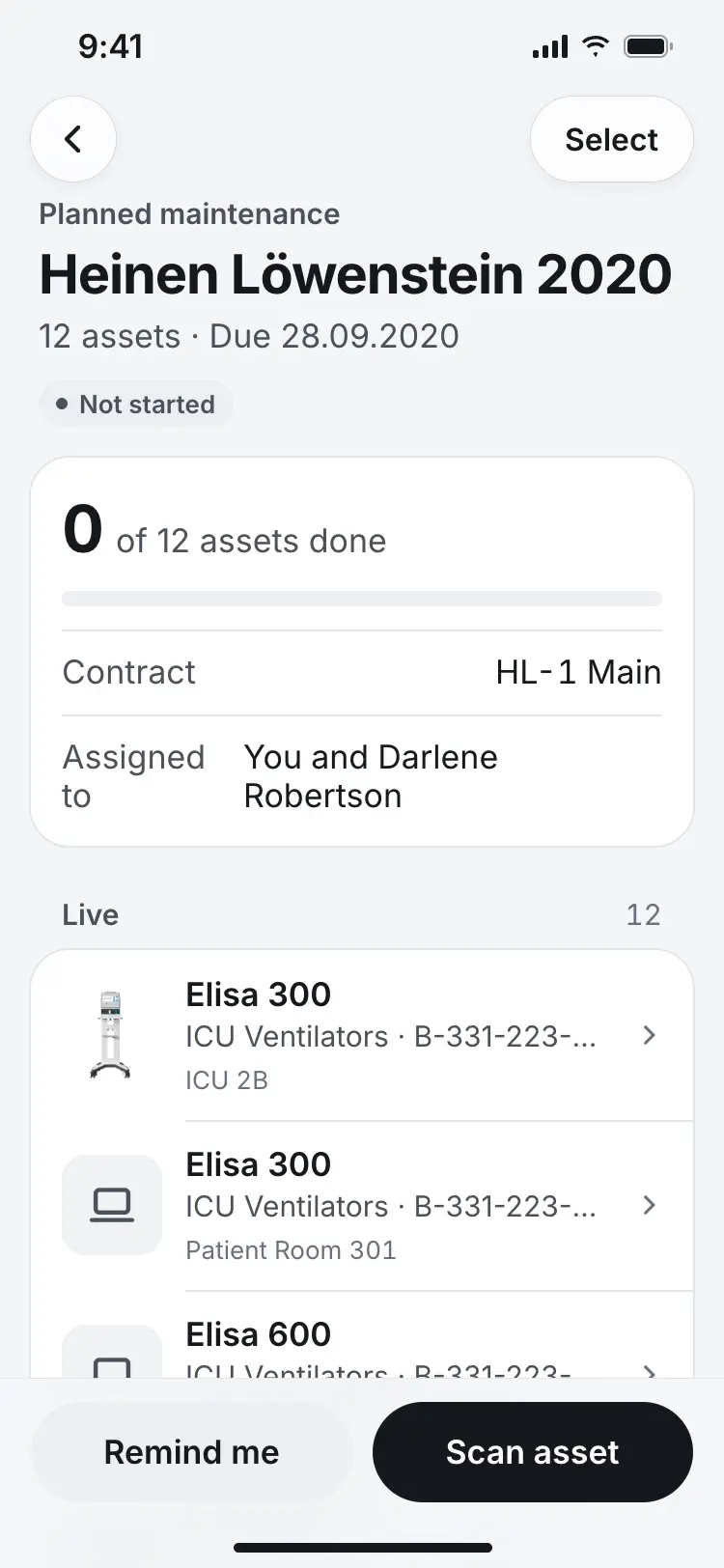
A maintenance plan bundles many devices under one contract and due date. 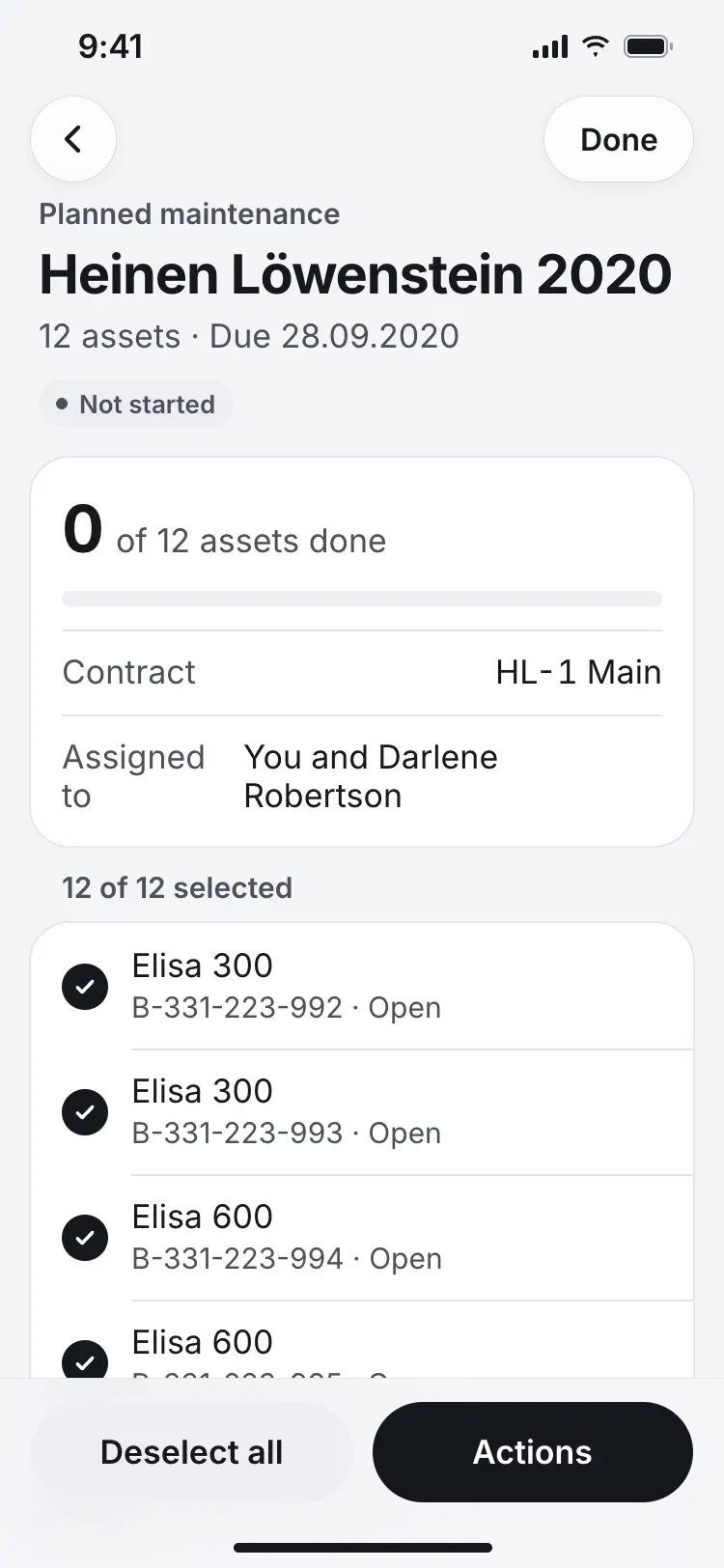
The technician can act on many subtasks at once instead of one by one. 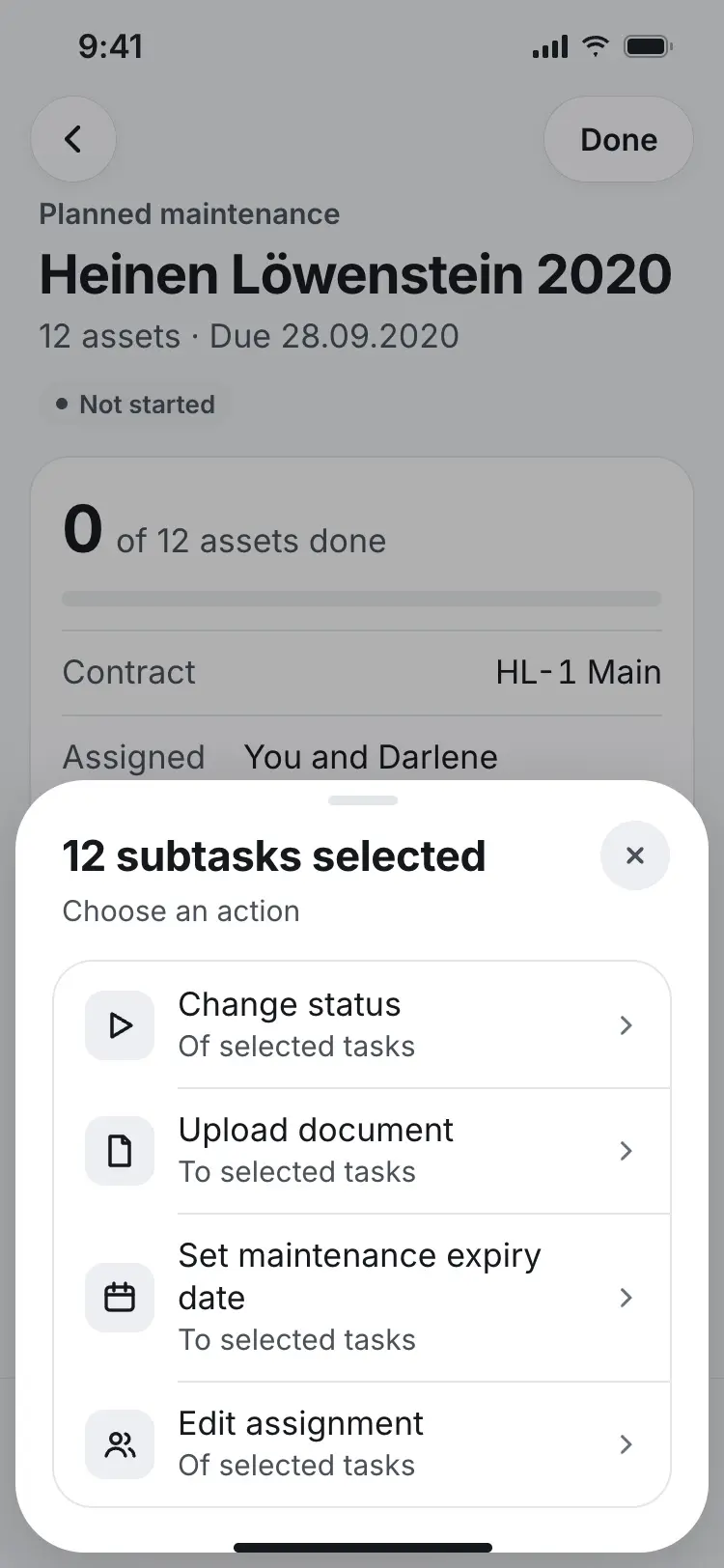
The same four actions apply whether one subtask is selected or all twelve. 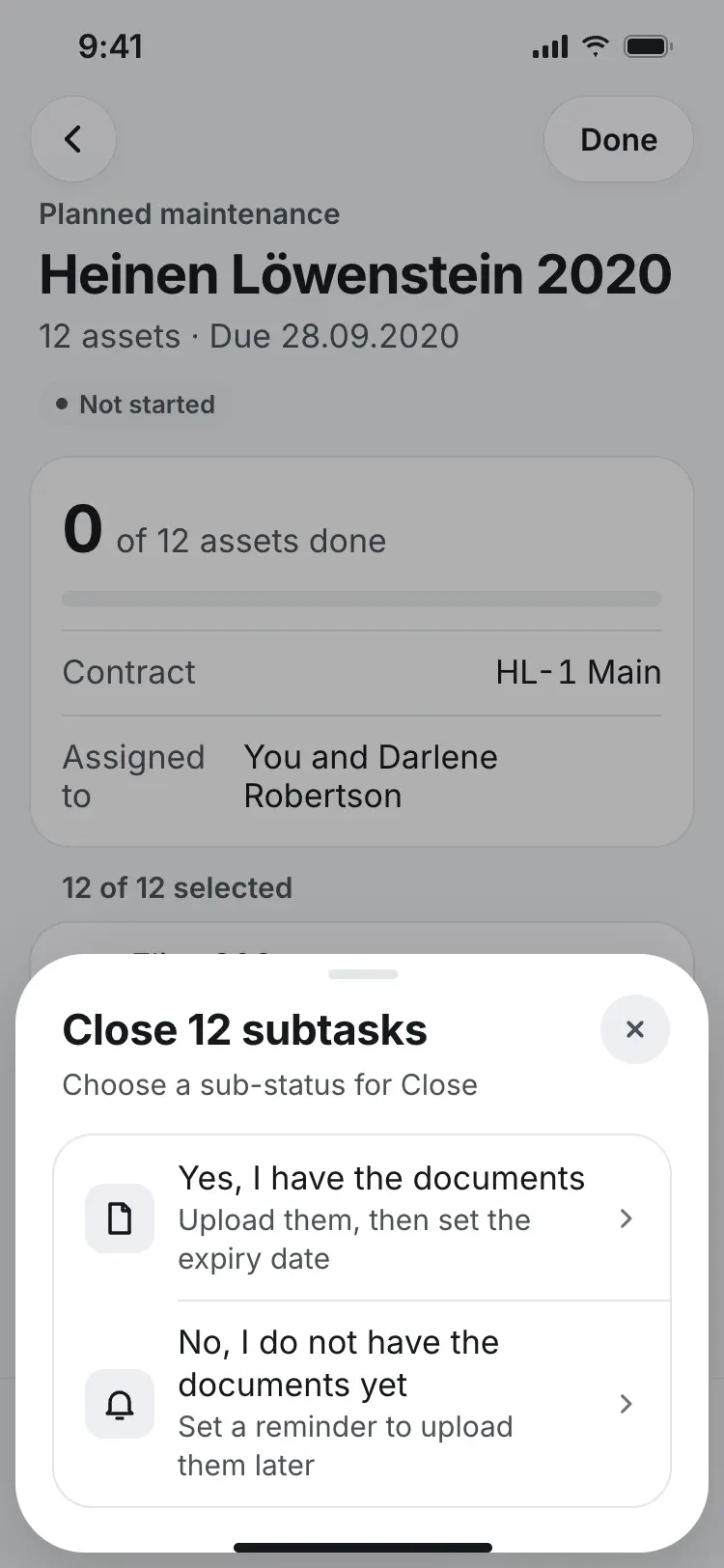
Closing asks whether the documents are in hand. 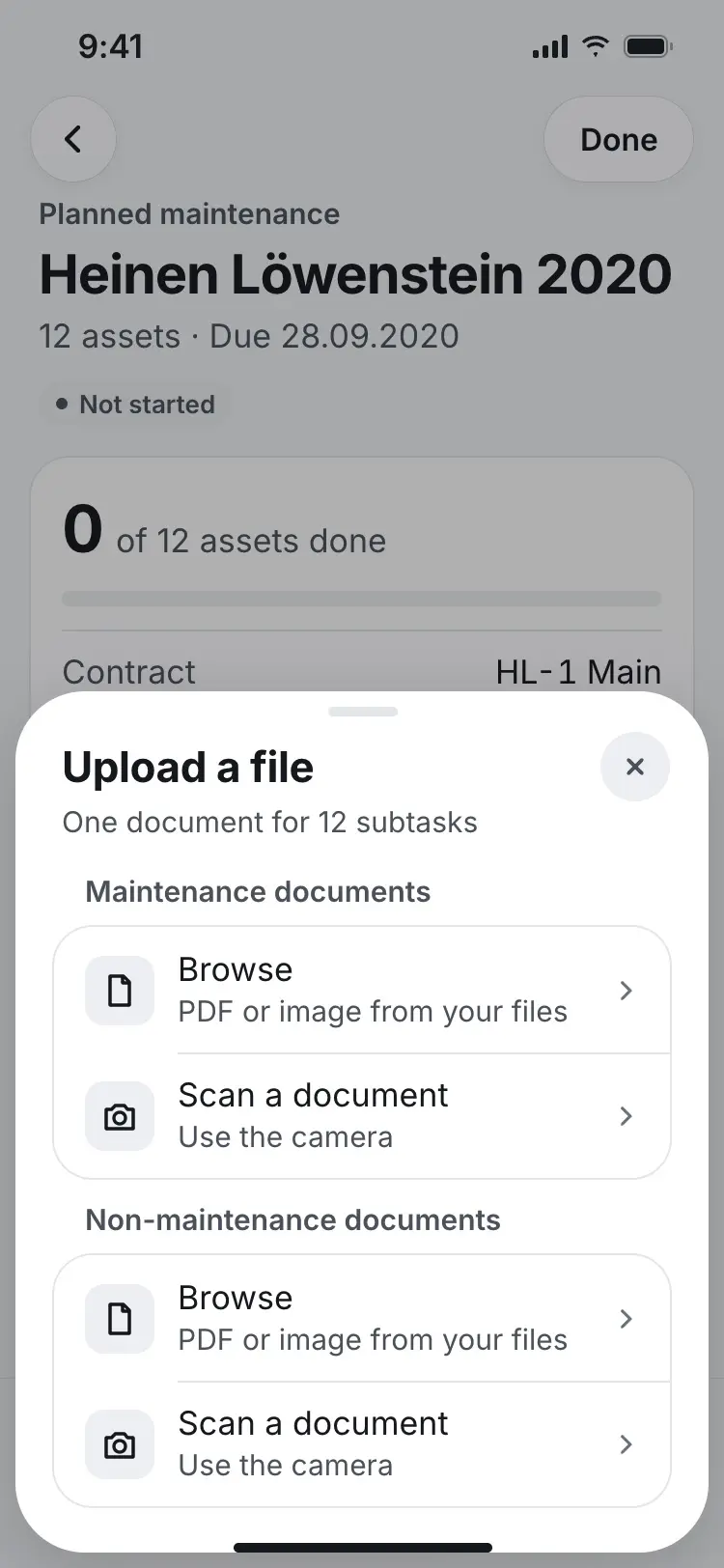
One uploaded file can cover every device in the batch. 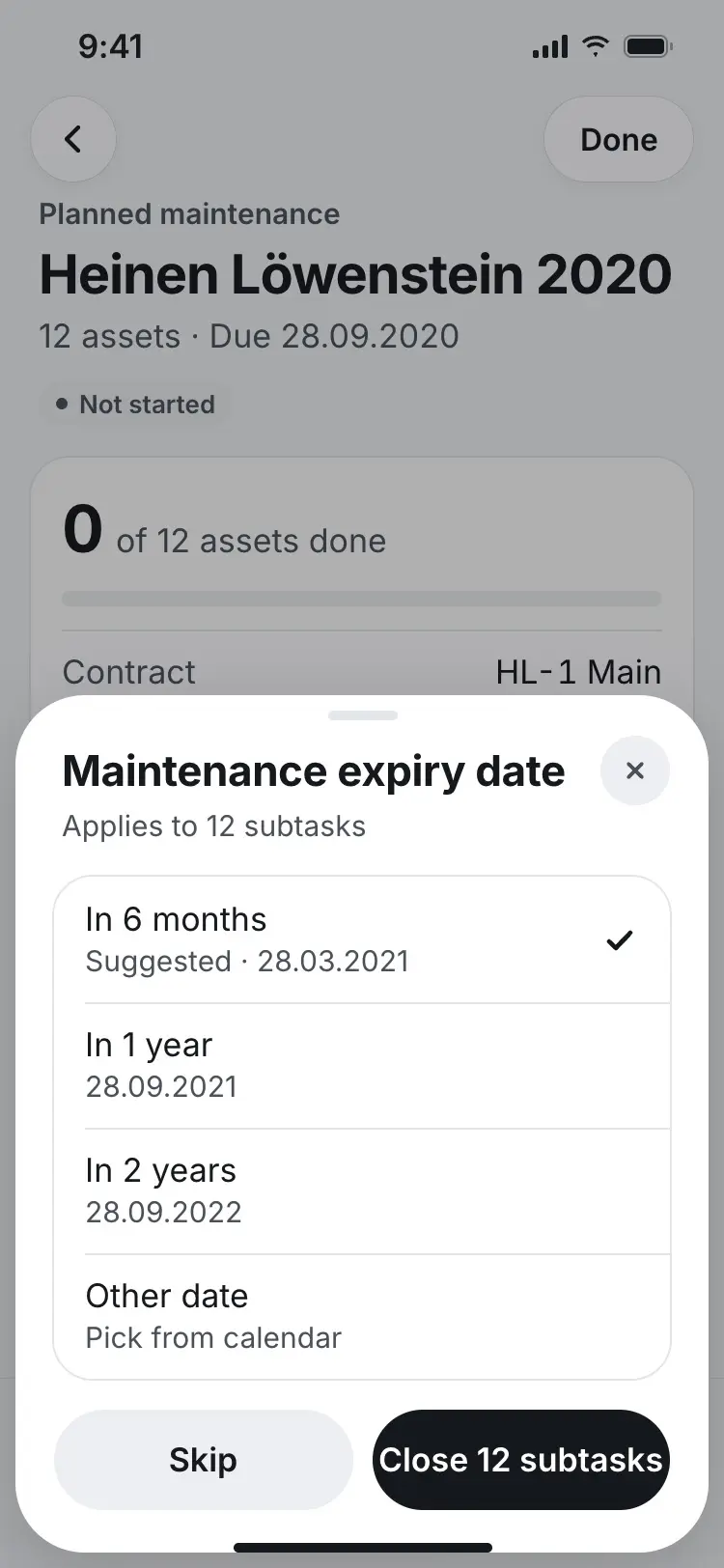
The next expiry date is set as the work closes. 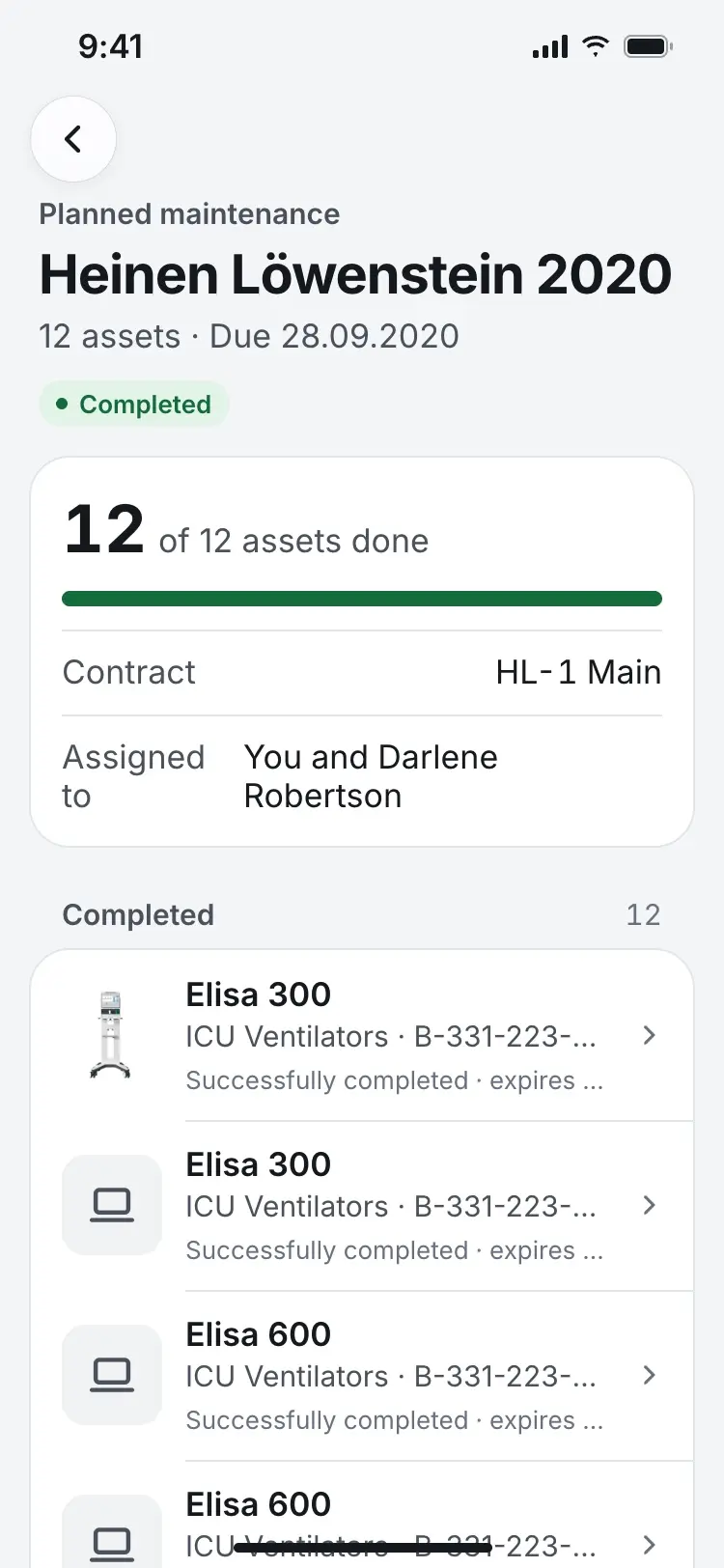
A finished plan shows exactly when each device is due again. Technician — Receive a transfer
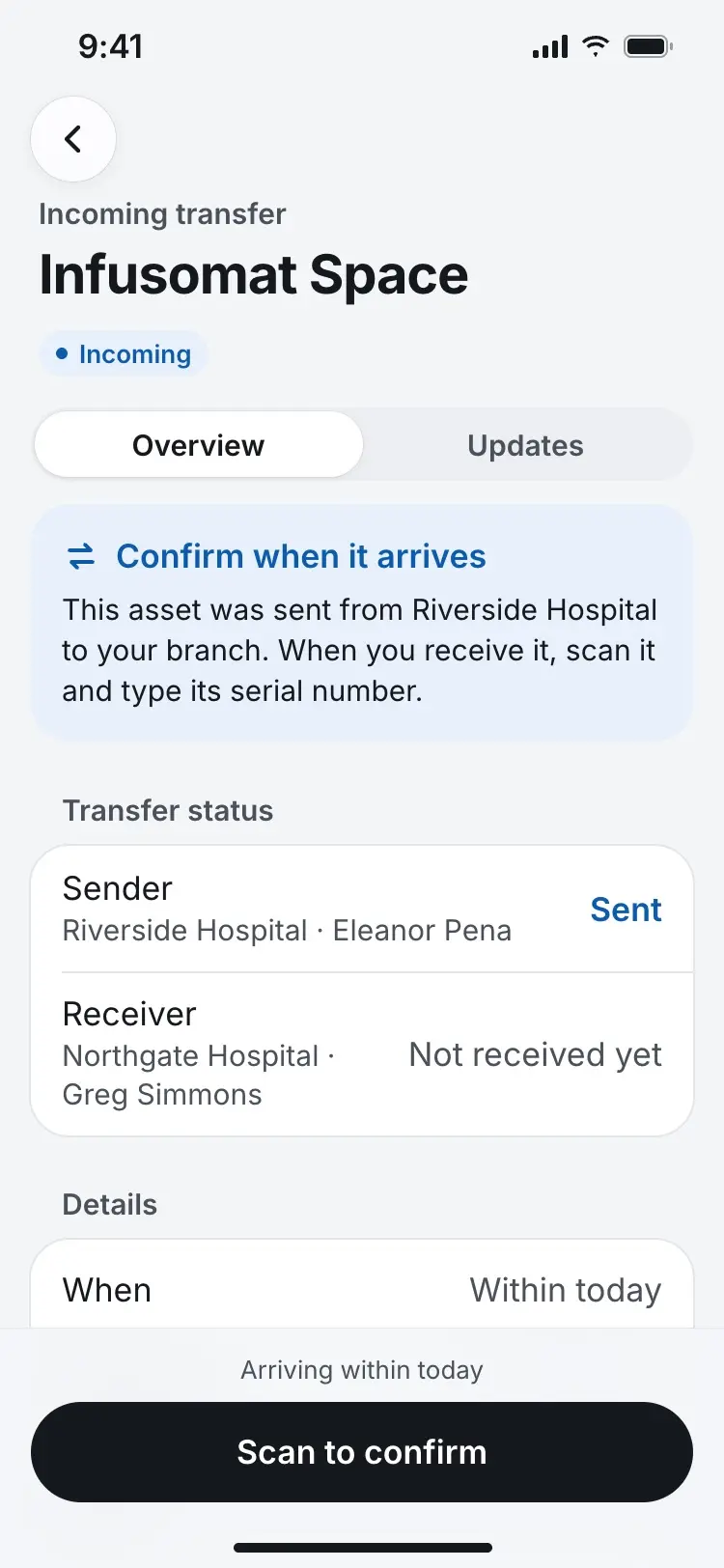
A transfer between branches shows both sides' status until it's confirmed. 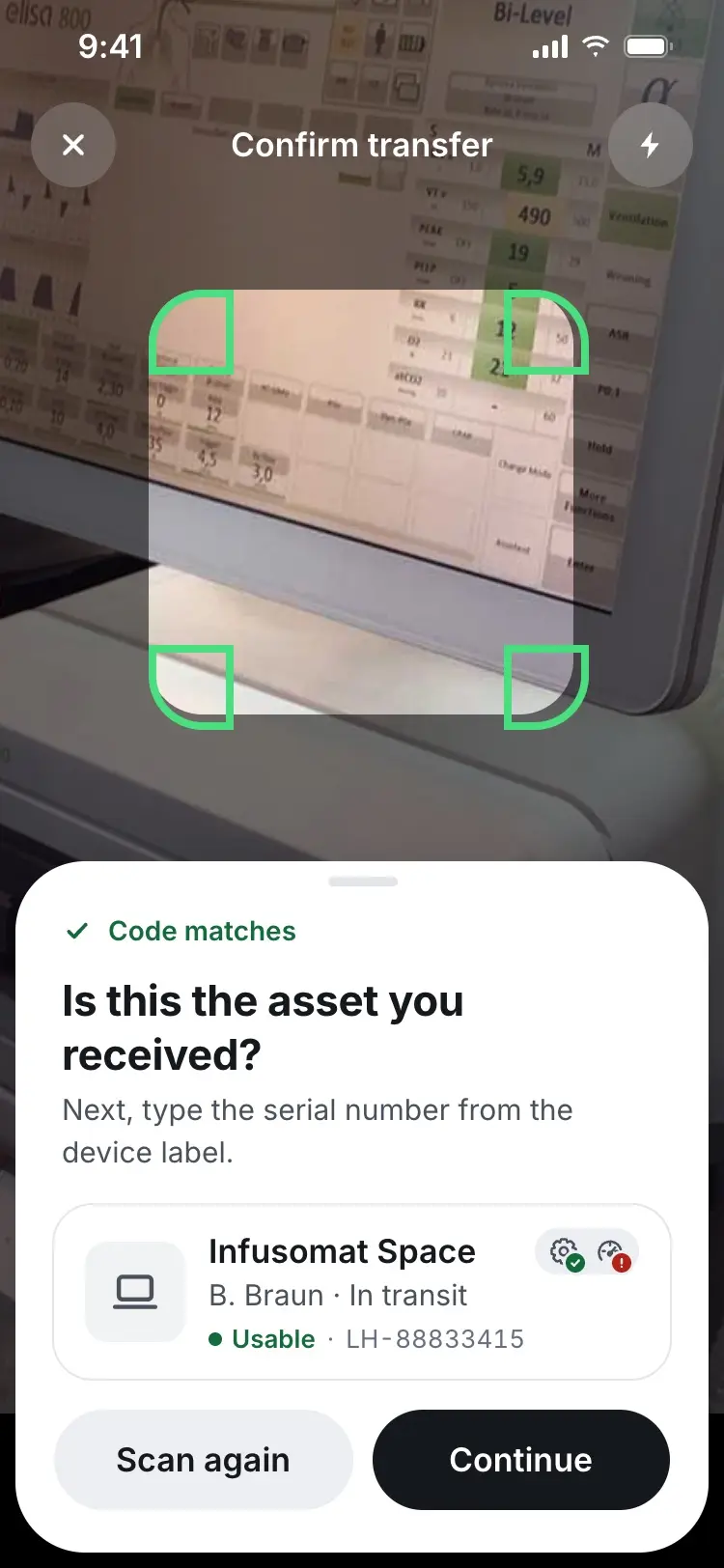
Receiving a transfer starts with confirming the device by its code. 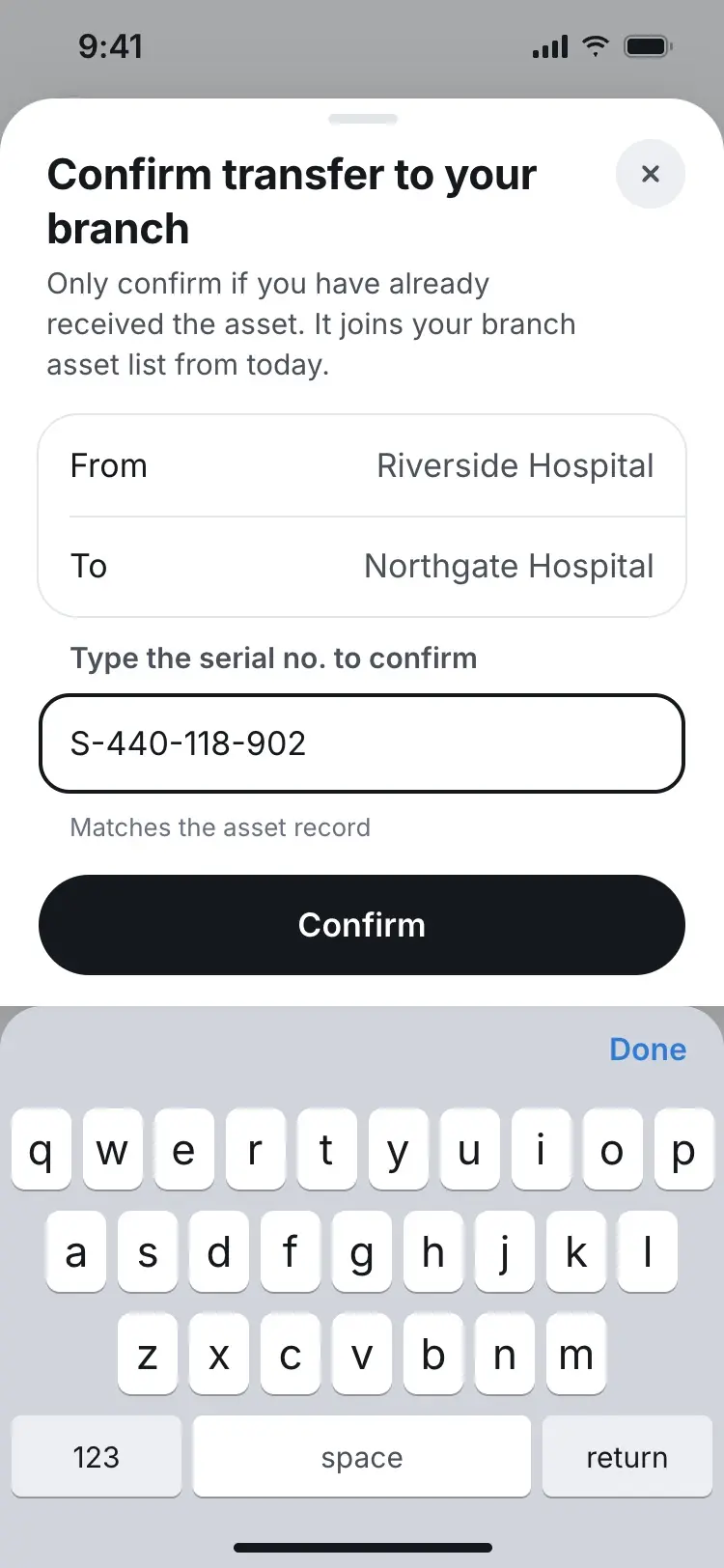
A typed serial number is the second check before the transfer completes. 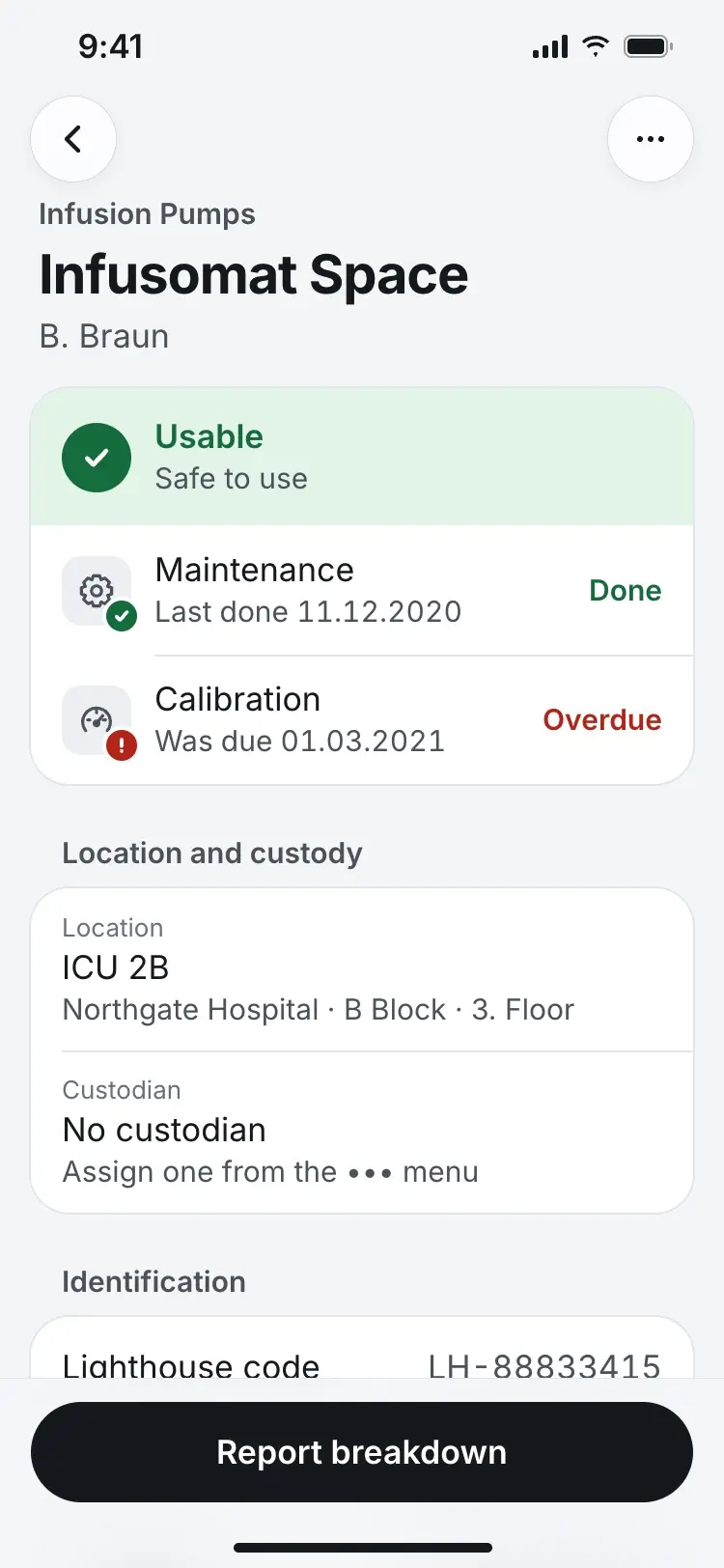
Once confirmed, the record shows where the device is now. 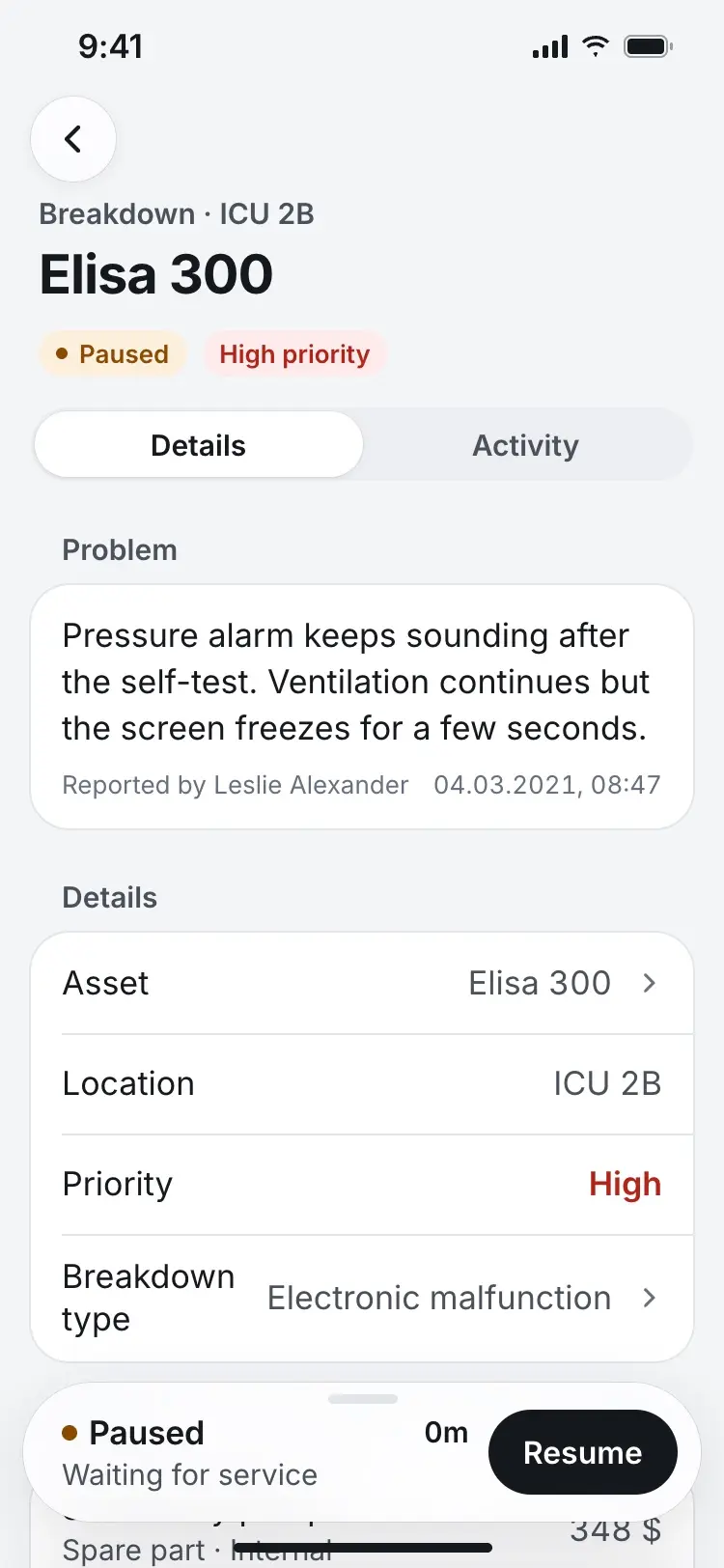
Pausing asks why, so a stalled task still shows what it's waiting on. 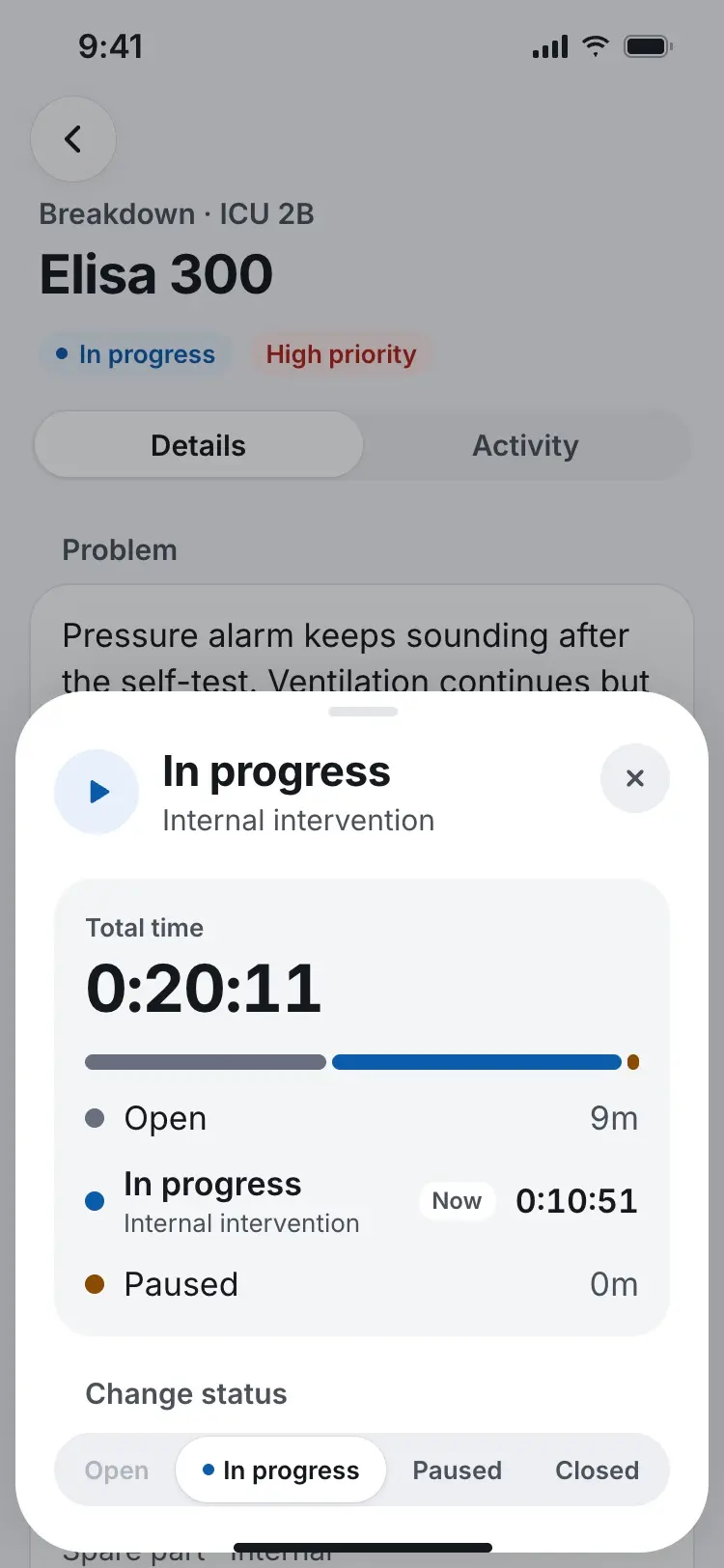
Pulled up, the bar becomes a time log for the task. 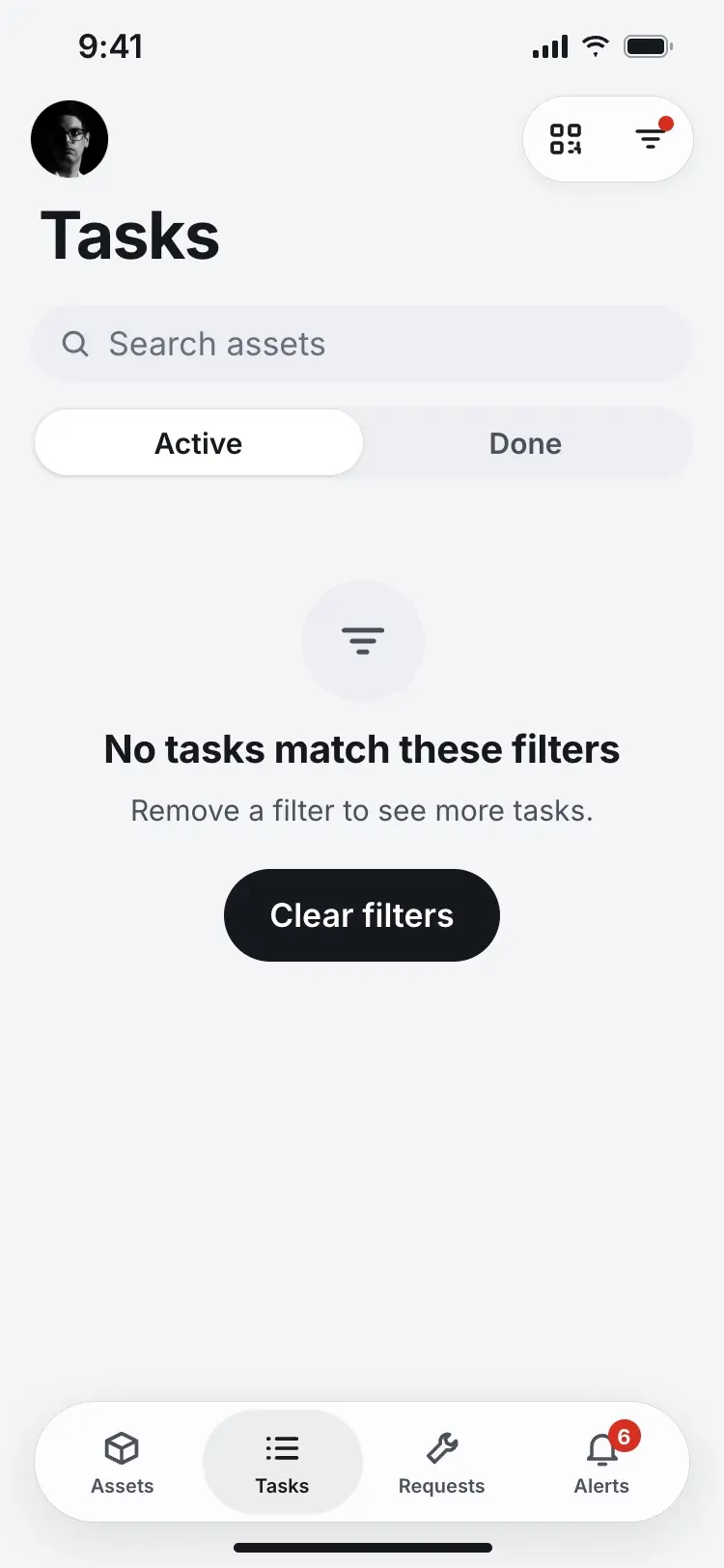
An empty result after filtering still tells the technician how to get back to a full list. Manager — Confirm and assign a request
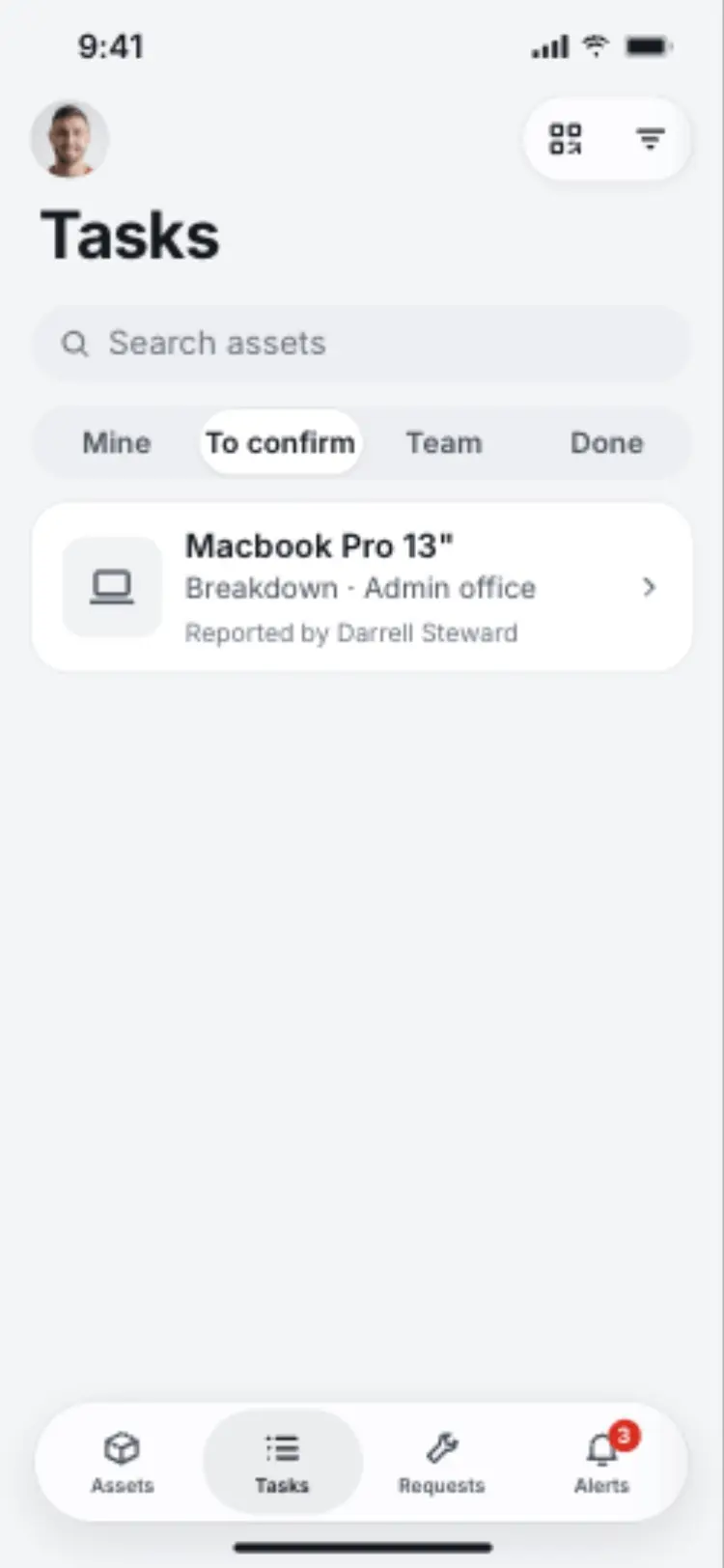
New breakdown requests wait in their own segment until the manager assigns them. 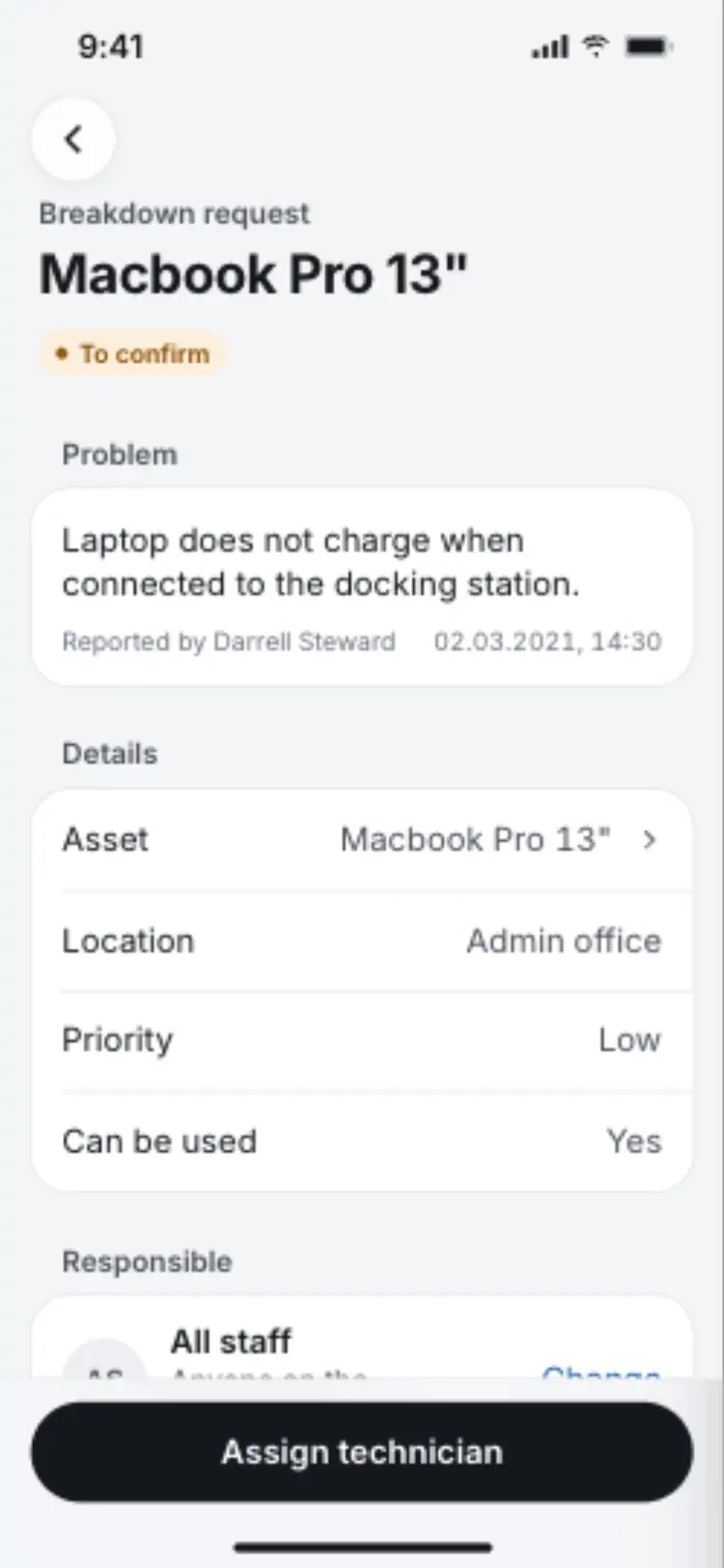
The manager sees what the reporter entered. 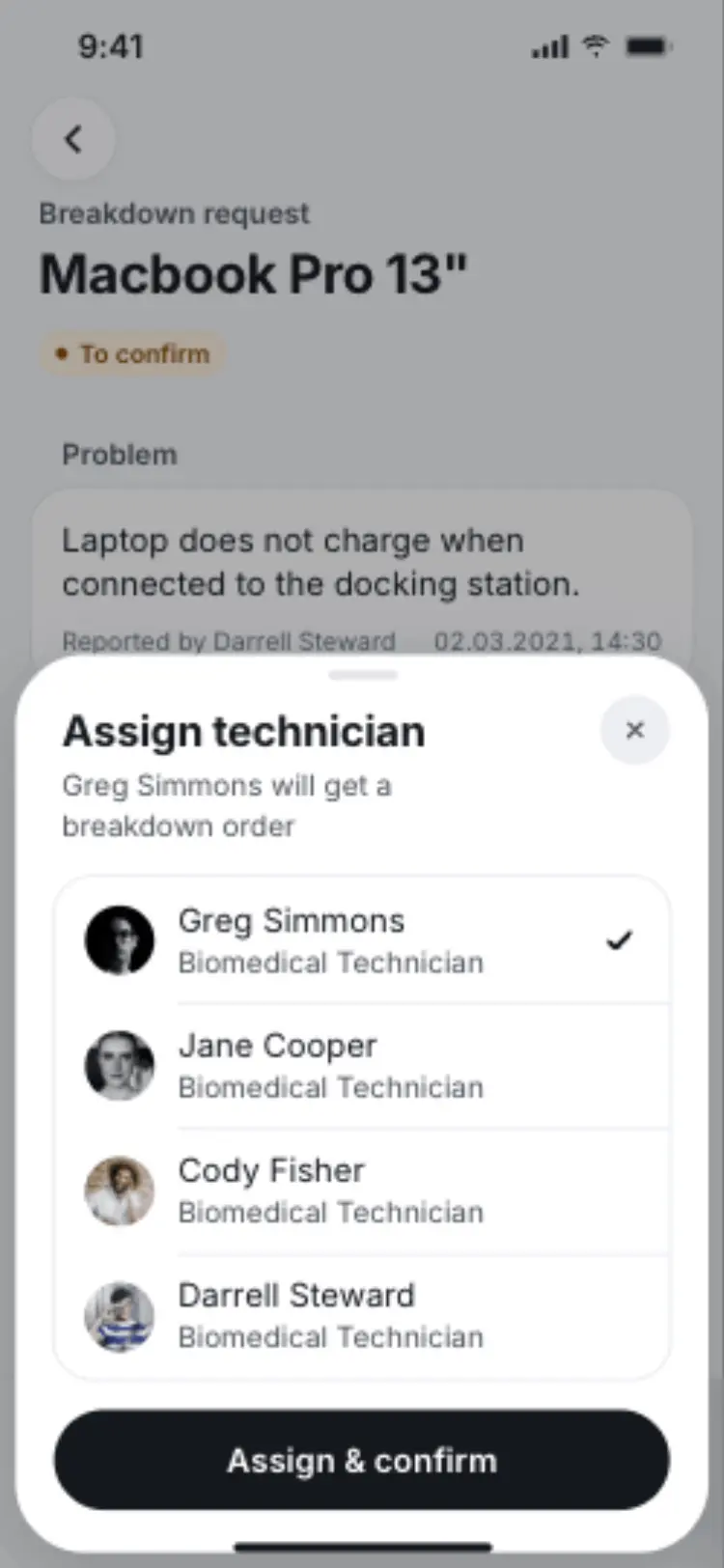
Assigning names one technician and previews what will happen next. 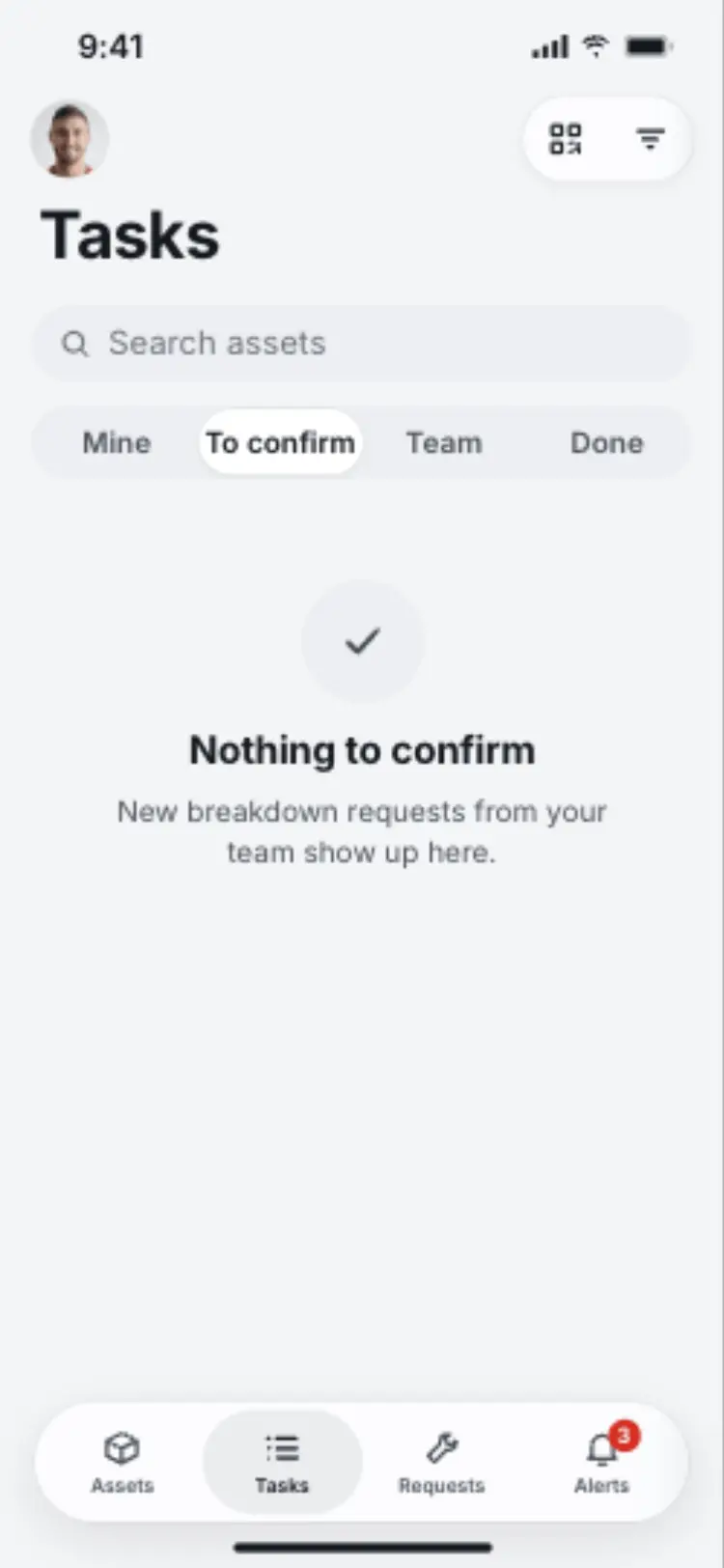
Once assigned, a request clears from the manager's queue immediately. 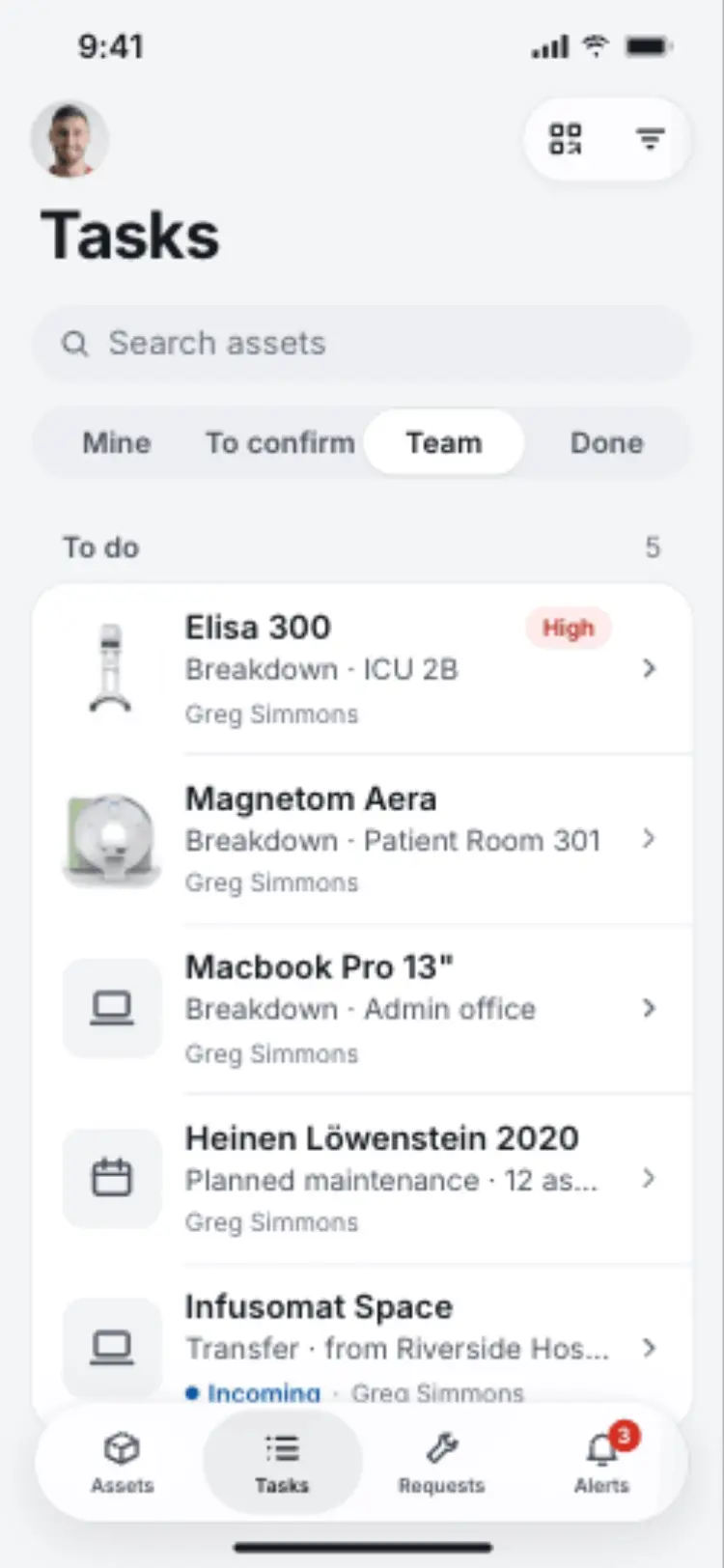
Team shows the manager the whole group's workload at a glance. 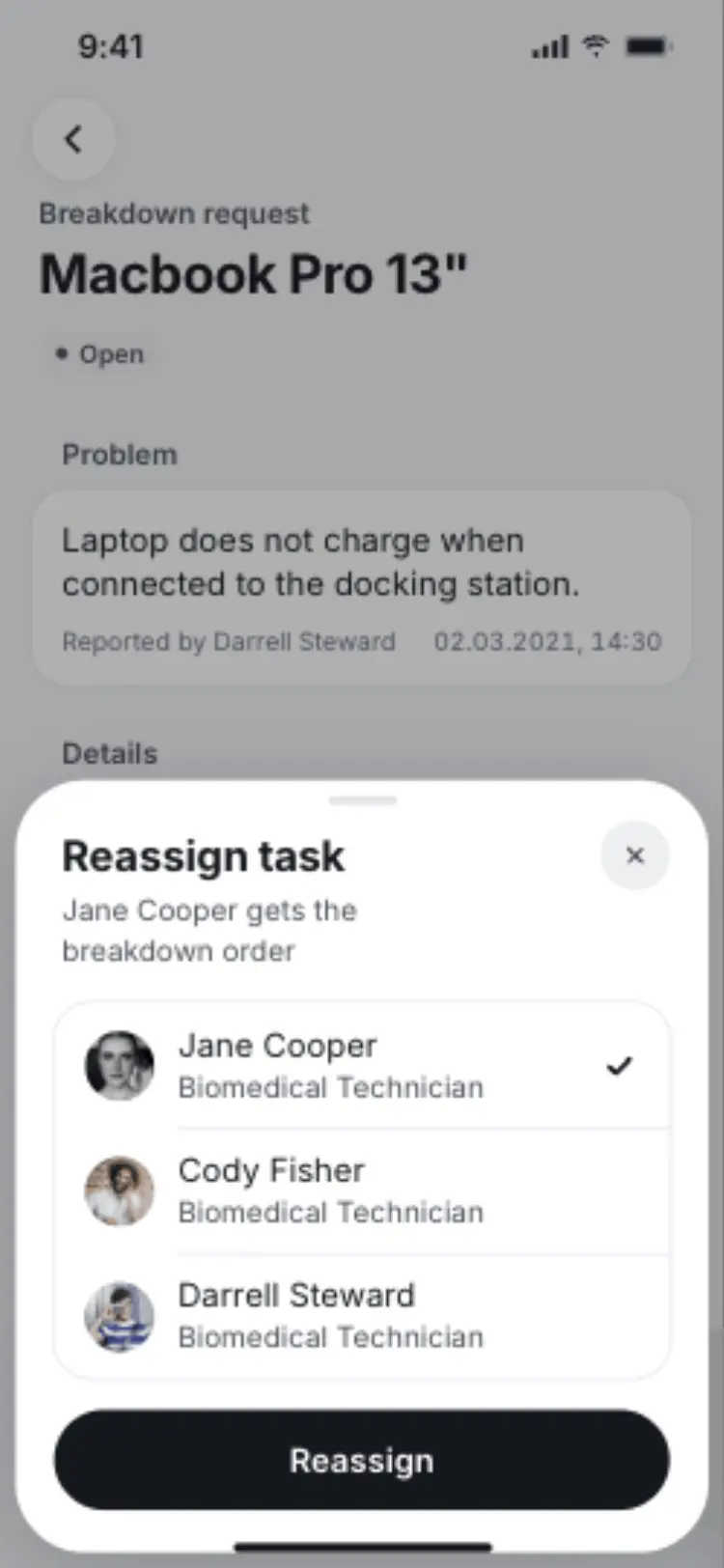
Reassigning starts from the same task. Manager — Review a retirement request
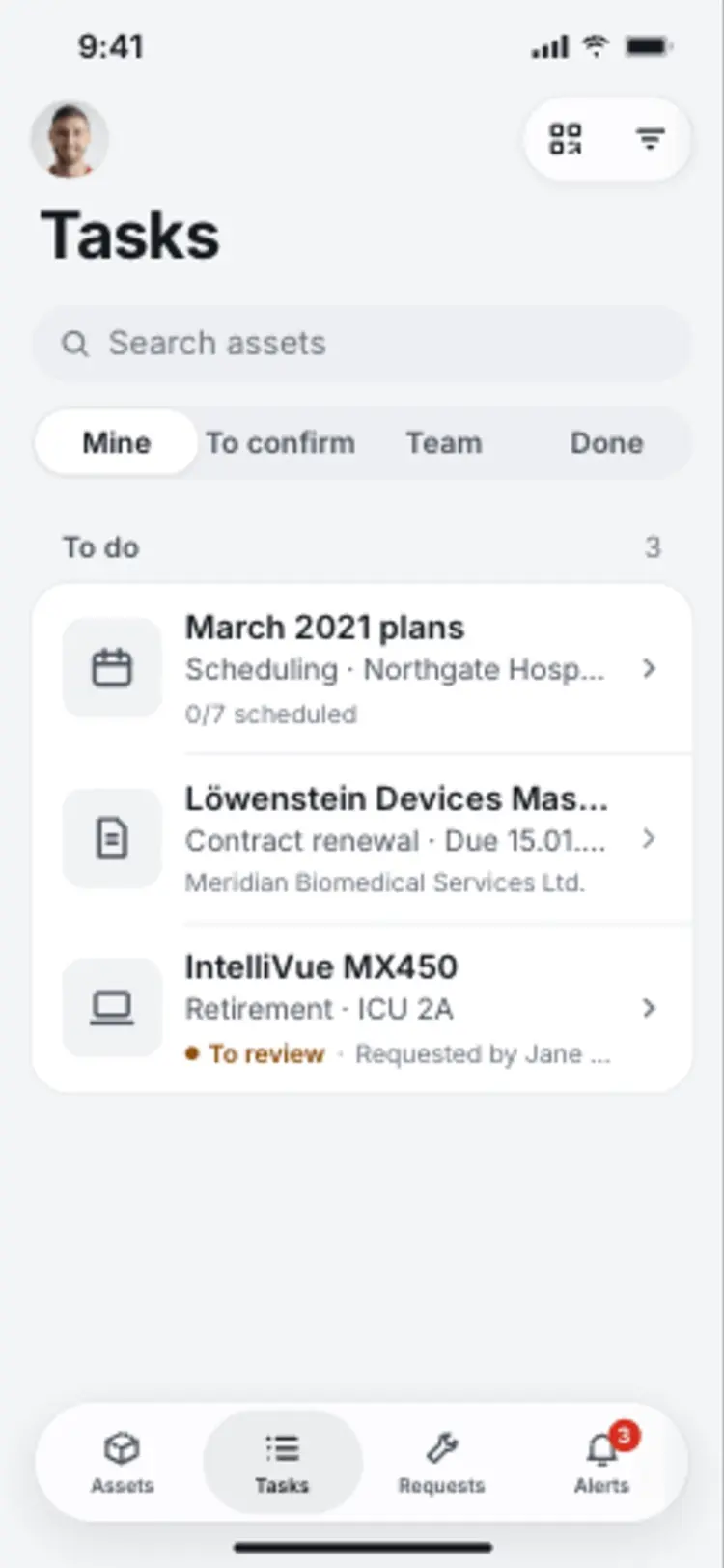
A manager's list mixes plans, contracts and requests that all need a decision. 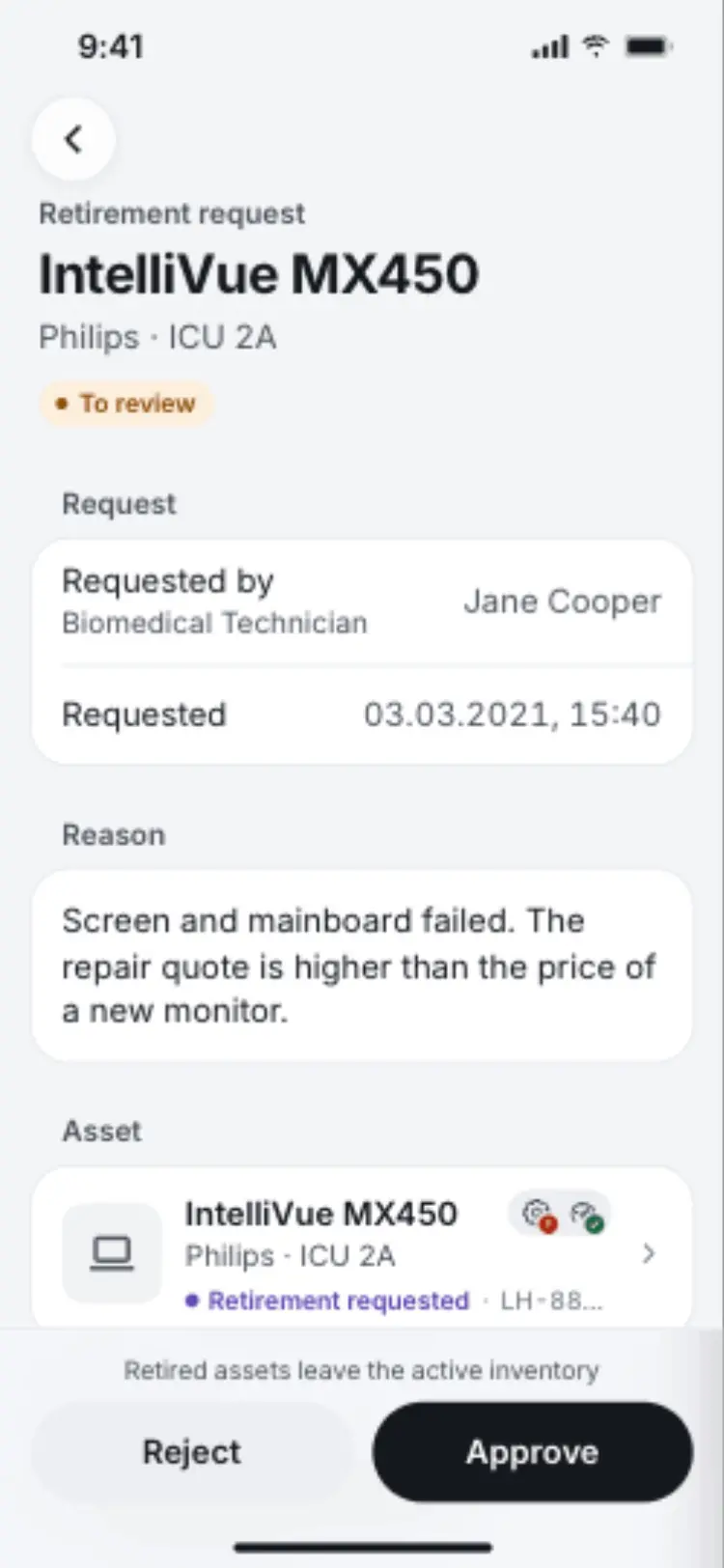
A retirement request carries the technician's reasoning before the manager acts on it. 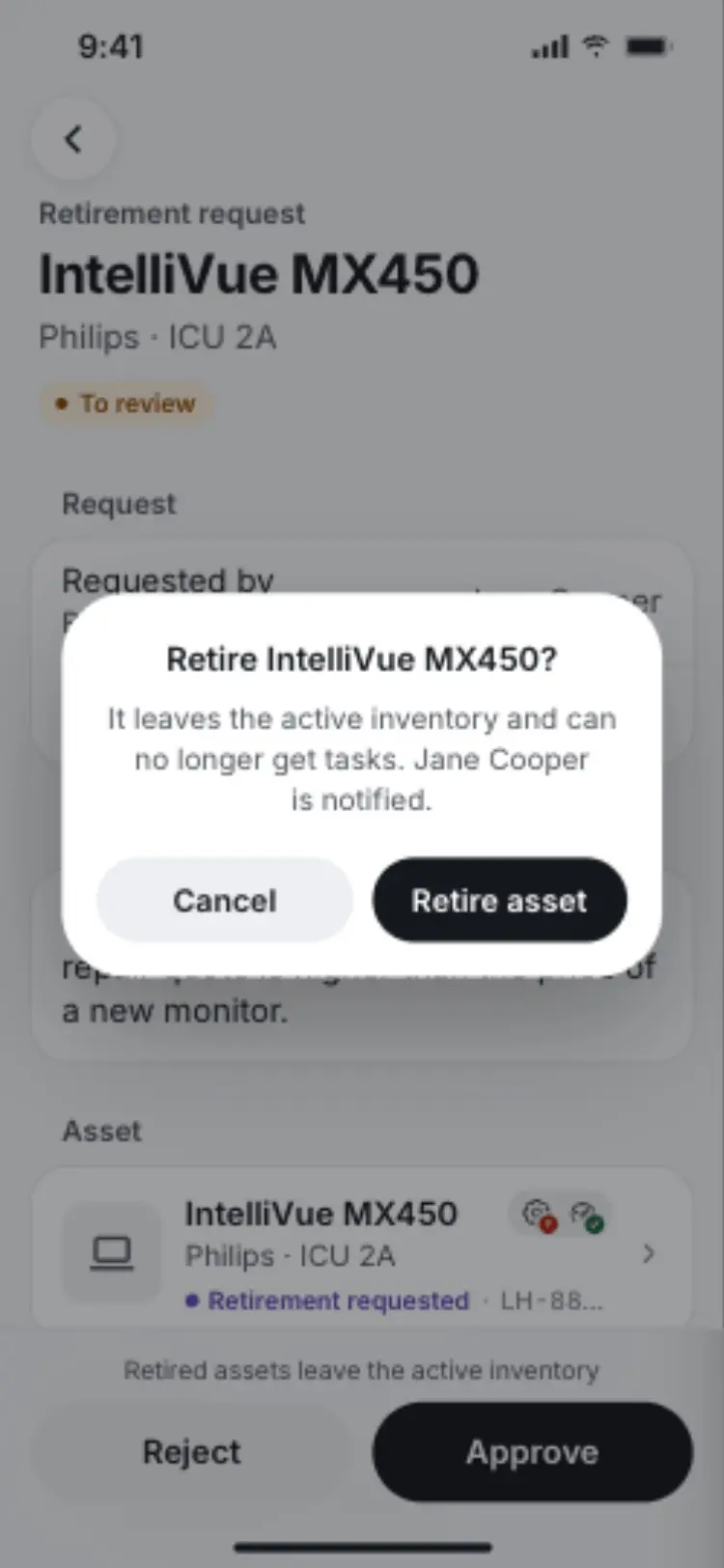
Retiring a device is a deliberate second step, not a single tap. 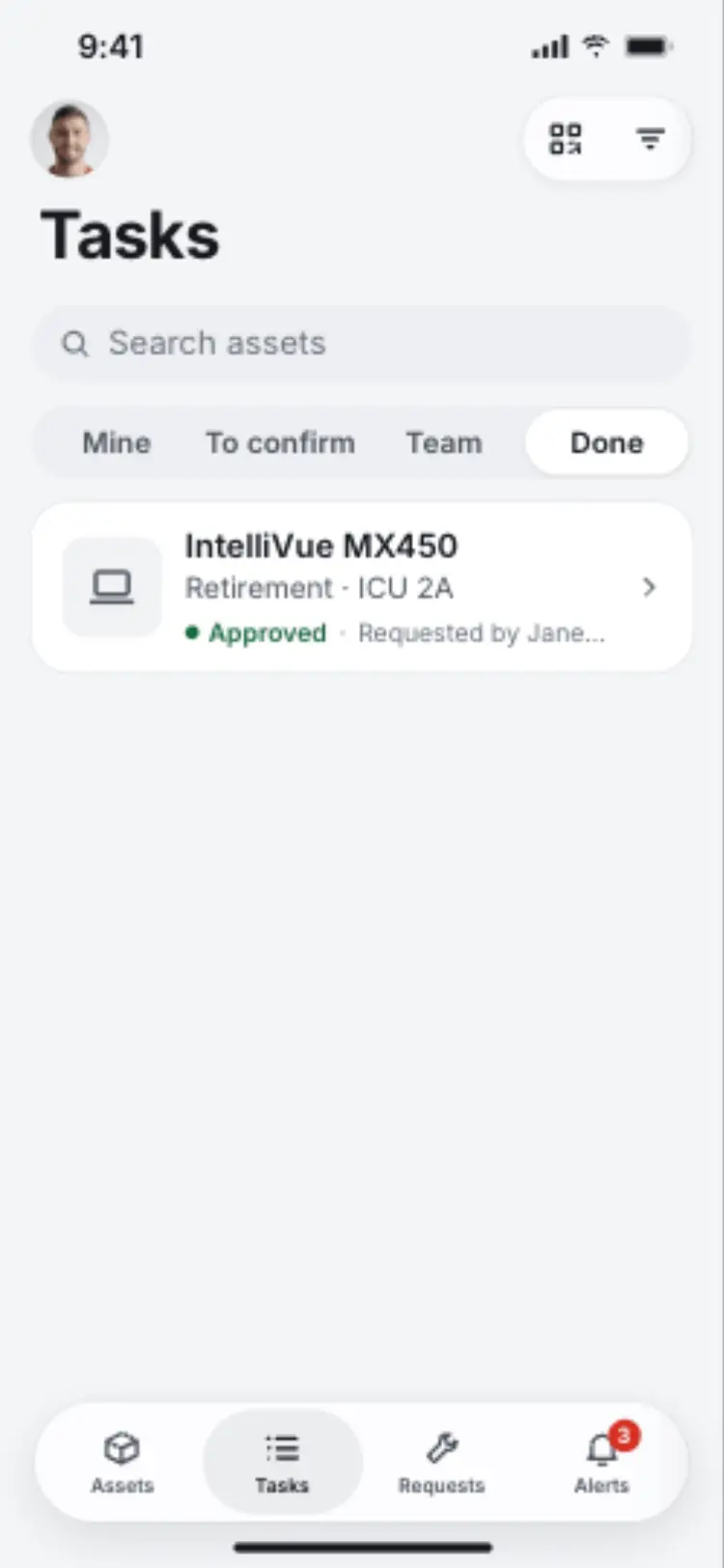
A decided request moves to Done so the active lists stay current. 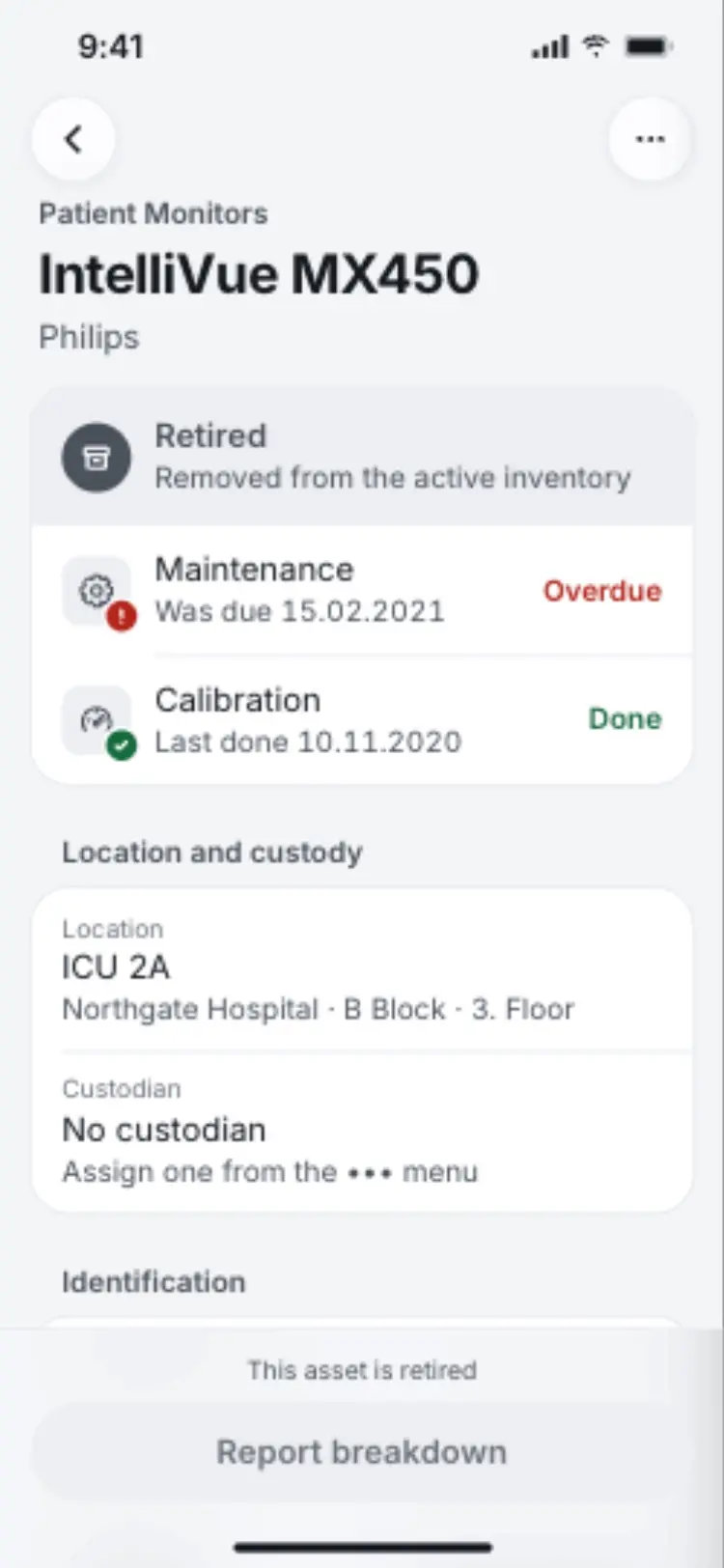
Once retired, the asset record itself reflects that it's out of service. 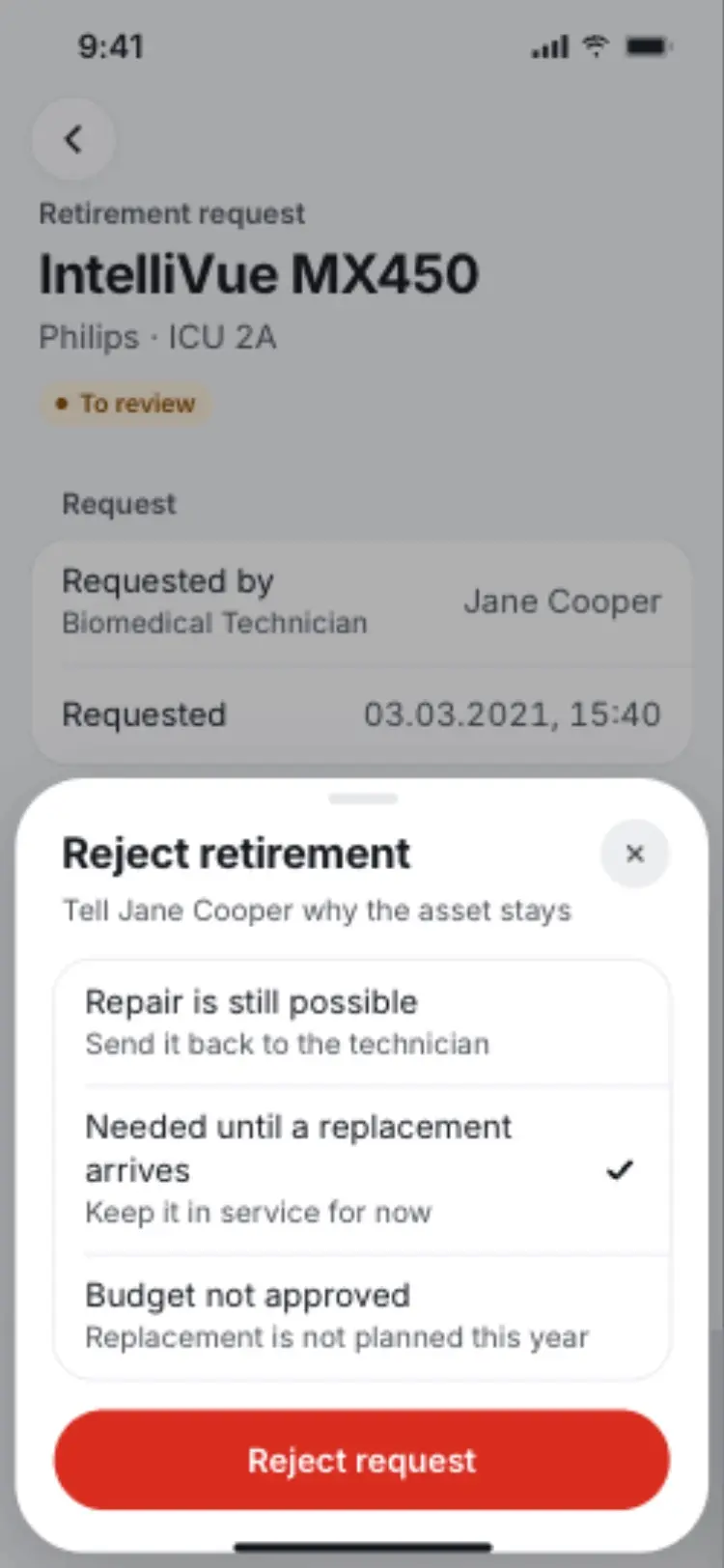
Rejecting a retirement still records why the device stays in service. 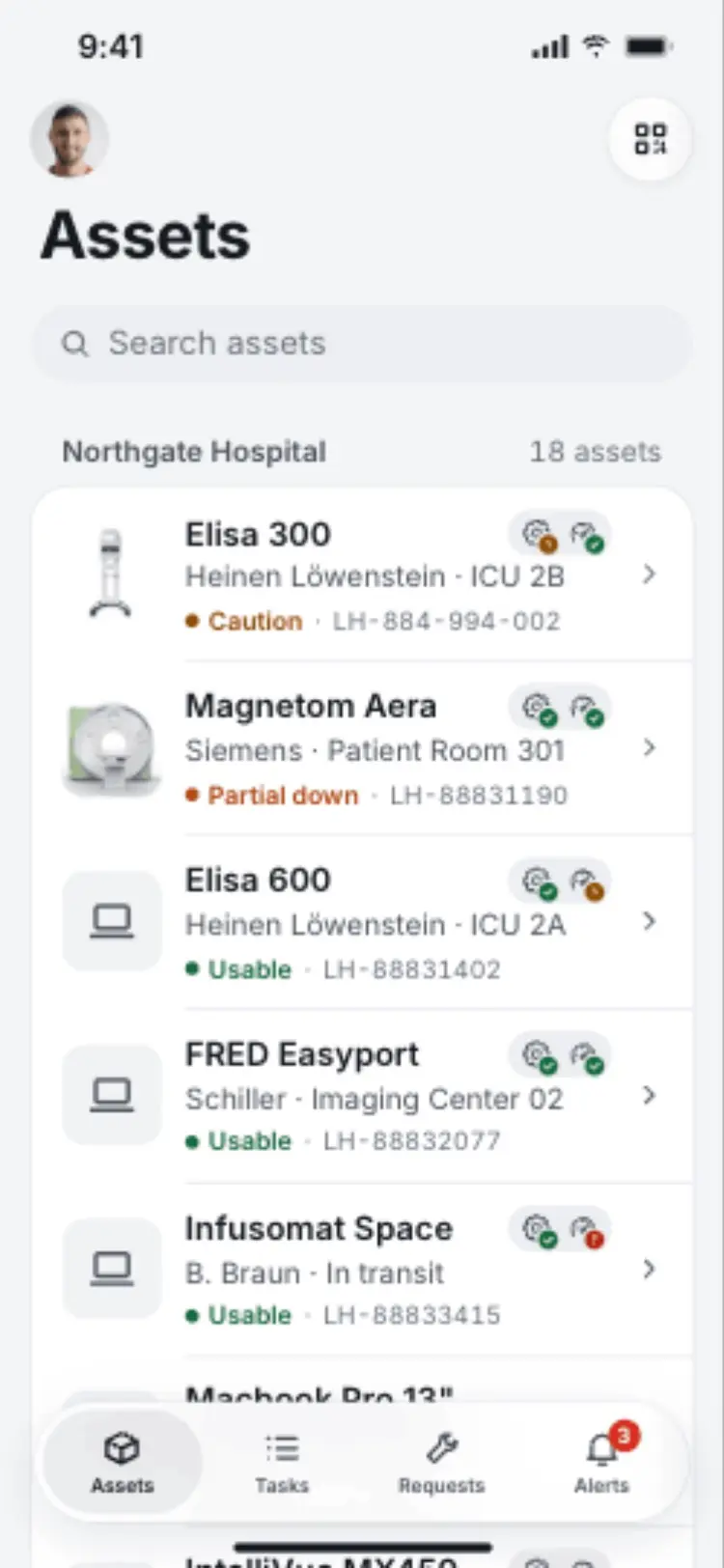
The asset list surfaces condition and upkeep status without opening each device. 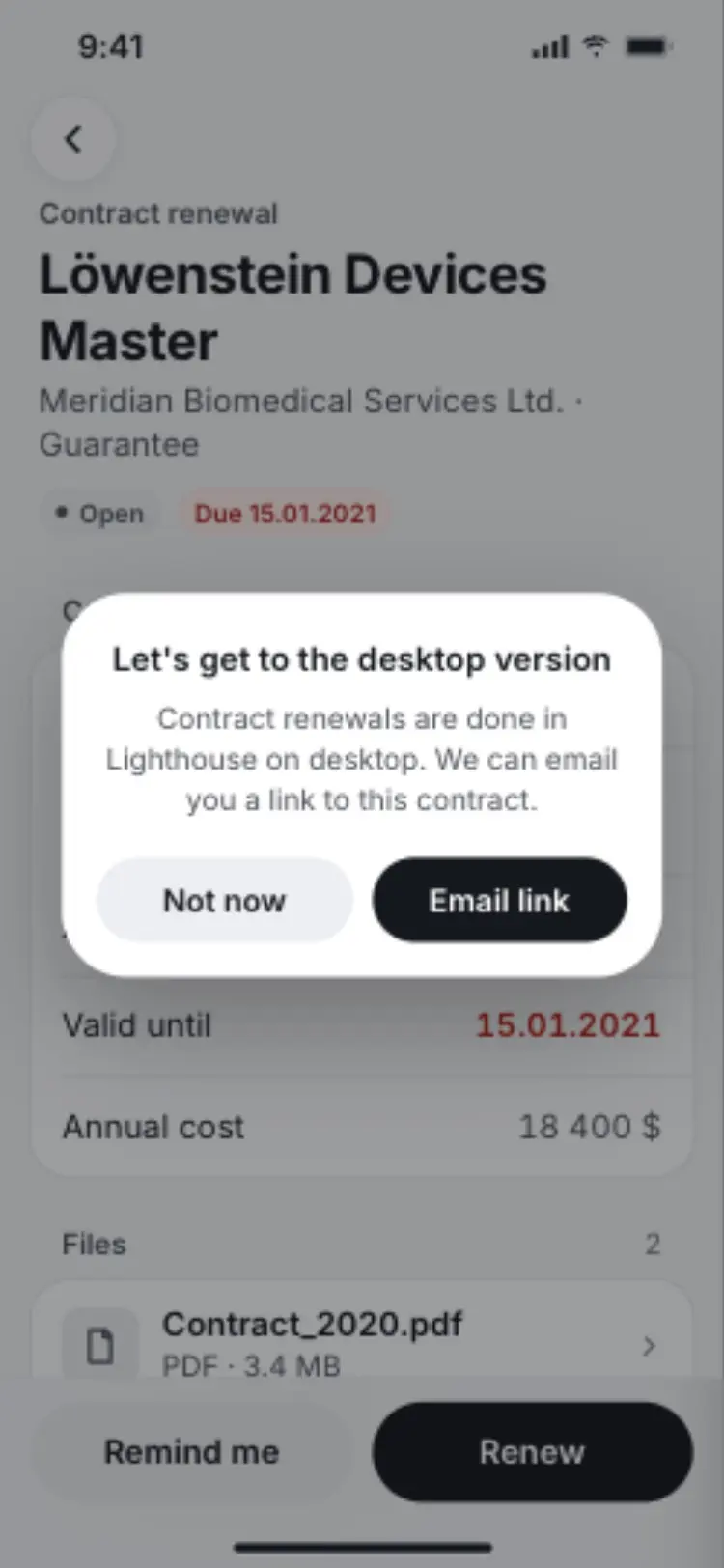
Renewals are one task the phone deliberately hands off to desktop. 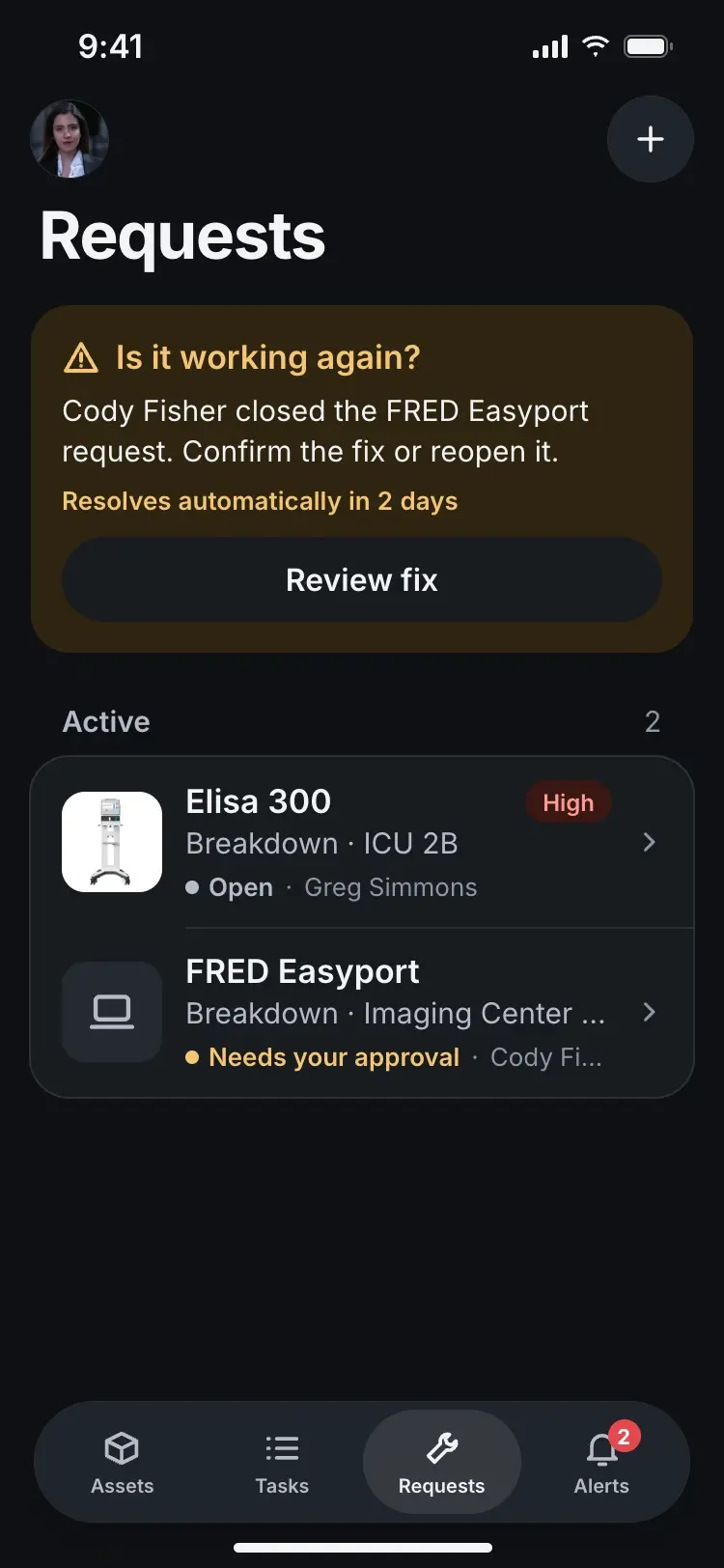
The Requests home in dark mode. 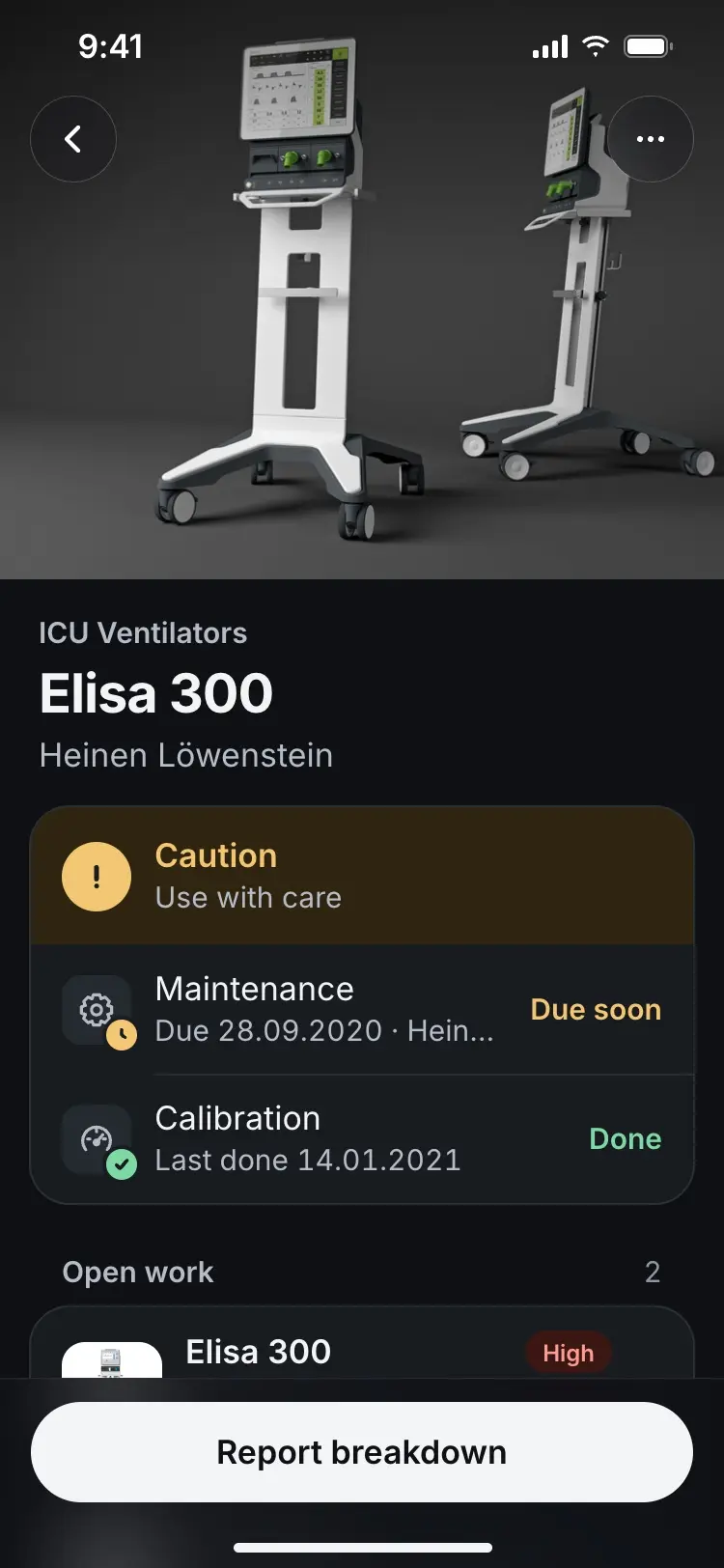
The asset screen in dark mode. 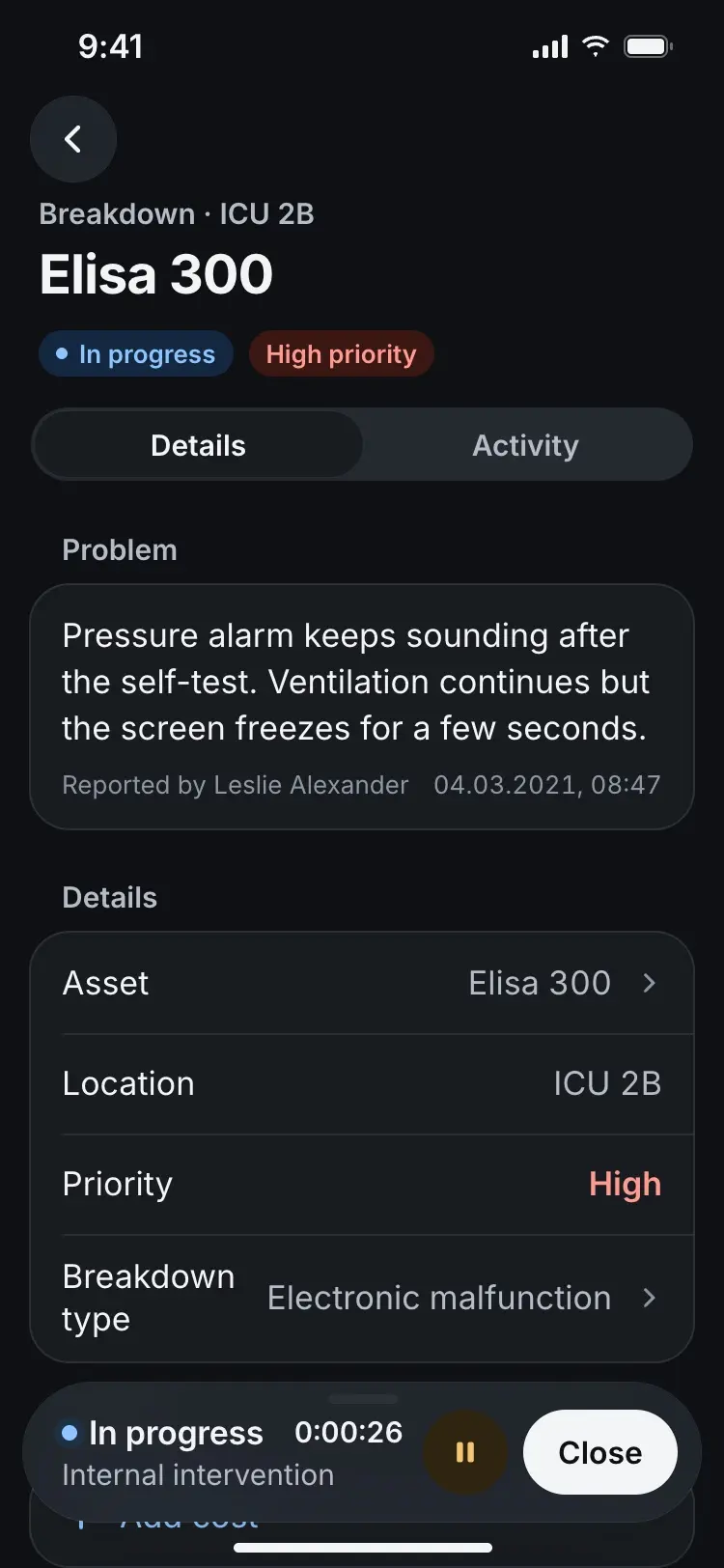
The task bar in dark mode. 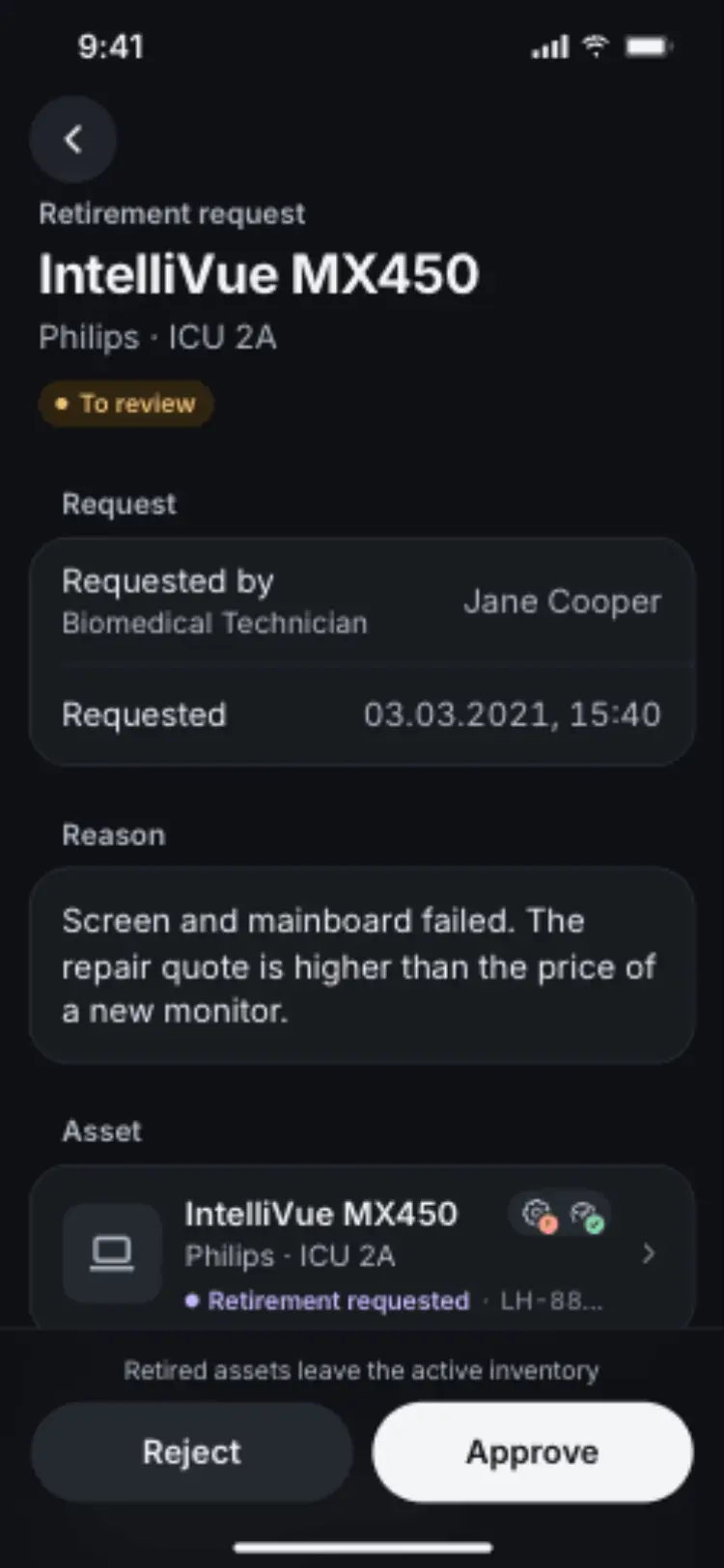
A retirement request in dark mode.
More case studies
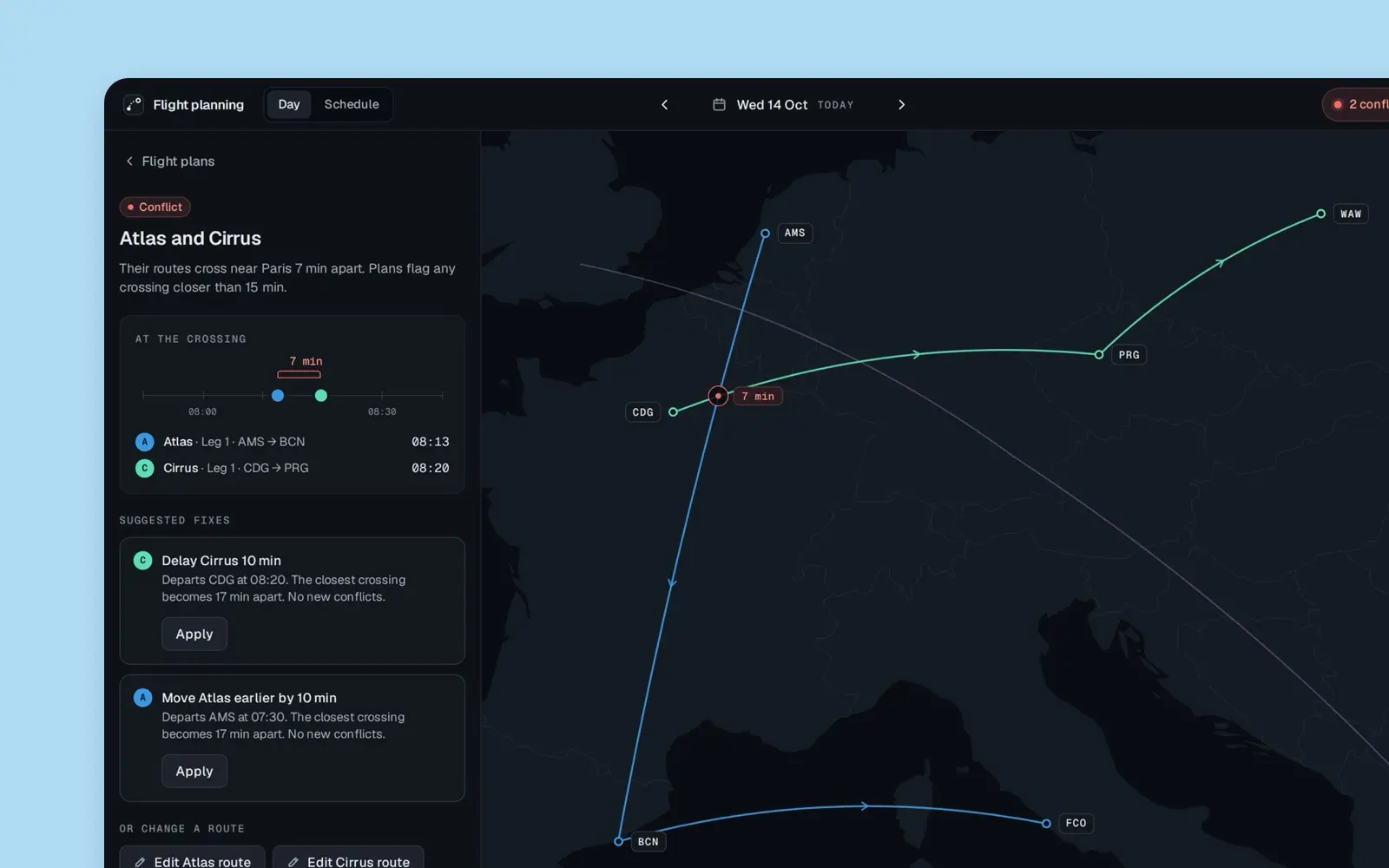
Flight Planning
A planner for three aircraft, from a December 2019 take-home task: today's plans beside one map, every crossing shown, only the close ones in time a conflict.
case study · 2019 · read it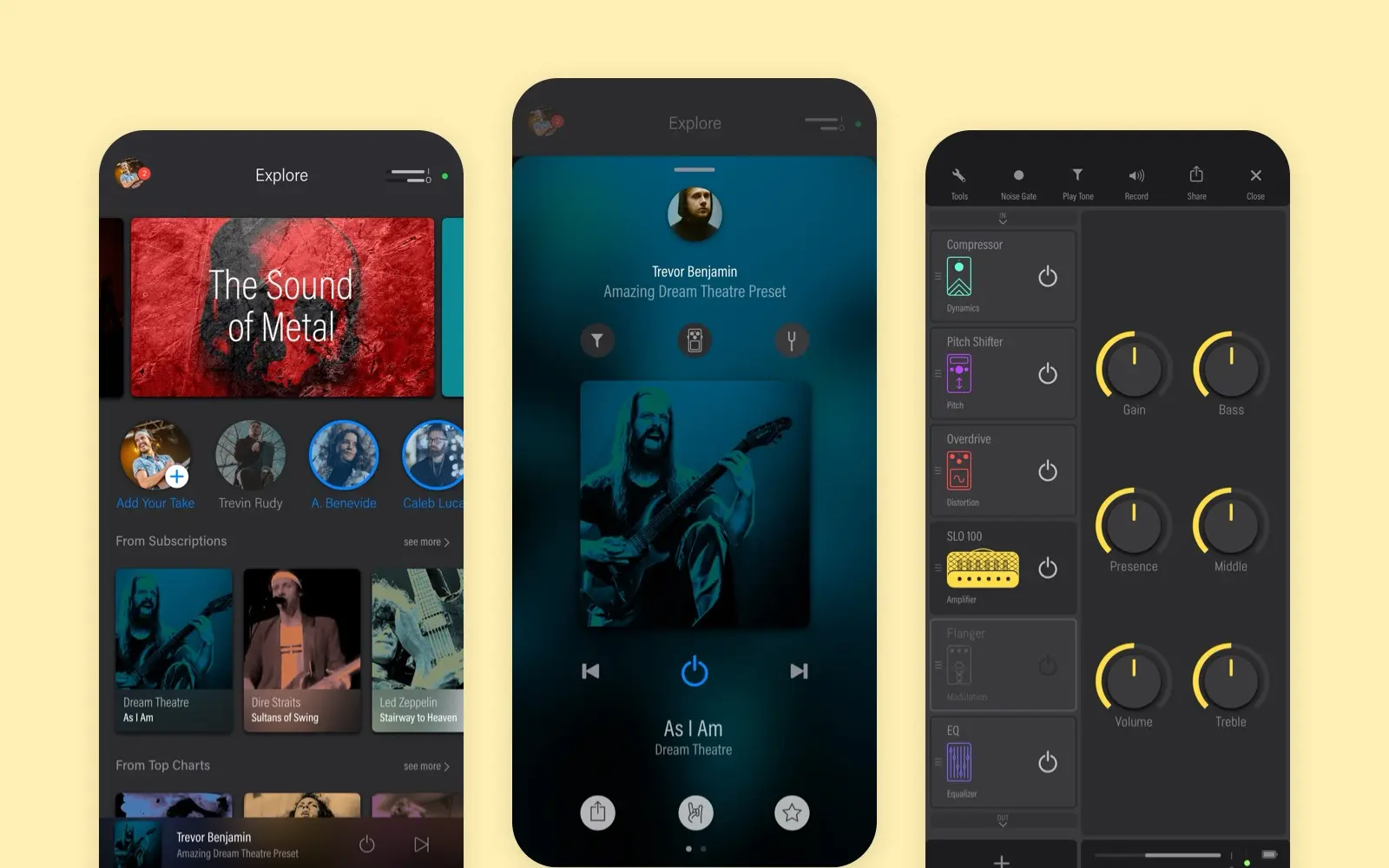
Solo
A social app for guitar tones, shipped on iOS and Android. Every pedal and amp is drawn, and the studio knob is rebuilt live on this page.
case study · 2019 · read it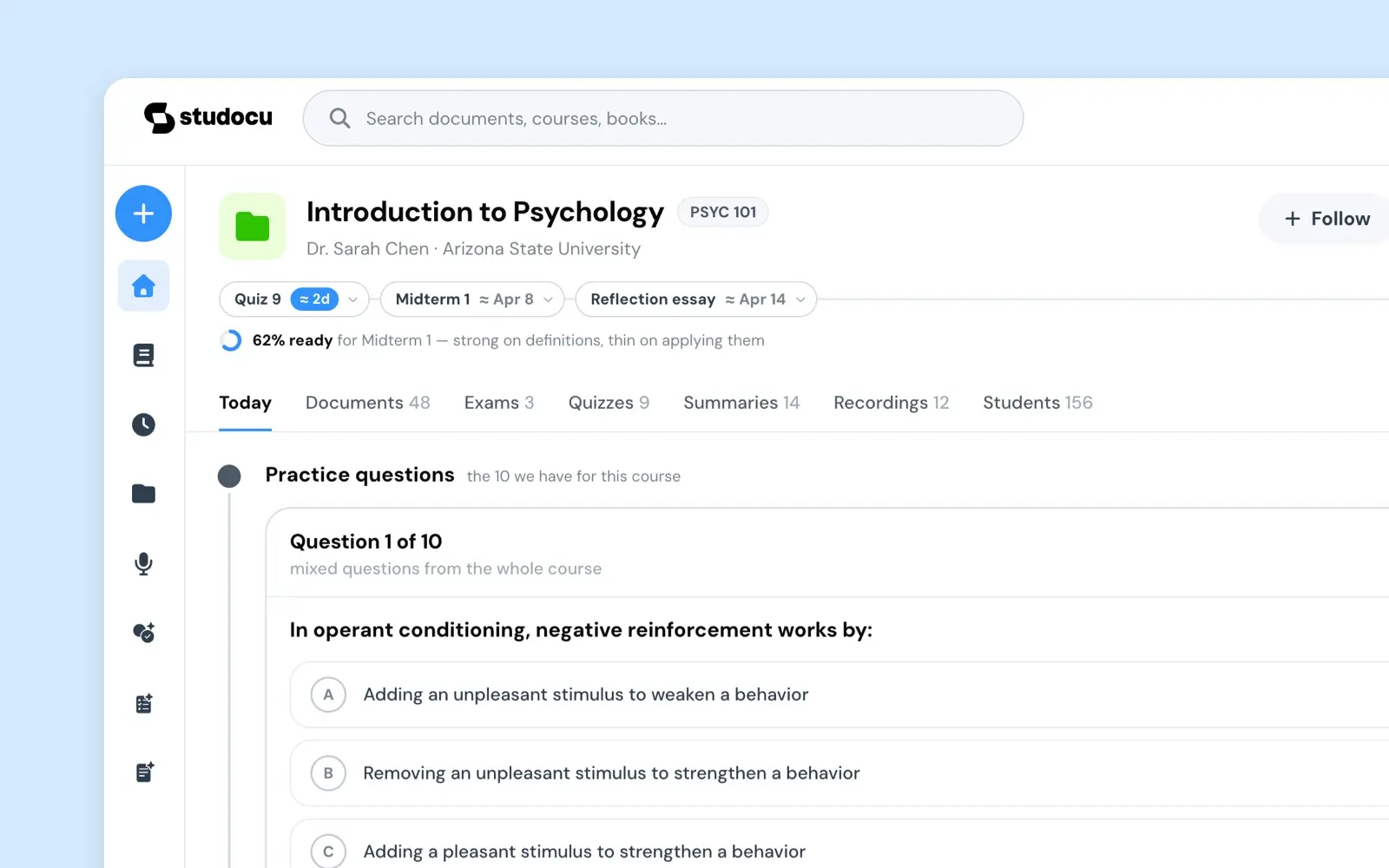
Course Companion
I pitched a course page nobody asked for. It became a funded mission and went live as an A/B test. Sixteen states of what a page may say, flip them here.
case study · 2026 · read it